Track AI and LLM spend
Your teams call Claude through Anthropic and Amazon Bedrock, use OpenAI, and pay for Cursor seats, and nobody knows the total. This guide puts all of it on one page, next to your cloud bill, and breaks it down by model, team and person.
You will use: Integrations · Cost Views · Budgets · Cost Anomalies Time: 20 minutes, plus a day for the first data to arrive
1. Connect the AI tools
Open Integrations and connect each tool your teams use. Each needs one key:
| Tool | What you need | Guide |
|---|---|---|
| Anthropic | An Admin API key from your Anthropic organization | Connect Anthropic |
| OpenAI | An admin key (sk-admin-…) | Connect OpenAI |
| Cursor | A team Admin API key with the admin:* scope | Connect Cursor |
| Amazon Bedrock | Nothing more: Bedrock is billed through AWS, so it arrives with your AWS connection | Connect AWS |
2. See the total
Open Cost Management → Cost Views and select All AI Spend by Provider. It adds up the AI and machine learning services of AWS, Google Cloud and Microsoft Azure, plus OpenAI, Anthropic and Cursor, and shows AI spend as a share of your whole bill.
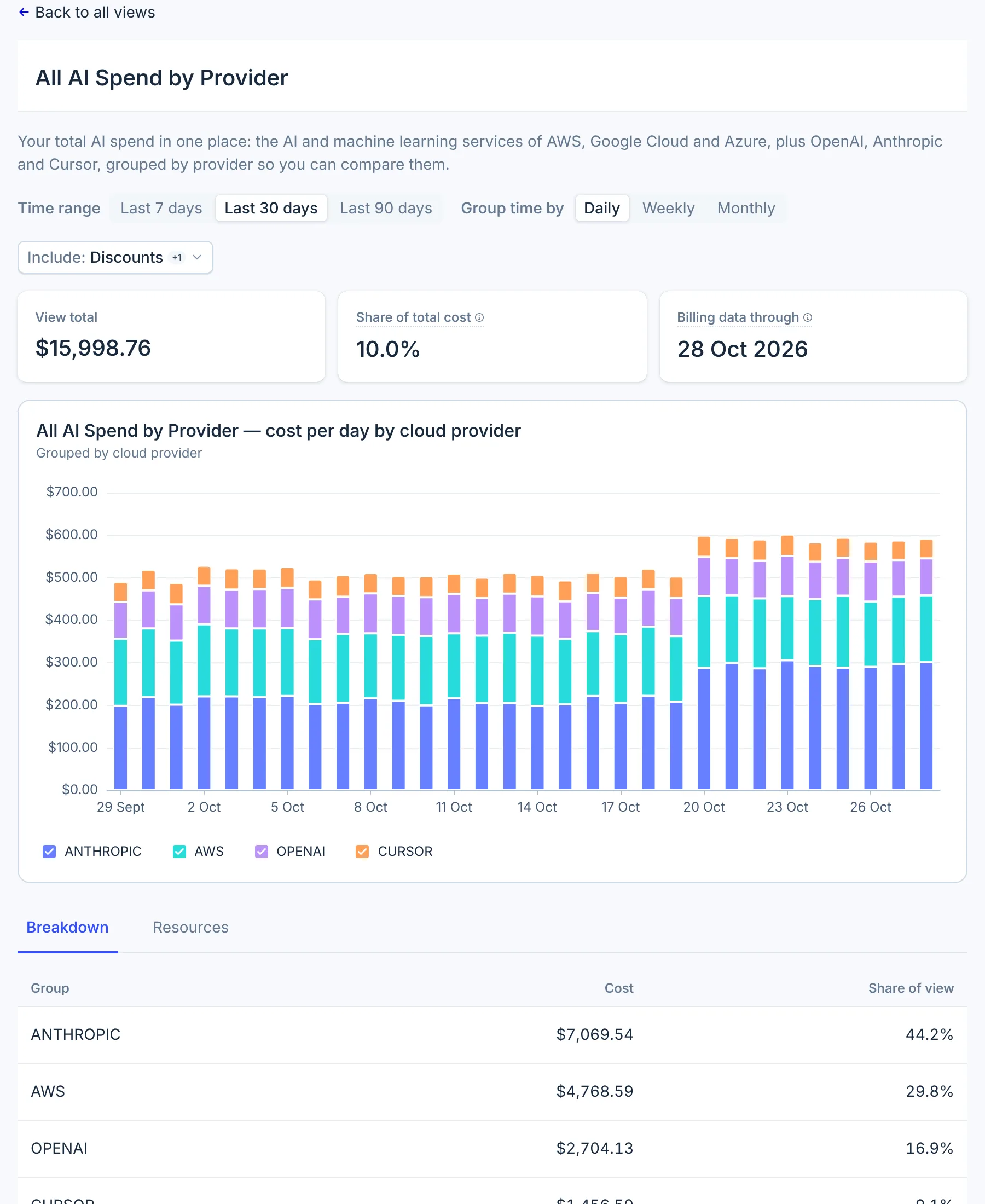
At Northwind Labs (a fictional company), AI was $15,998.76 over 30 days, 10.0% of the bill, led by Anthropic.
3. Break it down
Search the Cost Views catalogue for the vendor's name to find its views. The ones that answer the usual questions:
| Question | View |
|---|---|
| Which team spends most on Claude? | Anthropic - Cost by Workspace Name |
| Which application, by its key? | Anthropic - Cost by API Key Name |
| Which models cost most on Bedrock? | Bedrock - Cost by Model |
| Are we buying the same model twice? | Claude - Cost by Platform: Claude bought from Anthropic, Bedrock, Google Cloud or Cursor |
| Which model families cost most overall? | AI Spend by Model Family |
| Who spends most in Cursor? | Cursor - Cost by User |
Each view's period is the last 7, 30 or 90 days. For any other range, or to filter by account, use Cost Explorer.
4. Find the waste
- Unused Cursor seats. Cursor - Active Users per Seat shows the share of paid seats people used. A falling line means seats nobody uses.
- Prompt caching. Anthropic - Cache Hit Rate by Model and Bedrock - Cache Hit Rate by Model show how much input is read from the cache, at the cheaper cache price. A low rate on a busy model is worth a look.
- Idle Bedrock capacity. Provisioned throughput with no invocations for 7 days appears in Cost Savings, under AWS.
Cost Savings does not list other AI savings yet; see AI and SaaS savings.
5. Set a limit and an alert
- In Financial Planning → Budgets, create a monthly budget for each AI tool: Anthropic scoped by workspace or model, OpenAI by organization or line item, Bedrock as an AWS budget on its service. Cursor cannot have a budget yet.
- Cost Anomalies checks Anthropic models and OpenAI line items every day, and emails your organization's signup address when one jumps. Cursor is not checked.
What you have now
- Every AI tool's spend in one view, as a share of the whole bill.
- The team, key, model or person behind each part of it.
- Seats and capacity you pay for and do not use.
- A budget and anomaly alerts on the tools that support them.
Do this every month
Open All AI Spend by Provider in the monthly cost review, and compare its share of the bill with last month.