Raise tag coverage above 90%
Finance wants every dollar of cloud spend assigned to a team, and today a sixth of it carries no tags. This guide takes you from the coverage figure to the keys and resources to fix, in the order that raises coverage fastest.
You will use: Tag Governance · Resource Inventory Time: 30 minutes to plan, then a few weeks for the tags to reach billing
1. Measure where you are
Open Cost Allocation → Tag Governance. Overview shows Tagged cost, Untagged cost and Tag coverage, the share of cost that is tagged. At Northwind Labs (a fictional company), it is 84.3%.
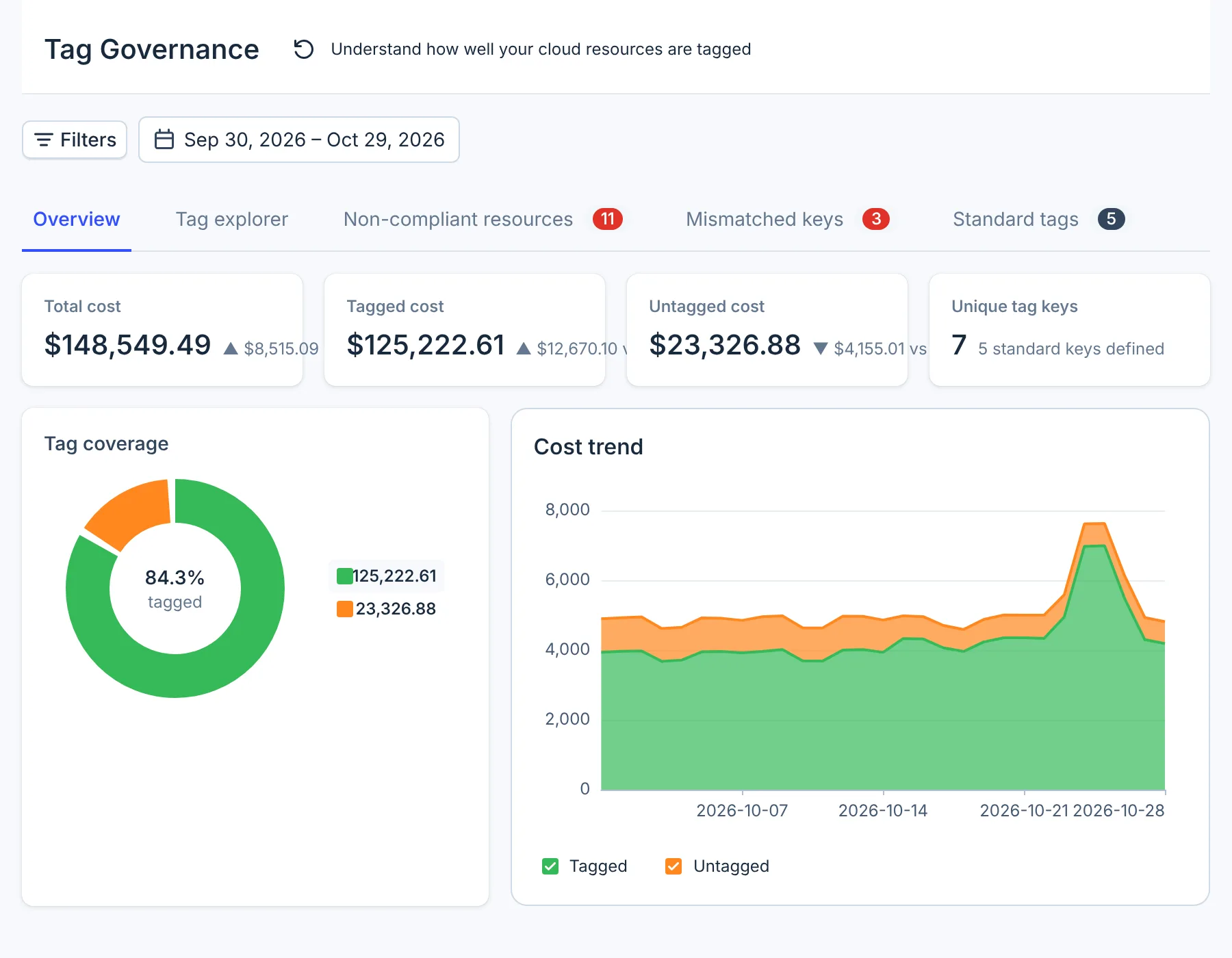
- Filters
- Period
- Tabs
Tag Governance leaves out the last day of the period you pick, so end the period one day later than the last day you want. Credits and refunds are left out of its totals.
Use Filters to narrow the Overview to one provider, account or region. The ones with the most untagged cost are where to start. For Microsoft Azure and Databricks, filter by provider: their account filter finds no spend.
2. Make sure your tags reach billing
Tag Governance counts tags the provider writes on billing lines, not tags on the resource. A key that your resources carry but billing does not shows This tag key is not in billing in the Tag explorer.
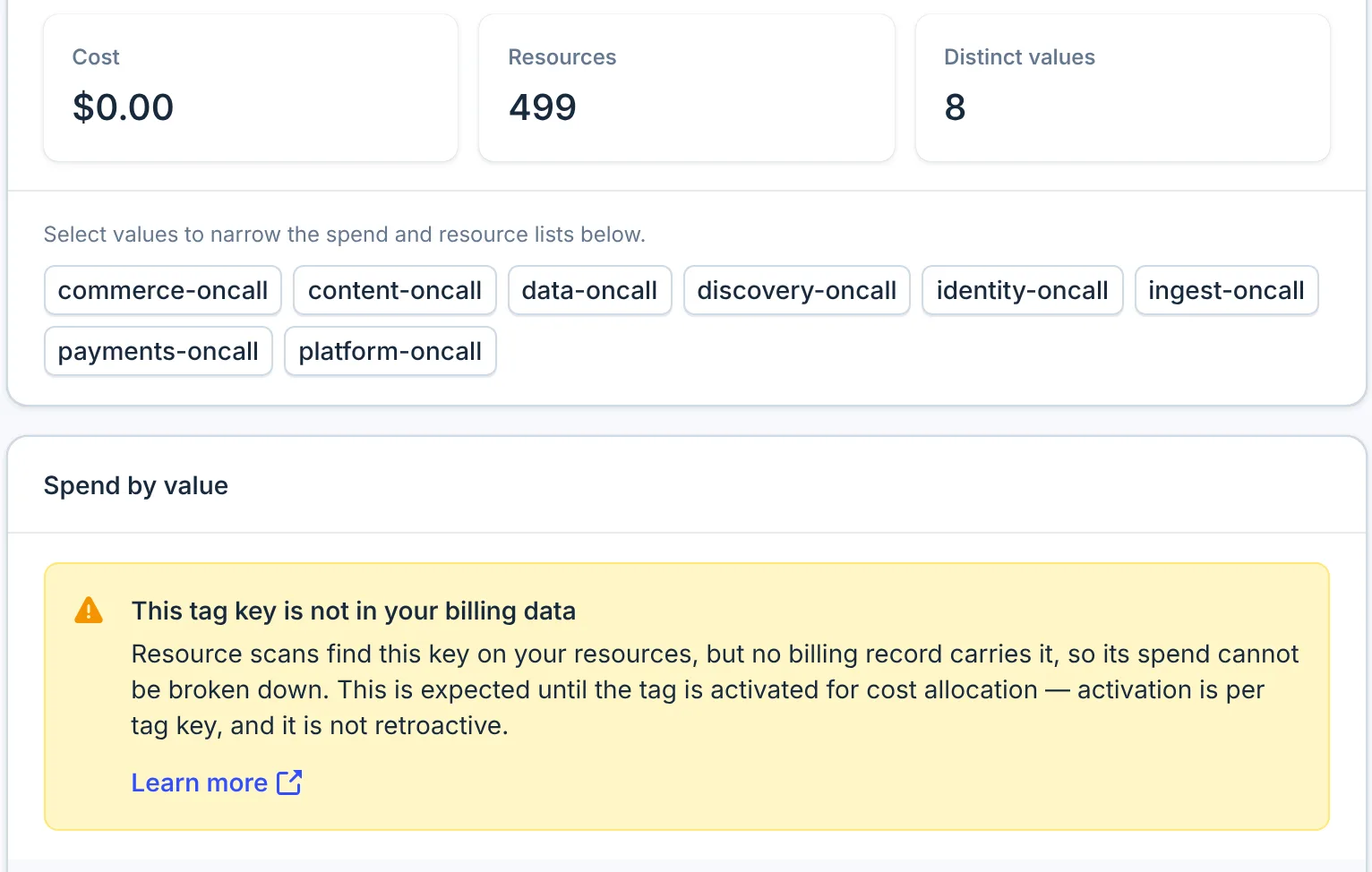
- AWS: activate each key in Billing and Cost Management → Cost allocation tags. AWS tags spend from activation onwards only.
- Google Cloud: use resource tags. Labels are not read, so spend with only labels counts as untagged.
- Azure: turn on Tag inheritance in Cost Management for resources that do not tag their own usage.
- Databricks: set custom tags on clusters, pools and SQL warehouses.
This step often raises coverage the most, because the tags are already on the resources.
3. Agree the standard keys
Open the Standard tags tab and add the keys your organization agrees to use, such as team,
env and cost-center.
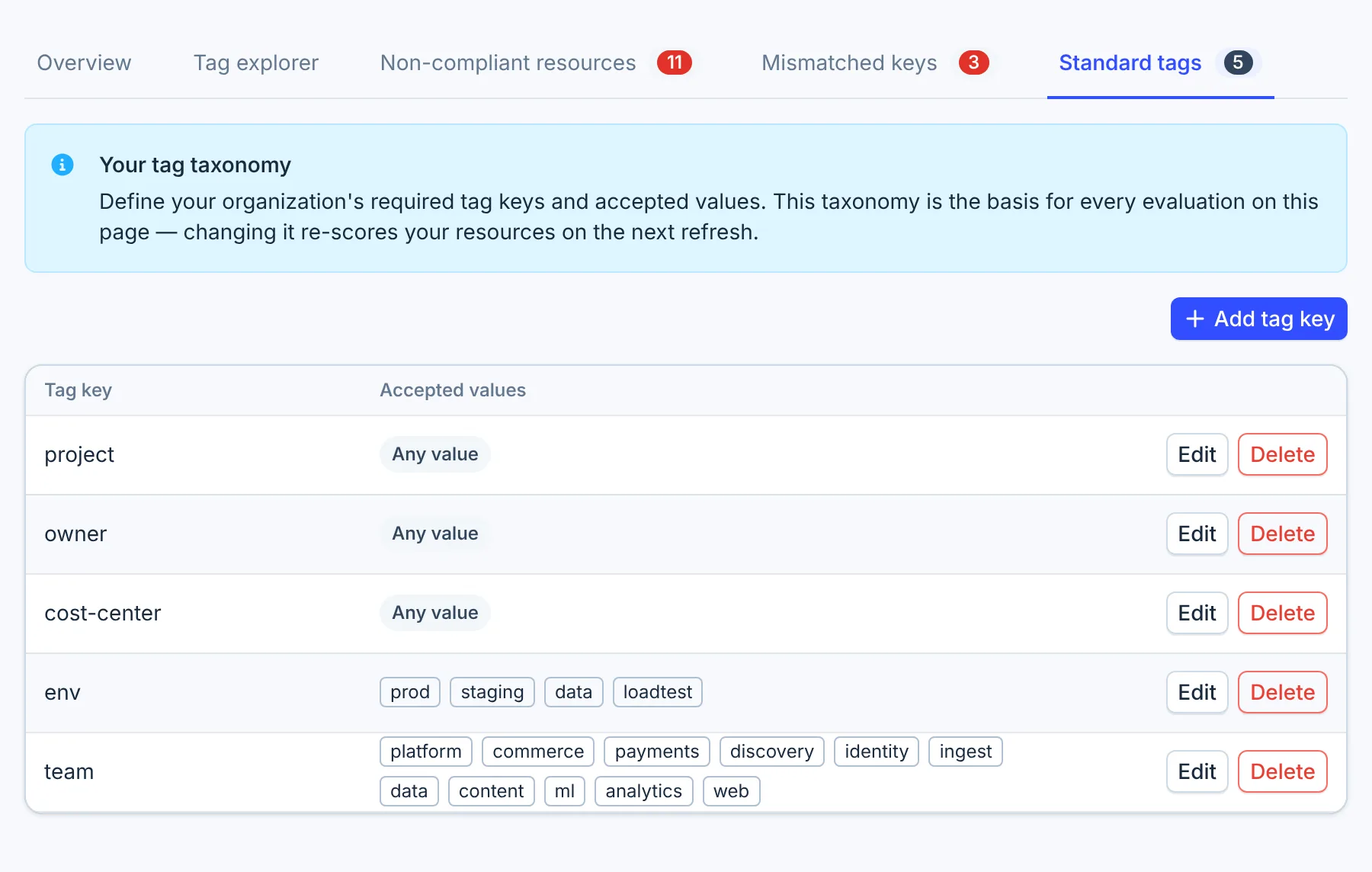
- Add tag key
4. Fix misspelled keys
Open Mismatched keys. Each row is a key spelled close to a standard key, such as Team for team,
with the resources that carry it. Spend under Team is tagged, but it is split from the team spend
it belongs with.
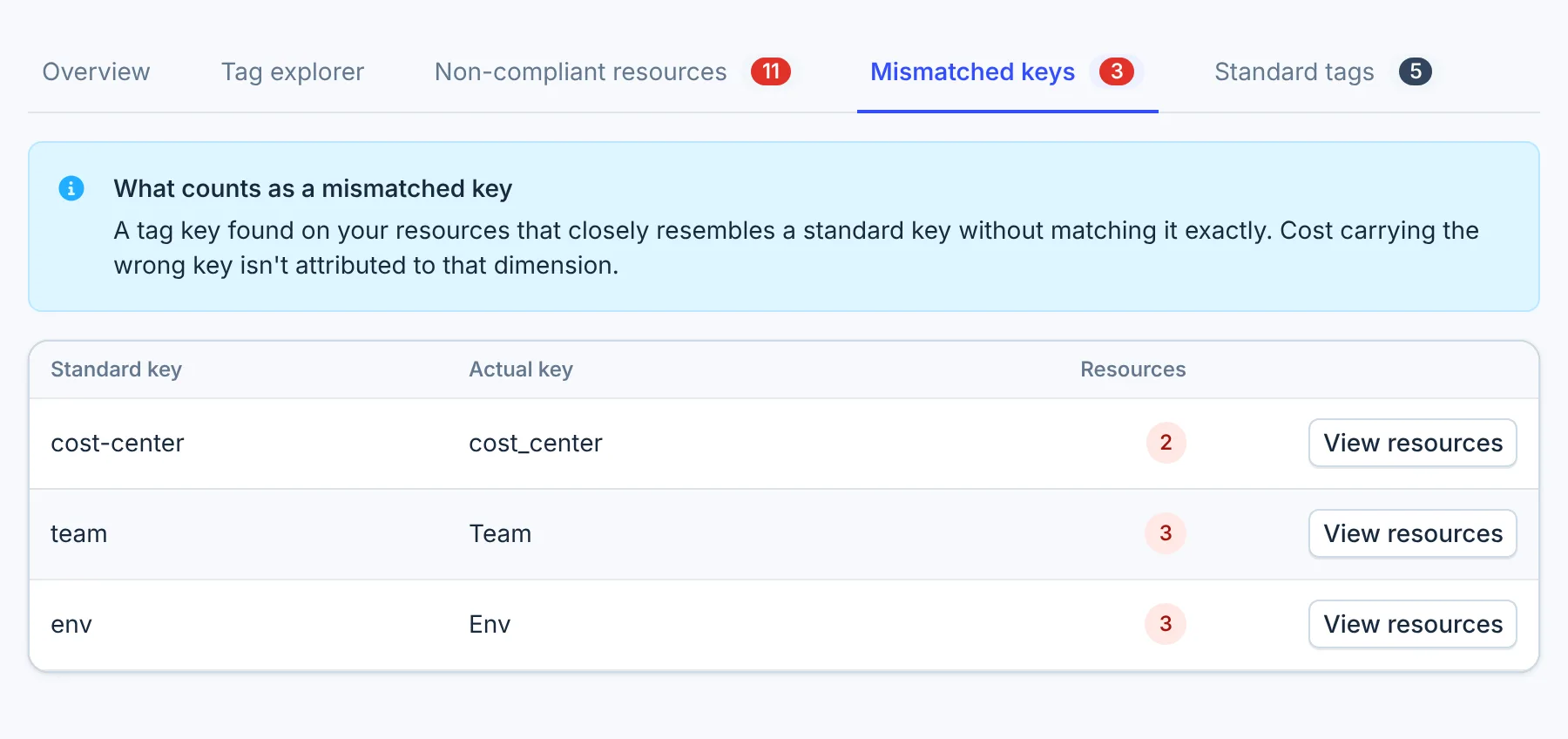
- View resources
Select View resources, then rename the key on those resources in the provider's console or your infrastructure code. CloudYali does not change tags itself.
5. Tag what is left
For the provider or account with the most untagged cost, open Cost Management → Resource Inventory, filter by that provider and resource type, and open each resource's Tags tab to see what it carries. Add the missing tags at the source, in the console or in your infrastructure code.
What you have now
- Tags that reach billing, so the work you do counts.
- A short list of standard keys, and the misspellings fixed.
- The accounts with untagged spend, each with an owner tagging it.
Coverage rises as new billing lines arrive with the tags, over the following days. Spend from before a tag was added stays untagged.
Do this every month
Check Tag coverage in the monthly cost review, and open Mismatched keys for new misspellings.