Users and roles
User Management is the CloudYali page where you invite teammates, set their role and remove their access. Everyone in your organization sees the same data. Open Settings → User Management: Settings is at the bottom of the sidebar.
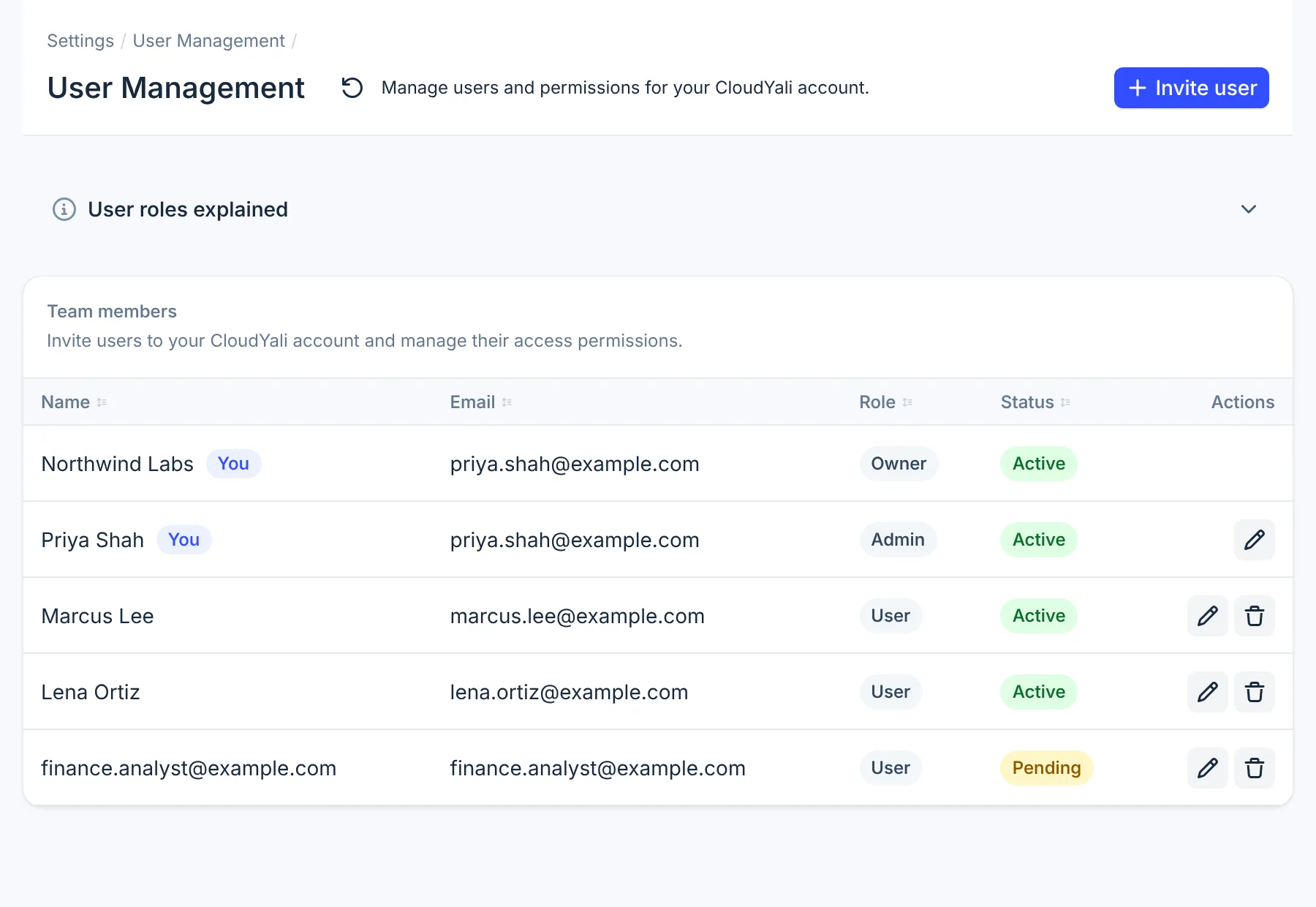
- Invite user
- Actions
Roles
| Role | Who has it | What the console offers them |
|---|---|---|
| Owner | The person who created the CloudYali organization. One per organization | Everything an Admin has. The owner cannot be edited or removed |
| Admin | Anyone you invite or change to Admin | Invite user, and editing and removing teammates |
| User | Anyone you invite or change to User | Every page and all of the organization's data, without the team actions |
Every role reads all of the organization's data and can open every page, including Integrations. The User role hides the team actions on this page; it is not an access restriction for data, budgets or most integrations. Invite only people who may see all of your cloud spend.
The pencil and bin on this page appear for Admins and the owner. Connecting, updating or disconnecting Cursor needs the Admin role.
Invite a teammate
-
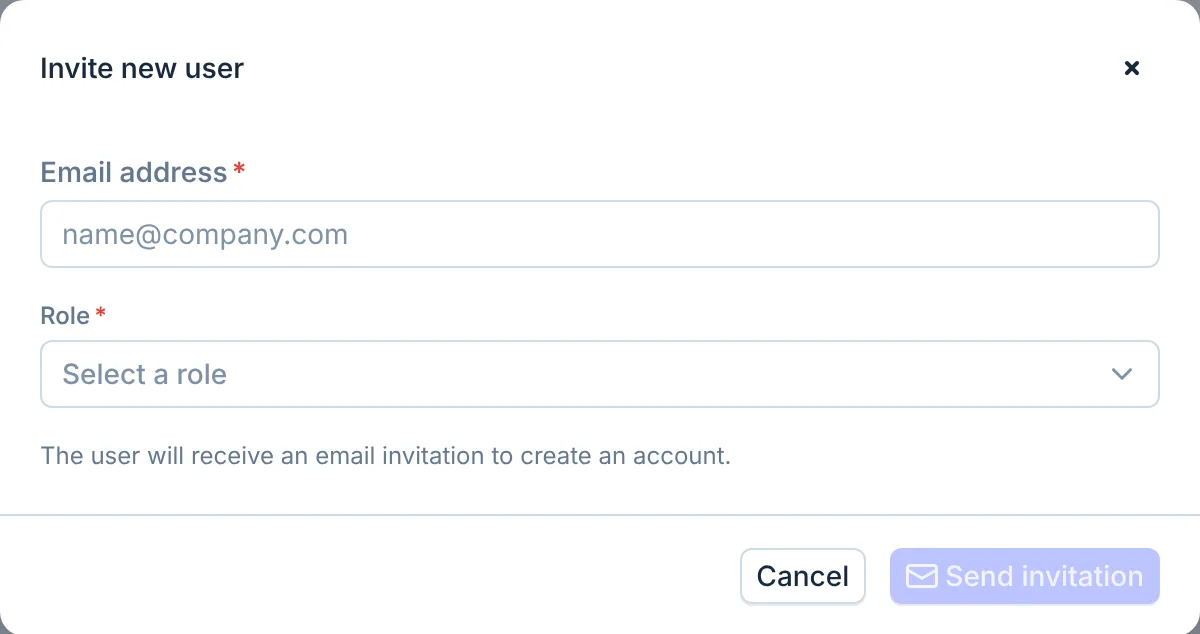
Select Invite user.
-
Enter their Email address and choose a Role: Admin or User.
-
Select Send invitation.
The person gets an email with a temporary password. At their first sign-in, CloudYali asks them to choose a new password. Until then their row shows Pending; it shows Active after their first visit. An invitation does not expire.
To invite someone, enter their address here. A teammate who signs up with Create an account on the sign-in page starts a separate CloudYali organization instead of joining yours.
Change a role
-
Select the pencil next to the teammate.
-
Choose Admin or User under Role.
-
Select Save changes.
The new role applies on the teammate's next action in the console. You cannot change your own role. In the same dialog you can change your own Display name, which is the name in this team list only.
Remove a teammate
-
Select the bin next to the teammate.
-
Select Delete user to confirm.
Their sign-in is deleted and their access ends at their next action, including any AI assistant they connected. What they created stays: budgets, views, and the savings opportunities assigned to them. If you invite the same address again, they return with the same history.
You cannot remove yourself or the owner.
Limits
- Roles do not restrict data. See the caution under Roles.
- No resend. To send an invitation again, remove the pending teammate and invite them again.
- "Already exists" for some addresses. An address that already has a CloudYali sign-in, in your organization or another, cannot be invited. A person can belong to one organization.
- No ownership transfer. The owner cannot be changed from the console. Contact support@cloudyali.io.
- No SSO and no groups. Each person signs in with their own email and password, and roles are set one person at a time.
- No email change. To change someone's address, remove them and invite the new address.
FAQ
Can I limit a teammate to some accounts or providers?
No. Everyone in a CloudYali organization sees all of its data. Roles only change which team actions the console shows.
My invitee did not get the email. What do I do?
Ask them to check spam for an email from support@cloudyali.io. If it is not there, remove them and invite them again.
Why does a teammate show Pending after accepting?
Pending changes to Active on their first visit to the console after signing in.
What happens to a removed teammate's work?
It stays. Budgets, views and assigned savings opportunities keep their name, and reinviting the same address restores the person with the same history.