Connect OpenAI
OpenAI API cost and usage from your organization appear in CloudYali after you connect an admin key. CloudYali reads cost by project and line item, and completions usage by project and model. Setup takes about 5 minutes.
Before you start
- You need to be an Owner or Admin of the OpenAI organization to create an admin key.
- A project key does not work: it cannot read the organization's usage.
What CloudYali can read
| Data | Why CloudYali needs it |
|---|---|
The organization (/v1/me) | Checking the key and naming the connection |
| Costs, daily, by project and line item | OpenAI cost in Cost Explorer and budgets |
| Completions usage, daily, by project and model | Usage by model |
An admin key can manage your OpenAI organization as well as read it; CloudYali calls only the read endpoints above. It does not read prompts or responses.
Create the admin key
- Open the Admin keys page in the OpenAI platform settings.
- Select Create admin key.
- Copy the new key. It starts with
sk-admin-.
Connect OpenAI
- In CloudYali, open Integrations and select Connect on the OpenAI card (Add account if OpenAI is already connected).
- Enter an Account name. It labels the connection on the Connected tab.
- Paste the Admin API key.
- Select Connect.
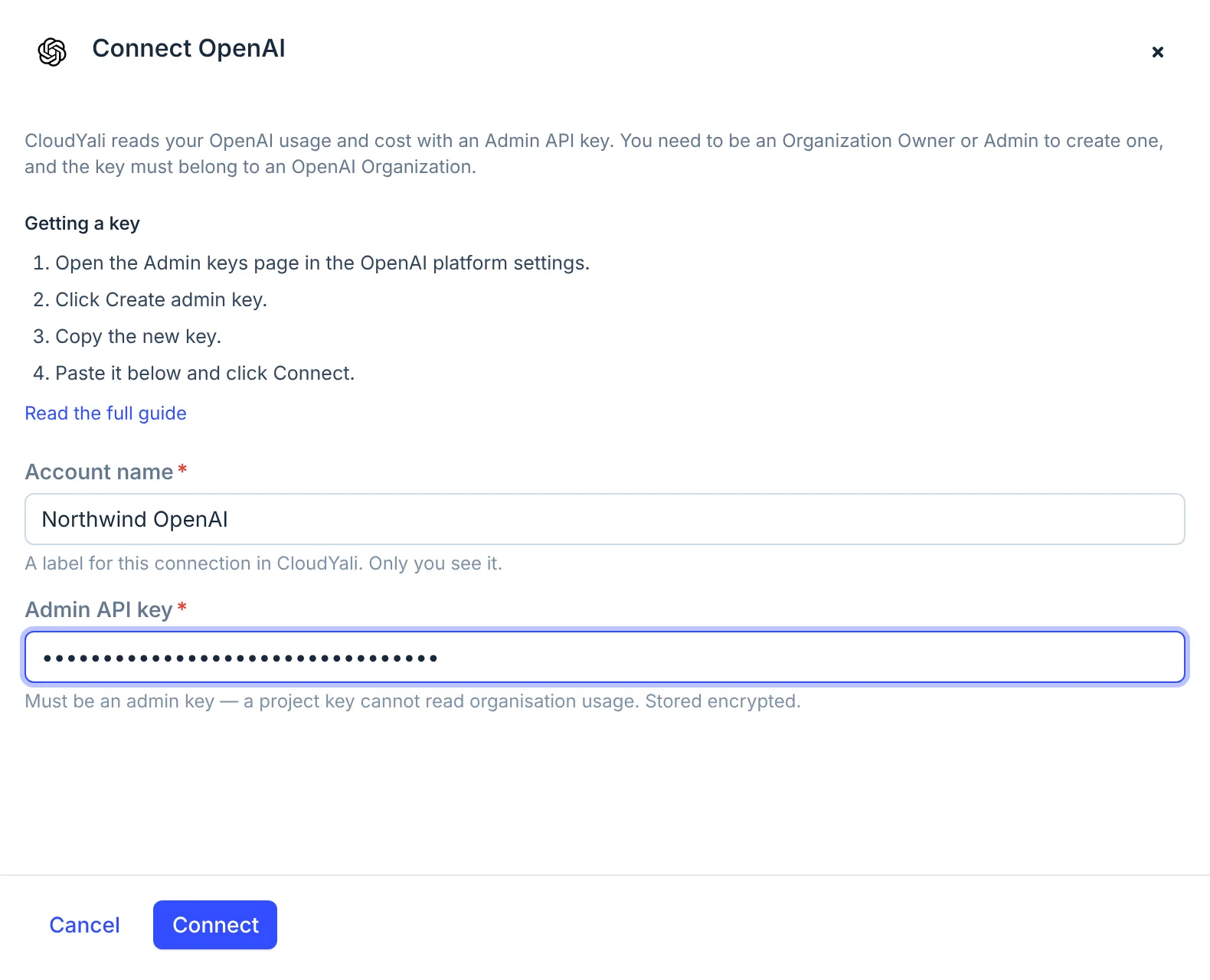
CloudYali checks the key with OpenAI and reads the organization's name before it stores the key. The key is stored encrypted and is not shown again.
Check that it worked
The console shows Connected with the organization's name, and the connection appears on the Connected tab of Integrations. The first data arrives with the next daily sync, not straight away. The first sync reads 6 months of cost and usage; after that, CloudYali syncs once a day.
Replace a key or disconnect
The console cannot replace an OpenAI key yet. To change it, contact support@cloudyali.io.
To disconnect, open the Connected tab and select Remove on the row. CloudYali deletes the stored key and keeps the cost history it has. To revoke the key itself, delete it on the Admin keys page in OpenAI.
Troubleshooting
| Symptom | Cause | Fix |
|---|---|---|
| Admin keys start with sk-admin- | A project or user key was pasted | Create an admin key |
| Failed to validate API key with OpenAI | The key was revoked, or has no organization | Create a new admin key in the organization |
| An account for organization '…' is already connected | This organization is already connected to CloudYali | Find it on the Connected tab |
| No data after a day | The first daily sync has not run yet | Check Last sync on the Connected tab the next day |
| Last sync stops moving | After 5 failed syncs in a row, CloudYali stops syncing the connection | Check the key in OpenAI, then email support@cloudyali.io to turn syncing back on |