Give each team a budget
Each engineering team should see its own spend and hear about it before the month ends. This guide gives every team a budget scoped to what it runs, and gets each budget's alerts to the right people.
You will use: Budgets · Tag Governance Time: 5 minutes per team
1. Decide what "the team's spend" is
A budget covers one provider and matches spend by rules. Pick the rule that matches how you split spend today:
- By account: the team has its own AWS accounts, Google Cloud projects or Microsoft Azure subscriptions. This is the most reliable, because every line on the bill has an account.
- By tag: teams share accounts and tag their resources, for example
team: platform. Spend without the tag is not counted, so check tag coverage first.
A team with spend on two providers needs two budgets, one per provider.
2. Create the budget
Open Financial Planning → Budgets and select Create budget. Under Scope, choose the Cloud provider, then add an Account rule with the team's accounts, or a Tag rule with the team's key and value.
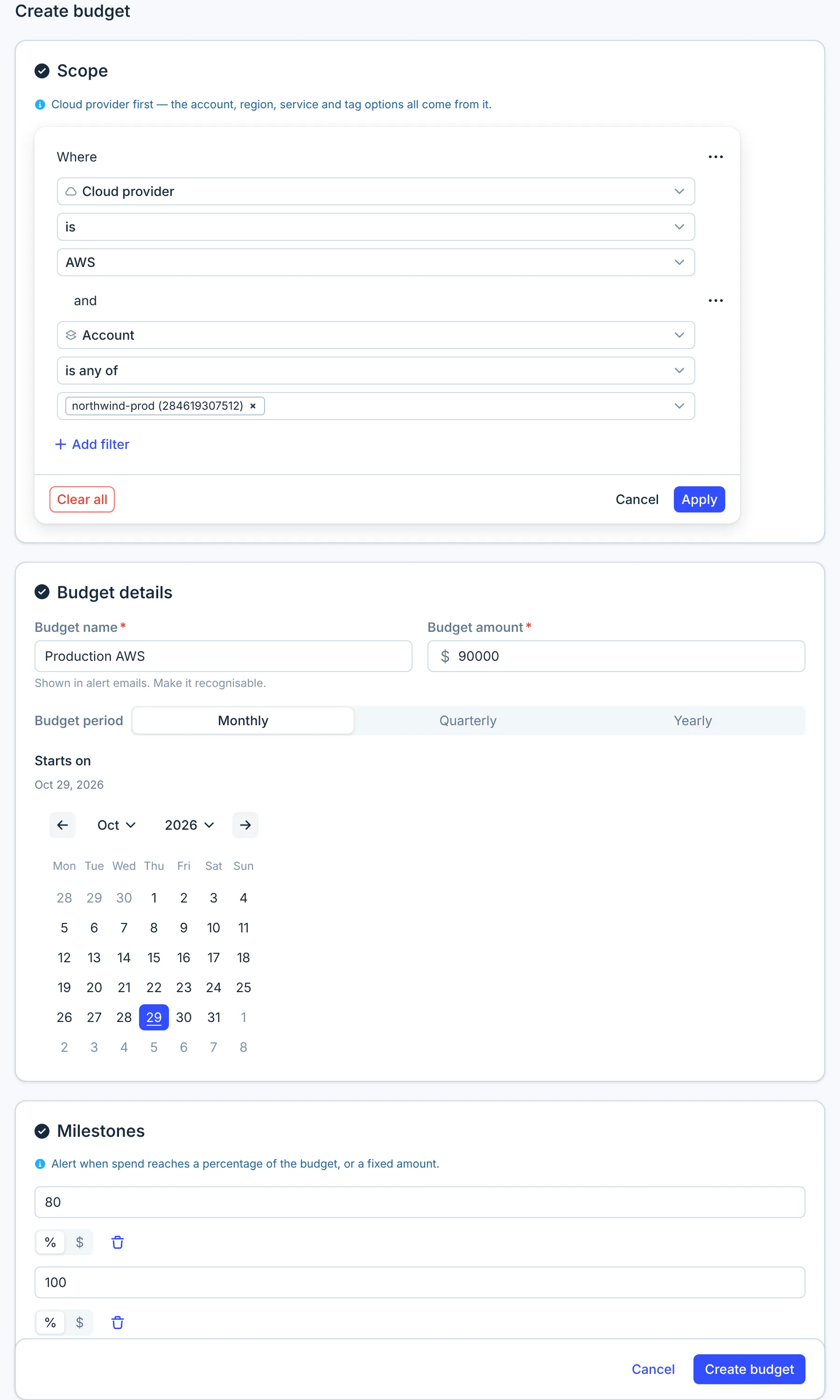
Name the budget after the team, such as Platform – AWS, so the alert says whose it is. Enter the monthly amount, then add milestones, for example 80% and 100%.
3. Route the alerts
CloudYali sends budget alerts to your organization's signup email address only; you cannot add
recipients per budget yet. Each alert's subject names the budget:
CloudYali: Budget threshold exceeded for Platform – AWS.
In that mailbox, add a rule for each team: when the subject contains the team's budget name, forward the email to the team's list or channel address. Each milestone sends one email per period, so the volume stays low.
4. Share the budget page
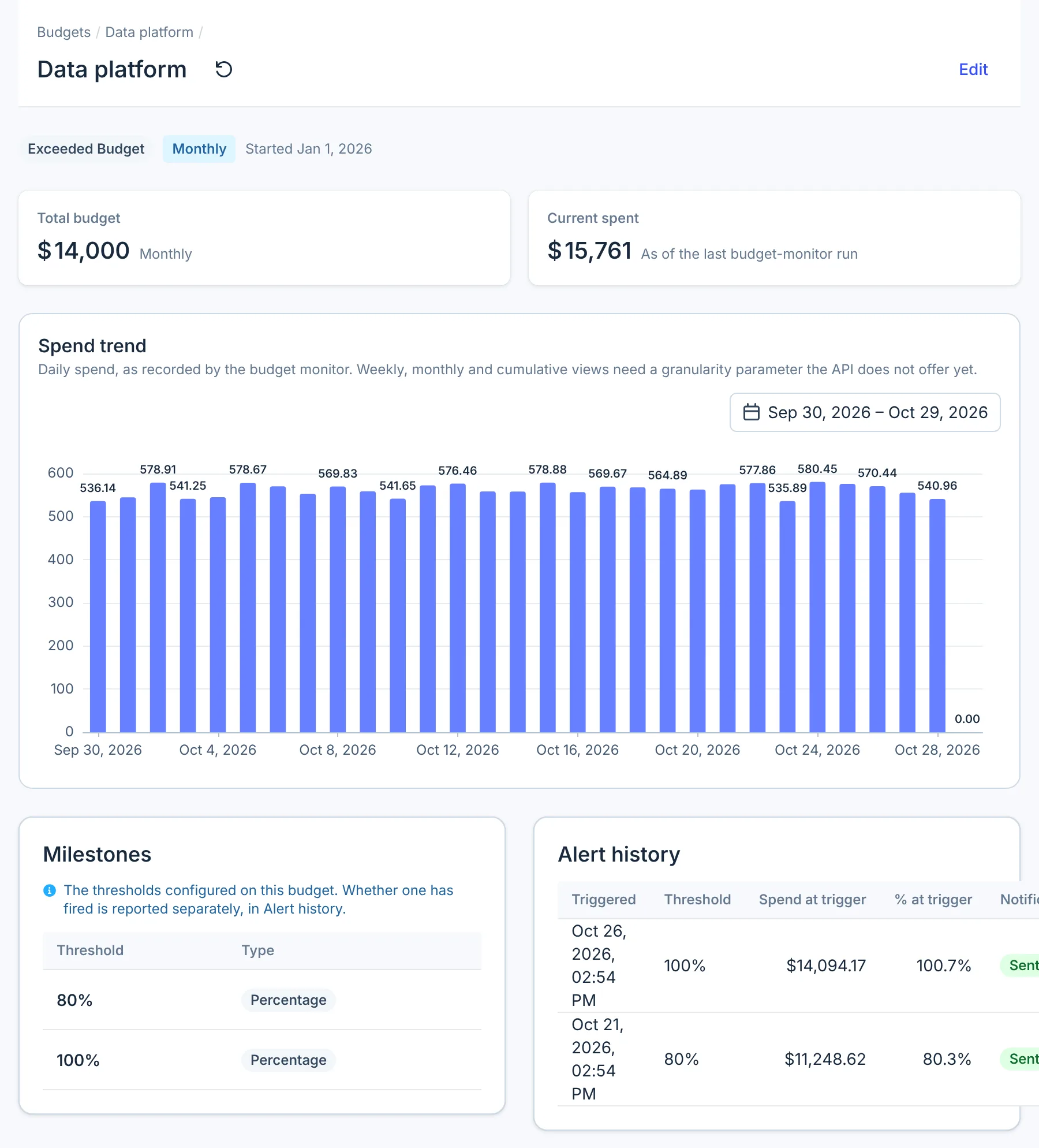
Each budget has its own page with the spend so far, a daily chart and the resources behind it. Send the team its link, and ask them to look when an alert arrives.
What you have now
- One budget per team and provider, named after the team.
- Alerts that reach the team, through a rule on your signup inbox.
- A page each team can open to see what drove its spend.
Do this every quarter
Review each team's budget against its spend in the monthly cost review, and adjust the amount for planned changes such as a launch or a migration. Editing a budget resets its milestones, so they can alert again in the same period.