Run the monthly cloud cost review
You own the cloud bill, and once a month you sit down with engineering and finance to go through it. This agenda fits that meeting into 30 minutes and ends with a short list of owners and actions.
You will use: Dashboard · Cost Explorer · Budgets · Commitments · Cost Savings Time: 30 minutes
Hold the review on the 3rd of the month or later. CloudYali collects billing data once a day, and the last day or two of a month can still change after it ends.
1. The headline (5 minutes)
Open the Dashboard. Read Total Spend and the anomaly count for the last 30 days, then the MTD Cost widget, which compares this month so far with the same days of last month.
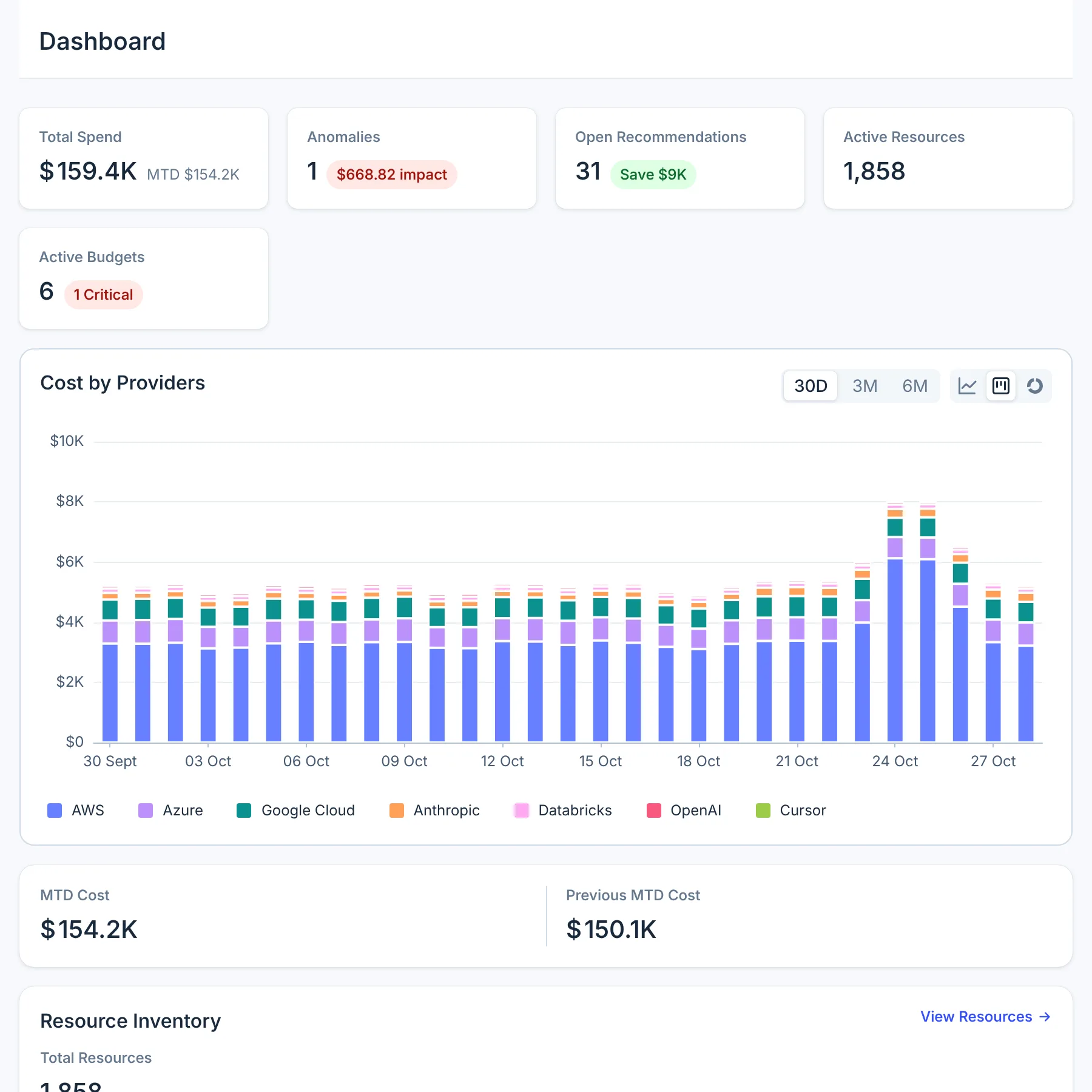
Note anything unusual in the Cost by Providers chart, such as a tall day or a provider that grew. Those are the questions for step 2.
2. What moved, and why (10 minutes)
Open Cost Management → Cost Explorer. In the date picker, choose a range that covers last month and the month before, set Monthly, then Group by → Service. The chart has one bar per month, stacked by service, and Breakdown lists each service's resources with a column for each month.
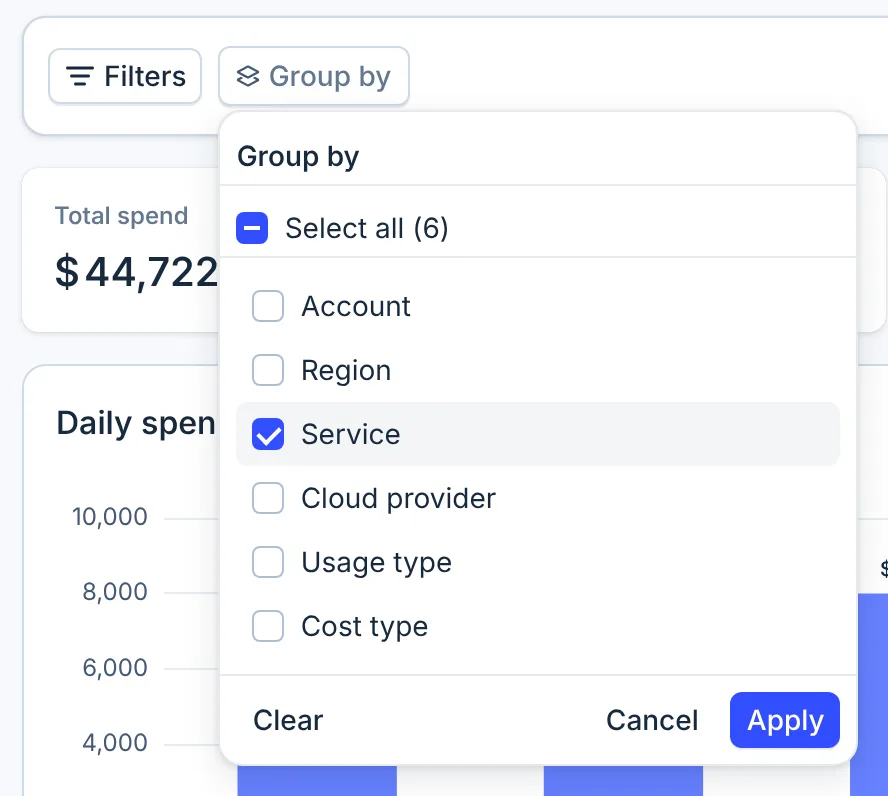
- Service
For each service that grew, open its row in Breakdown to see the resources behind it. Repeat with Group by → Account to see which team's account moved. Write down each change and who owns it.
3. Budgets (5 minutes)
Open Financial Planning → Budgets. Look at every budget marked NearLimit or Exceeded Budget, and agree whether the limit or the spend should change.
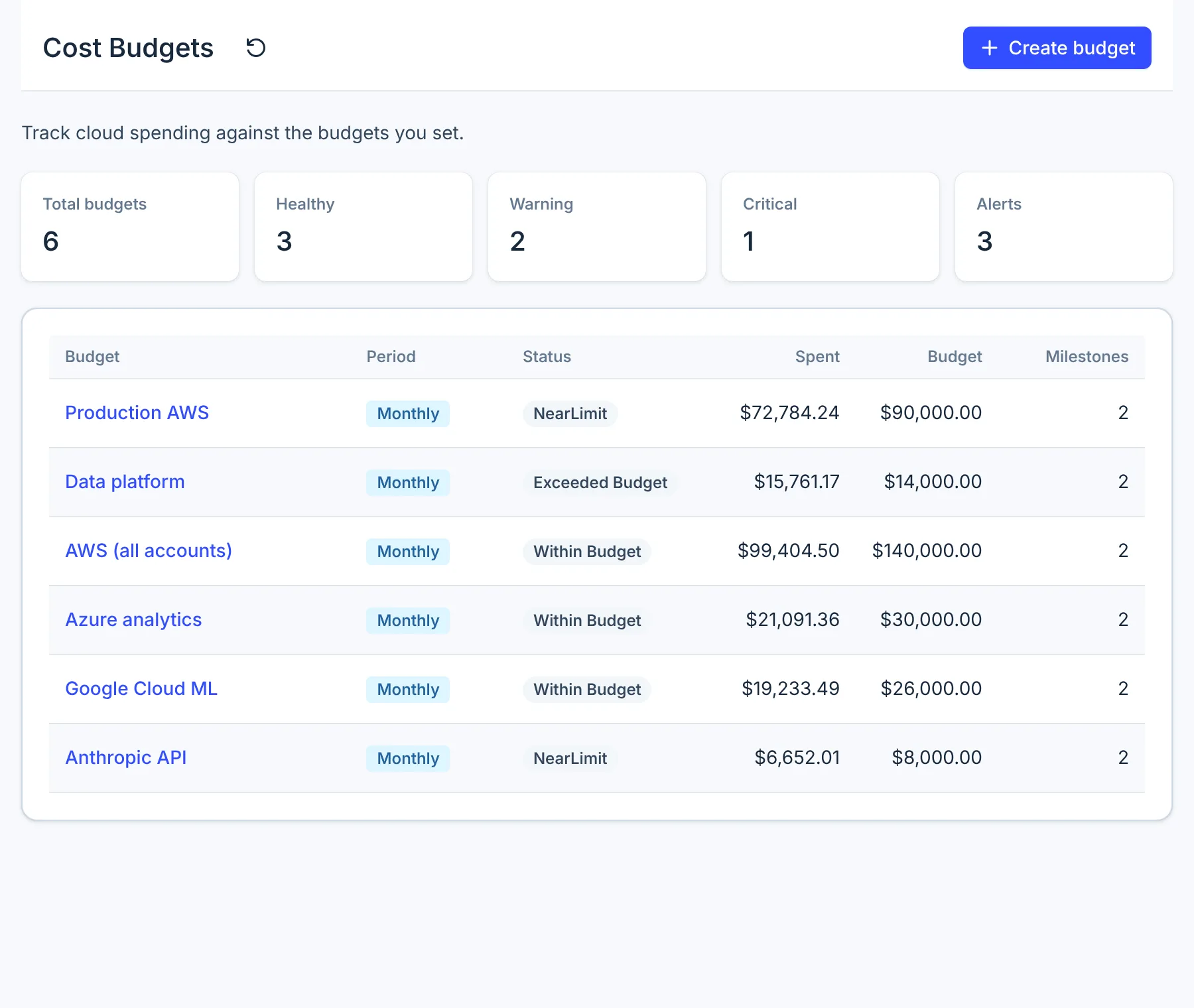
Budgets follow calendar periods in UTC, so a monthly budget starts again on the 1st.
4. Commitments (5 minutes)
Open Financial Planning → Commitments. Two views answer the commitment questions:
- Commitment Utilization by Type: are you using what you bought? A commitment far below 100% wastes money every hour it runs.
- Commitment Coverage by Cloud: how much eligible usage still runs at on-demand prices?
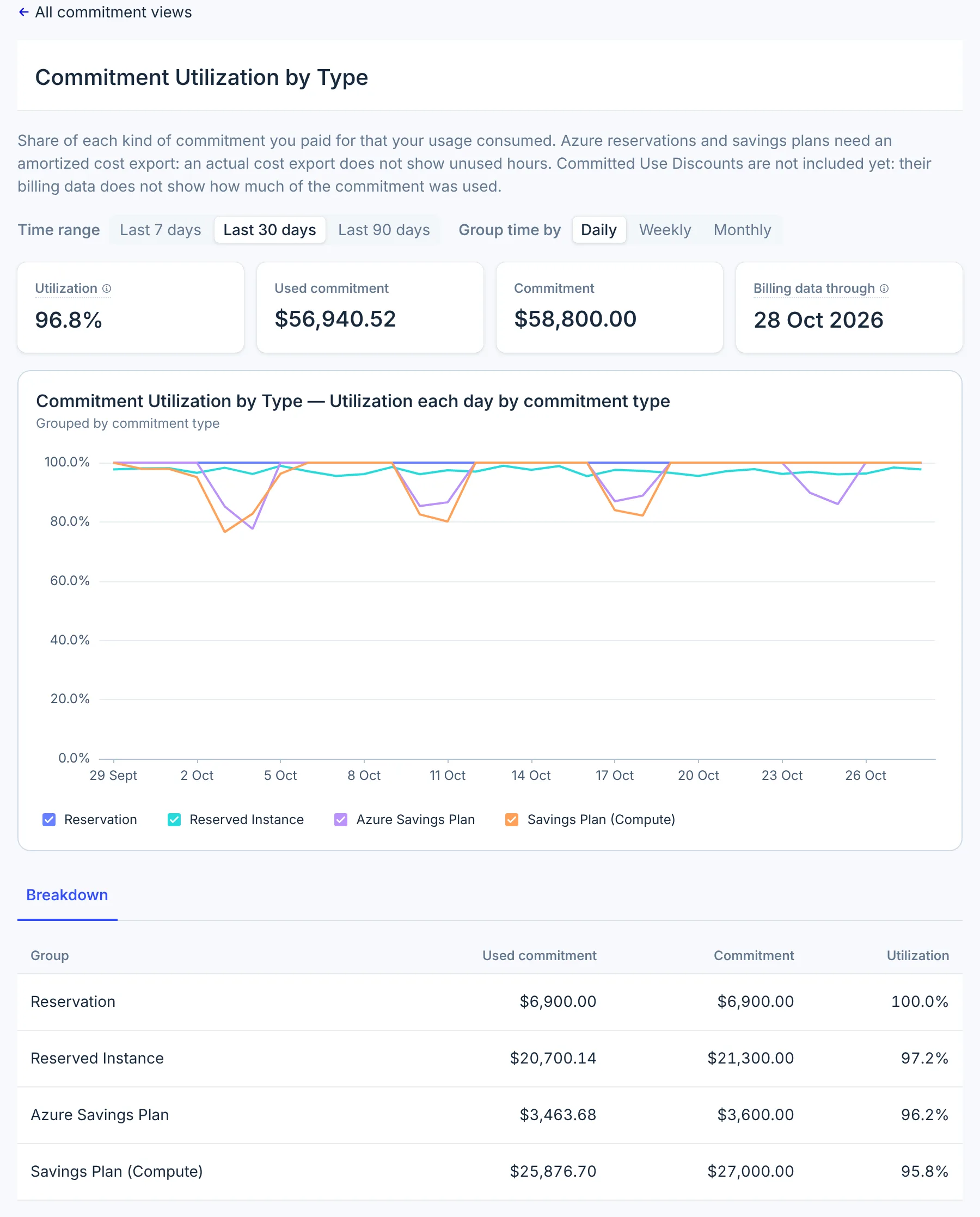
Low utilization means buy nothing more yet. High utilization with low coverage is the case for buying more; see Plan a commitment purchase.
5. Savings (5 minutes)
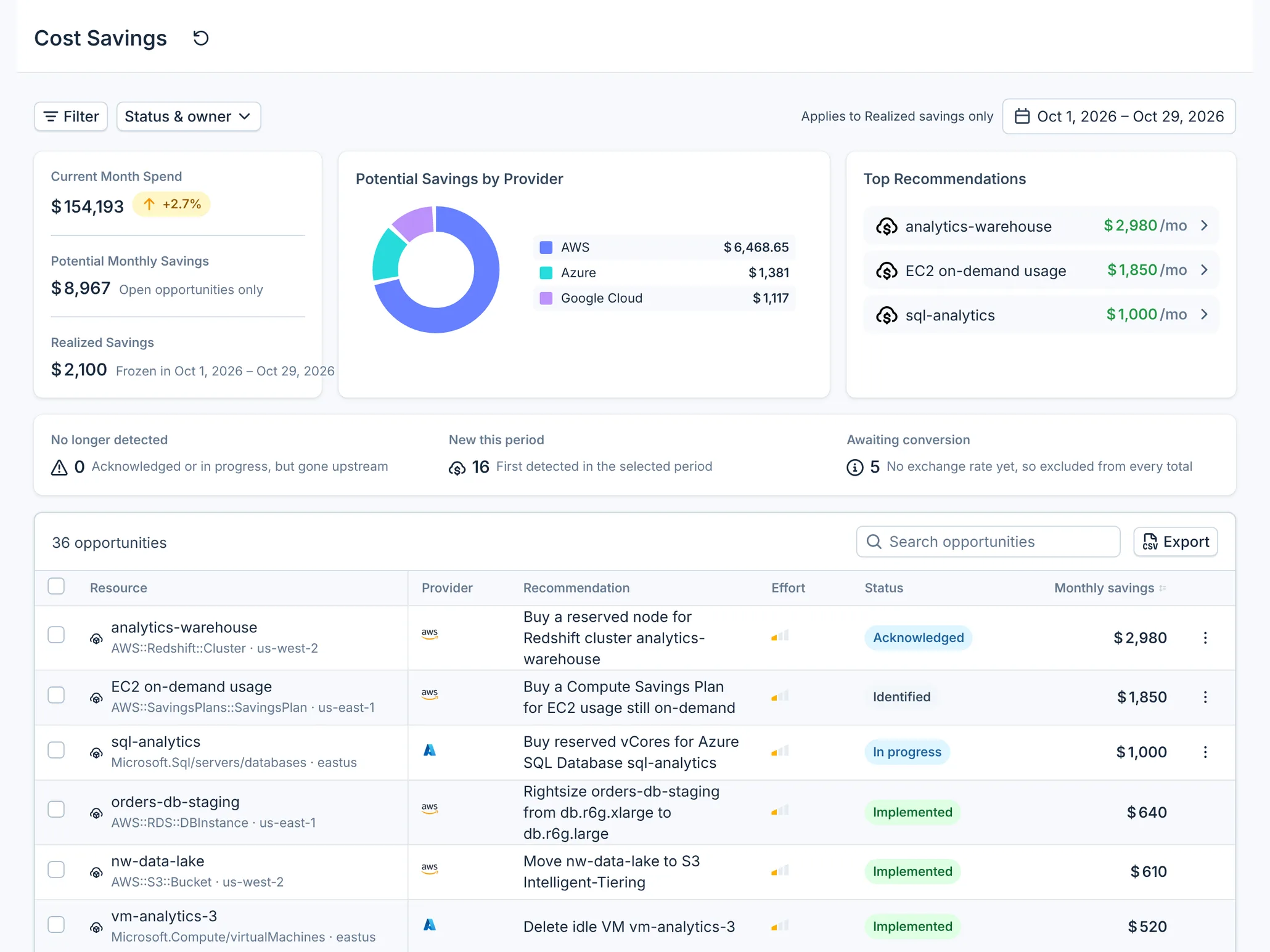
Open Cost Management → Cost Savings. Read Realized Savings for the month, then go through the top open opportunities and give each one an owner.
What you have now
- Last month's total and the services and accounts that moved it, each with an owner.
- Budgets that need a new limit or a conversation.
- A buy or don't-buy call on commitments.
- A short list of savings opportunities, each assigned.
What to bring
- Last month's action list, to check what was done.
- A name for each account or team, so every change has someone to ask.
- Any planned change for the coming month, such as a launch or a migration, that will move the bill.
Do this every month
Keep the same order every month, so the numbers are comparable and the meeting stays short. The daily email report covers the days in between; see Email reports.