Budgets
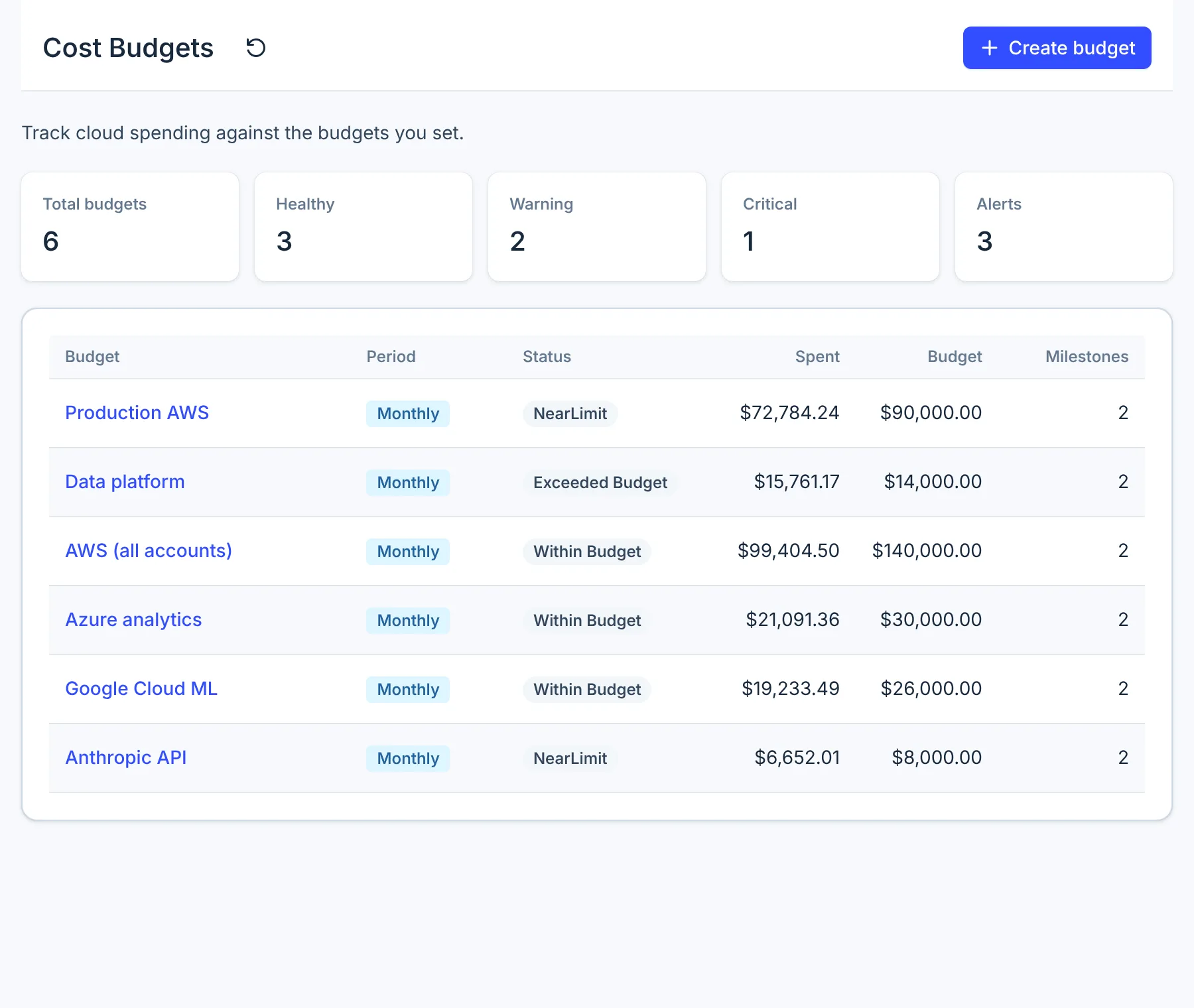
A budget in CloudYali is a spending limit for one provider's costs over a calendar month, quarter or year. You can narrow it to some accounts, regions, services or tags. Each budget has milestones, such as 80% and 100% of the limit, and CloudYali sends an email when spend reaches each one. Open Financial Planning → Budgets.
What you can do
- Set a limit on what a team, an account or a service may spend this month, quarter or year.
- See every budget's spend so far, its status and its limit on one page.
- Get an email when spend reaches a percentage of the limit, or a fixed amount.
- Open a budget to see its daily spend, the resources behind it and the alerts it has sent.
Why it matters
Cost Explorer shows spend when you go and look. A budget emails you when spend crosses a limit you set, before the month ends. One budget per team or product also gives each owner a number of their own.
How it works
Once a day, after the day's billing data has arrived, CloudYali adds up each budget's spend from the start of the current period to today. It does this again right after you create or edit a budget.
| Period | Starts on |
|---|---|
| Monthly | The 1st of each month |
| Quarterly | 1 January, 1 April, 1 July and 1 October |
| Yearly | 1 January |
Periods follow the calendar in UTC, whatever date you pick in Starts on. Amounts are in US dollars.
Each budget then gets a status:
| Status | Spend so far |
|---|---|
| Within Budget | Under 80% of the limit |
| NearLimit | 80% to 100% |
| Exceeded Budget | Over 100% |
The tiles at the top of the page count budgets on a different scale: Healthy under 75%, Warning from 75% to 90%, and Critical at 90% or more. Alerts counts budgets that have at least one milestone reached right now.
What counts as spend
| Provider | Spend |
|---|---|
| AWS | Unblended cost of usage line items. Usage covered by Reserved Instances or Savings Plans, and their fees, are not counted |
| Google Cloud | Cost, net of credits |
| Azure | Cost in US dollars |
| Anthropic | Cost in US dollars |
| OpenAI | Cost in US dollars |
| Databricks | Net cost |
| Fastly | Cost |
Because of the AWS rule, an AWS budget can read lower than Cost Explorer for the same scope when you have Reserved Instances or Savings Plans.
Create a budget
- Open Financial Planning → Budgets and select Create budget.
- Under Scope, select Add filter. The first rule is Cloud provider: choose the one provider this budget covers.
- To narrow the budget, select Add filter again, pick a field such as Account, Region, Service or Tag, and choose its values.
- Select Apply.
- Under Budget details, enter a Budget name and a Budget amount in US dollars.
- Choose the Budget period: Monthly, Quarterly or Yearly.
- Under Milestones, enter a value and choose % of the budget or a $ amount.
- To add another alert, select Add milestone and repeat step 7.
- Select Create budget.
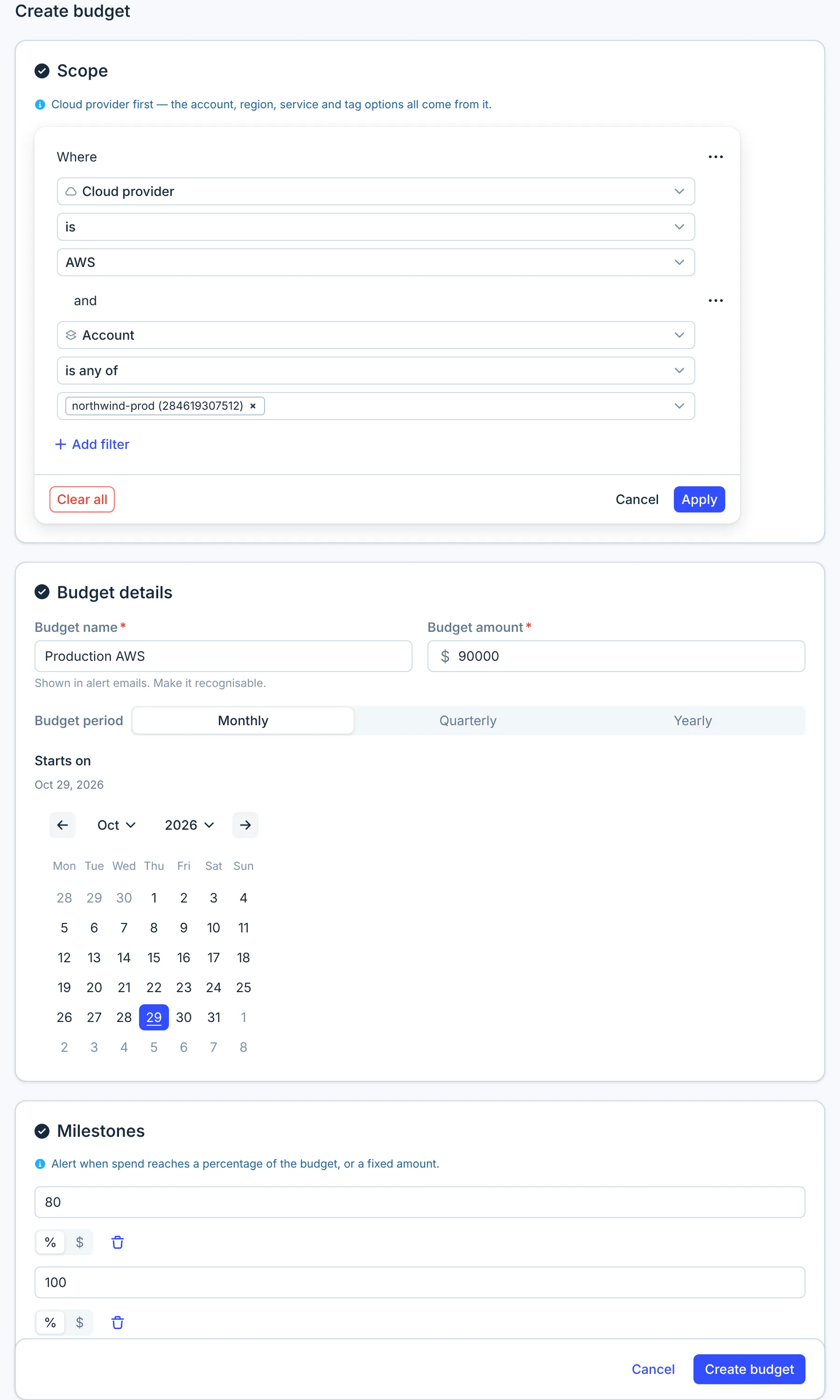
CloudYali works out the new budget's spend straight away. Until it finishes, the list shows no status and $0.00 spent.
Scope rules
A scope is a list of rules, and spend counts only when it matches every rule. A rule with several values matches any of them. A tag rule takes one key and one value; a tag key with no value matches anything that has that tag.
The fields you can use depend on the provider:
| Provider | Account | Region | Service | Tag | Workload |
|---|---|---|---|---|---|
| AWS | Account | ✓ | Service code, such as AmazonEC2 | ✓ | — |
| Google Cloud | Project | ✓ | ✓ | ✓ | — |
| Azure | Subscription | ✓ | Meter category | ✓ | — |
| Anthropic | Workspace | — | Model | — | ✓ |
| OpenAI | Organization | — | Line item | — | — |
| Databricks | Workspace | — | Product | Custom tag | — |
| Fastly | Account | ✓ | Product | — | — |
Milestones
A milestone is a percentage of the budget, above 0 and up to 100, or a dollar amount. To be warned when spend goes past the limit, such as at 110%, use a dollar amount.
Alerts
When spend reaches a milestone, CloudYali sends an email to the email address your organization signed up with. Other users in your organization do not get it. The subject reads "CloudYali: Budget threshold exceeded for" and the budget's name, and the email shows the milestone, the amount spent, the share of the budget used, the period and the scope.
Each milestone sends one email per period. A budget with milestones at 80% and 100% sends at most two emails a month, and starts again on the 1st. Editing a budget resets its milestones, so they can send again. Alerts compare spend so far with the milestone; they do not forecast.
Supported providers
| Provider | Supported | Notes |
|---|---|---|
| AWS | Yes | Account, region, service and tag; usage line items only |
| Microsoft Azure | Yes | Subscription, region, meter category and tag |
| Google Cloud | Yes | Project, region, service and tag |
| Anthropic | Yes | Workspace, model and workload |
| OpenAI | Yes | Organization and line item |
| Cursor | No | |
| Databricks | Yes | Workspace, product and custom tag; no resource list |
| Fastly | Yes | Account, region and product |
Limits
- A budget covers one provider. To track several, create one budget for each.
- Cursor spend cannot be budgeted.
- Alerts go by email to the email address your organization signed up with only. You cannot add recipients or send budget alerts to Microsoft Teams yet.
- Starts on is shown on the budget but does not move its period, which always follows the calendar.
- Spend is checked once a day, so an alert can arrive up to a day after spend crosses a milestone.
- For AWS, Google Cloud, Microsoft Azure and Databricks, a yearly budget counts spend only from the 1st of the month seven months back. On 31 October, that is from 1 March, so the budget reads low late in the year.
- There is no forecast, and no alert on forecast spend.
FAQ
Why does my AWS budget show less than Cost Explorer?
An AWS budget counts usage line items only. Usage covered by Reserved Instances or Savings Plans, and their fees, are left out, while Cost Explorer includes them.
Can one budget cover AWS and Google Cloud?
No. Each budget covers one provider. Create one budget for each provider.
Who gets the alert email?
The email address on your CloudYali account. Milestones have no recipient of their own.
Why is a budget at 85% shown as NearLimit but counted as Warning?
The status on each row uses 80% and 100%; the tiles at the top use 75% and 90%. Both read the same spend.
Can I set a milestone above 100%?
Not as a percentage. Enter a dollar amount above the budget instead.