Tag Governance
Tag Governance is the CloudYali page that shows how much of your cloud spend carries tags, and which tag keys in your billing data are spelled differently from your standard keys. Open Cost Allocation → Tag Governance.
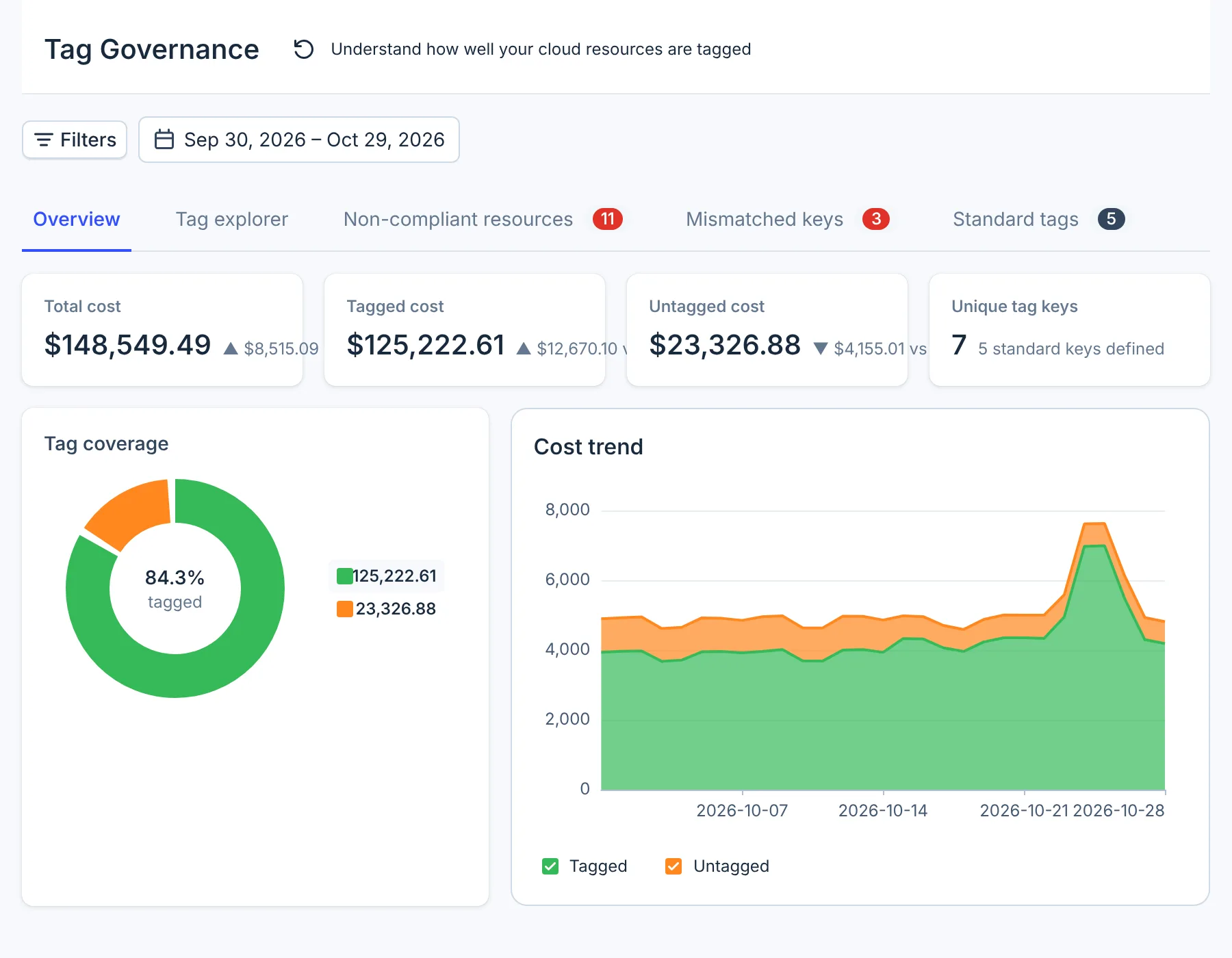
- Filters
- Period
- Tabs
What you can do
- See the share of spend that carries tags, and how it changed from the period before.
- Find tag keys that nearly match a standard key, such as
Teamforteam, and the resources that carry them. - Browse every tag key found on your resources, with its values, its spend and the resources that carry it.
- Keep a list of standard tag keys, with the values you accept for each.
Why it matters
Spend without tags cannot be assigned to a team, a product or a cost centre. A key spelled two ways
splits one team's spend in two. At Northwind Labs (a fictional company), the Microsoft Azure
subscription tags its resources Team: analytics while every other account uses team. Tag
Governance lists Team as a mismatch of team, with the four Azure resources that carry it.
How it works
- Tags come from billing data. A tag counts once the cloud provider writes it on its billing lines, which some providers do only after you turn it on. Tags in billing data explains each provider.
- Four providers. AWS, Google Cloud, Azure and Databricks spend is included. Anthropic, OpenAI, Cursor and Fastly spend is not.
- Tagged means any tag. A billing line counts as tagged when it carries at least one tag key,
whichever key it is, including keys AWS adds itself such as
aws:createdBy. - Once a day. Each provider's billing data, and with it every figure here, updates once a day.
- The Tag explorer also reads your resources. Its key list, values and resources come from resource scans, the same data as Resource Inventory.
For Google Cloud, Tag Governance reads resource tags (Resource Manager tags) from billing, not labels. A Google Cloud resource with labels and no tags counts as untagged here, although Resource Inventory lists its labels as tags.
The tabs
| Tab | What it shows | Data |
|---|---|---|
| Overview | Tagged and untagged spend, the change from the period before, coverage and a daily trend | Billing |
| Tag explorer | Every tag key on your resources; for one key, its spend, resources and values | Resource scans and billing |
| Non-compliant resources | Resources whose billing carries a key that nearly matches a standard key | Billing |
| Mismatched keys | Each near-miss key and the standard key it resembles | Billing |
| Standard tags | Your standard tag keys and accepted values | Your list |
The last three tabs are covered in Standard tags and mismatched keys.
Read the Overview
- Total cost, Tagged cost and Untagged cost each show the change from the period of the same length before it.
- Unique tag keys counts the keys in your billing data for the period, AWS's own
aws:keys included, and shows how many standard keys you have defined. - Tag coverage is the share of cost that is tagged.
- Cost trend shows tagged and untagged cost for each day. Days with no spend have no point.
When the period has spend but none of it is tagged, the tab shows No tagged spend in this period. That usually means tags are not turned on for billing at the provider.
The figures add up positive charges only. Credits, refunds and discounts are left out, so Total cost is higher than the net total in Cost Explorer.
Filters and period
Filters narrow every tab by cloud provider, account and region, in one group per provider. There is no service filter and no tag filter. The period opens on the last 30 days.
Figures run up to the start of the end date, so that day is left out: the default 30 days show 29 days of spend, and Today and Yesterday always show $0.00. To include a day, end the period on the day after it.
Explore a tag key
-
Select Tag explorer. The list on the left holds every tag key found on your resources, marked standard (one of your standard keys), mismatch (a near-miss of one), or discovered (neither). A standard key no resource carries is also marked not on any resource.
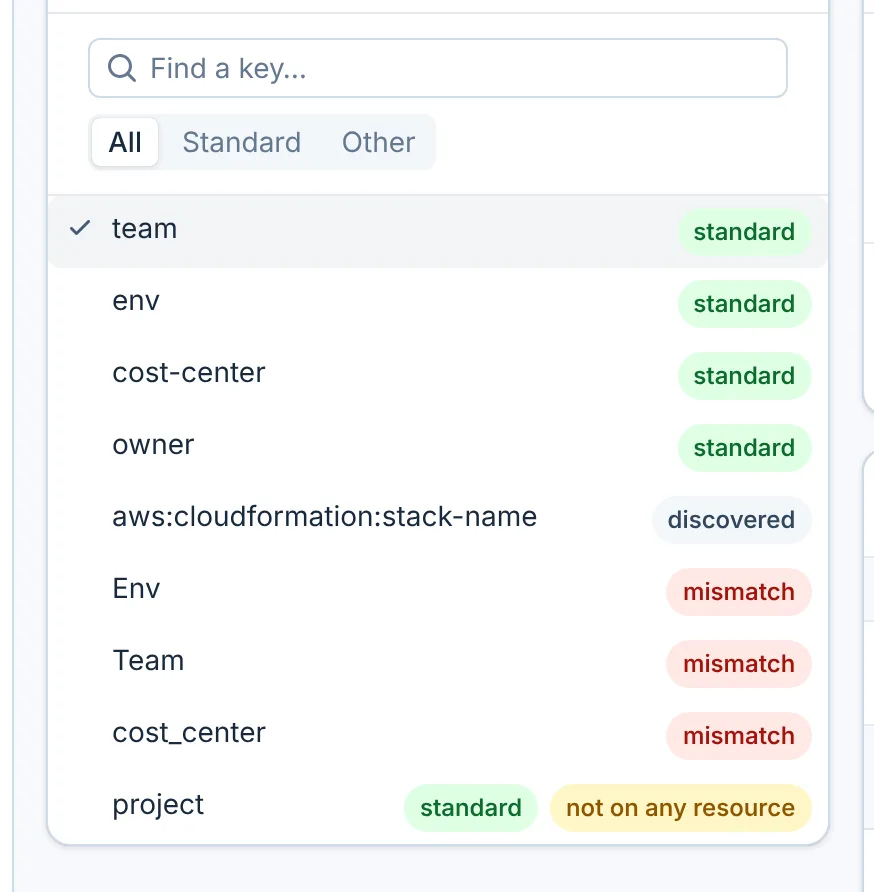
- Tag key
-
Select a key. The panel shows its Cost from billing for the period, the number of Resources that carry it, and its Distinct values.
-
Select values to narrow the spend and the resource list to them. Spend by value lists the cost of each value by provider, and the table below lists the resources that carry the key.
Find a key… searches the list. All, Standard and Other narrow it; Other shows discovered keys only, so mismatch keys appear under All.
When billing has no spend for the key, Spend by value explains why, for example This tag key is not in your billing data. See Tags in billing data.
Supported providers
| Provider | Supported | Notes |
|---|---|---|
| AWS | Yes | Activated cost allocation tags; aws: keys counted, never checked |
| Microsoft Azure | Yes | Tags on Cost Management export rows |
| Google Cloud | Yes | Resource Manager tags only; labels are not read |
| Anthropic | No | |
| OpenAI | No | |
| Cursor | No | |
| Databricks | Yes | Custom tags on billable usage |
| Fastly | No |
Limits
- Billing tags only. A tag on a resource counts only once the provider writes it on billing lines. See Tags in billing data.
- Google Cloud labels are ignored. Only Google Cloud resource tags count as tags here.
- The end date is left out. End the period one day later than the last day you want.
- Totals are before credits. Credits, refunds and discounts are left out, so totals do not match Cost Explorer's net figures.
- Four providers. Anthropic, OpenAI, Cursor and Fastly spend is not included.
- The Tag explorer ignores some filters. Its key list, values and resource list ignore the period and the account and region filters, and the resource list includes deleted resources. Only a key's Cost and Spend by value follow them.
- One provider at a time in the Tag explorer. With two or more provider groups in Filters, a key's Cost and Spend by value include all spend of the second and later providers, carrying the key or not. Filter to one provider.
- Spend by value can list other keys' values. The table sums every tag on the billing lines that carry the selected key, so values of other keys on those lines appear too. Check each value against the key's value list above the table.
- Lists stop at 1,000 keys and 100 values. Of those values, the first 40 can be selected.
- Azure and Databricks account filters find no spend. Billing matches these accounts by name, while the filter sends the account ID, so the cost figures show $0.00. Filter by provider instead.
- "Or" inside a filter group has no effect. Rules in a group always combine with "and".
- Settings are not kept. Only the open tab is in the page address; filters and the period reset when you reload. There is no export.
FAQ
Why is my spend untagged when my resources have tags?
Tag Governance reads tags from billing data. On AWS, a tag reaches billing only after you activate it as a cost allocation tag; on Google Cloud, only resource tags count, not labels. See Tags in billing data.
Why does Total cost differ from Cost Explorer?
Tag Governance adds up positive charges only and leaves out credits, refunds and discounts. It also leaves out the last day of the period, and Anthropic, OpenAI, Cursor and Fastly spend.
Does tagged mean the spend has my standard tags?
No. A billing line counts as tagged when it carries any tag key. Mismatched keys and Non-compliant resources show where keys differ from your standard ones.
Why do Today and Yesterday show $0.00?
The period ends at the start of its last day, so a one-day period covers nothing. Choose a period that ends the day after.
Can CloudYali add or rename tags on my resources?
No. CloudYali reads tags; you change them in the cloud provider's console or your infrastructure code.