Connect AWS
AWS costs, resources and savings recommendations appear in CloudYali after you create a CloudFormation stack that gives CloudYali a read-only IAM role to assume. CloudYali builds the stack for you; you review it and create it in the AWS console. Setup takes about five minutes.
Choose how to connect
In CloudYali, open Integrations and select Connect on the AWS card (Add account if AWS is already connected). The first question is Do you use AWS Organizations?
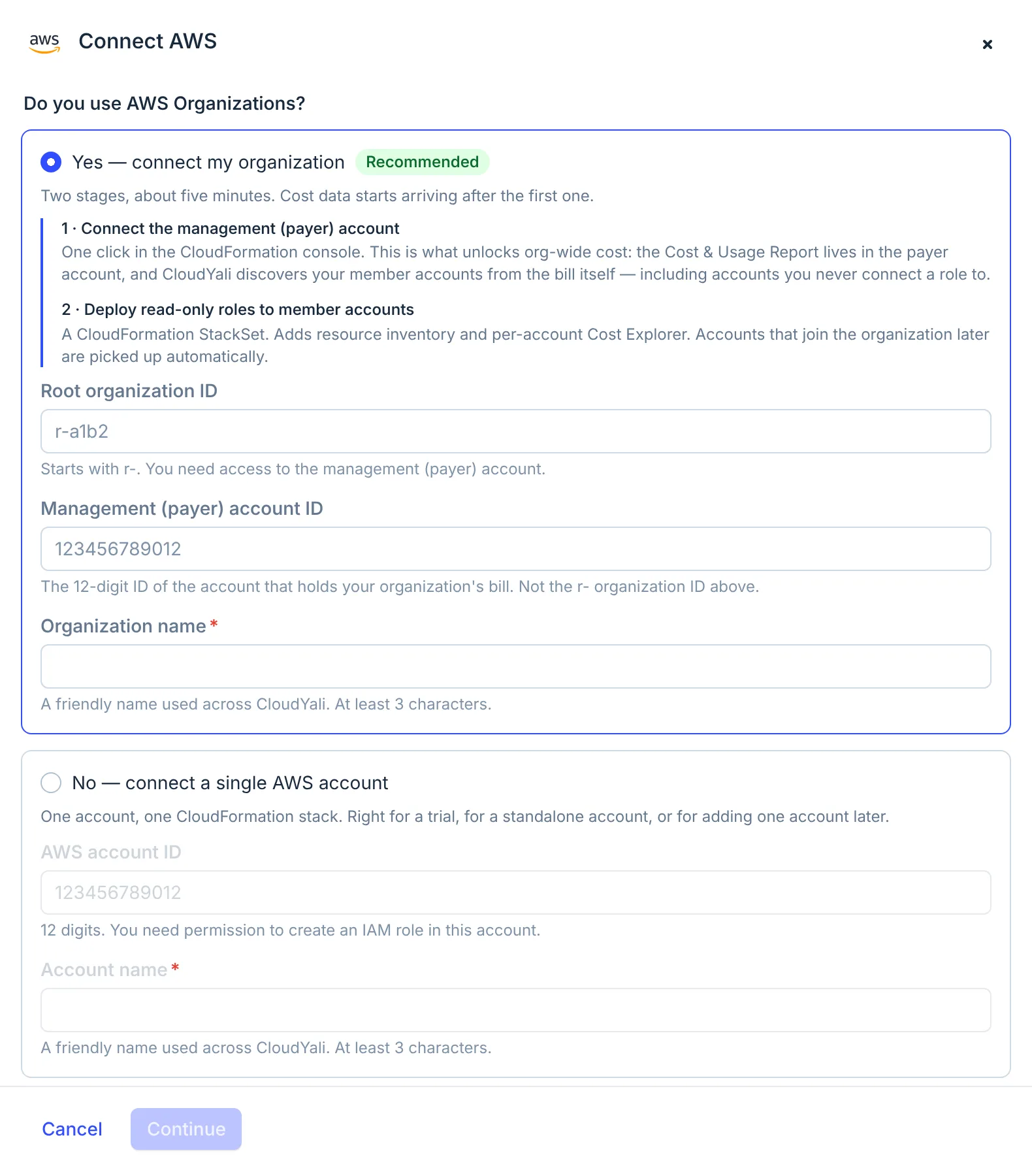
- Organization
- Single account
| Yes — connect my organization (recommended) | No — connect a single AWS account | |
|---|---|---|
| What you connect | The management (payer) account first, then a StackSet deploys a role to every member account | One account |
| Cost | Every account in the organization, from the payer account's Cost & Usage Report | That account |
| Resources and per-account cost | Each member account that has the role | That account |
| How | A console link for the payer account, then three AWS CLI commands | A console link only |
| Guide | Connect an AWS Organization | Connect a single AWS account |
With an organization, a member account you never deploy the role to still appears in cost, because its spend is on the payer account's bill. Accounts that join the organization later get the role automatically.
This video connects a single account, from Add account to Connected:
Before you start
- You need permission to create IAM roles and policies, an S3 bucket and a Cost & Usage Report in the account. For an organization, that is the management (payer) account.
- The stack is created in US East (N. Virginia),
us-east-1. - For an organization, you also need the AWS CLI signed in to the management account, and trusted access for CloudFormation StackSets turned on. CloudYali cannot check this for you.
- To see AWS's own recommendations in Cost Savings, turn on Cost Optimization Hub and Compute Optimizer in the account. CloudYali reads them but does not turn them on.
What the stack creates
| Resource | What it does |
|---|---|
| IAM role | The role CloudYali assumes. Only CloudYali's AWS account can assume it, and only with the external ID CloudYali shows you. |
| 1 inline policy and 4 managed policies | Read-only access to billing, resources and recommendations |
S3 bucket cloudyali-cur-<id> | Holds the Cost & Usage Report. Private; files expire after 200 days |
Cost & Usage Report CloudYali-CUR-<id> | A daily report of the account's cost, with resource IDs |
| Custom resource | Tells CloudYali the stack is ready, so the console can confirm the connection |
The role is read-only: it cannot create, change or delete anything in your account. Every action it carries is listed on AWS permissions.
Check that it worked
After you create the stack, the console shows Waiting for AWS to confirm the role. This usually takes under two minutes, and you can close the panel while it runs. When it shows Connected, the account appears on the Connected tab of Integrations.
- Resources appear after the first inventory scan, which starts as soon as the role is confirmed.
- Cost appears within 24 hours of AWS's next delivery of the new Cost & Usage Report. CloudYali loads the current month; earlier months are not loaded.
For an organization, the console confirms the management account only. Member accounts appear in Resource Inventory as each one's first scan runs.
Remove an account
- Open Integrations, then the Connected tab.
- In the account's row, select Remove, then Remove again to confirm.
CloudYali stops collecting data from the account and keeps the cost history it already has. Removing the account in CloudYali does not delete anything in AWS, so the role still exists. To revoke CloudYali's access completely, delete the stack:
- In the AWS console, open CloudFormation in
us-east-1. - Empty the
cloudyali-cur-<id>bucket the stack created. CloudFormation cannot delete a bucket that still holds files. - Delete the stack whose name starts with
CloudYali-ReadOnly-AccessRole-.
For an organization, also delete the stack instances and then the StackSet with the same name prefix.
Troubleshooting
| Symptom | Cause | Fix |
|---|---|---|
| CloudYali could not assume the role | The external ID or the trust policy was changed, or the stack was created more than 3 days after the link | Delete the stack, then start a new connection |
| AWS cloud account is already registered | The account is already connected to CloudYali | Find it on the Connected tab |
| Free tier cloud account limit reached | The free plan connects up to 3 AWS accounts | Upgrade your plan, or remove an account you no longer need |
| The console waits for more than 10 minutes | The stack failed, the stack was created from an older link, or the account is connected to another CloudYali account | Open the stack's Events tab in CloudFormation for the reason, then contact support@cloudyali.io |
| Deleting the stack fails on the bucket | The bucket still holds report files | Empty the bucket, then delete the stack again |
Deleting the stack fails on OnboardingCustomResource | The resource that reported to CloudYali could not run its cleanup | Delete the stack again and choose to retain that resource. It created nothing in your account |