Resource Inventory
Resource Inventory is the CloudYali page that lists the resources CloudYali has found in your connected clouds: one row per resource, with its provider, type, region, account and state. Open a resource to see its configuration, its tags and what it cost each day. Open Cost Management → Resource Inventory.
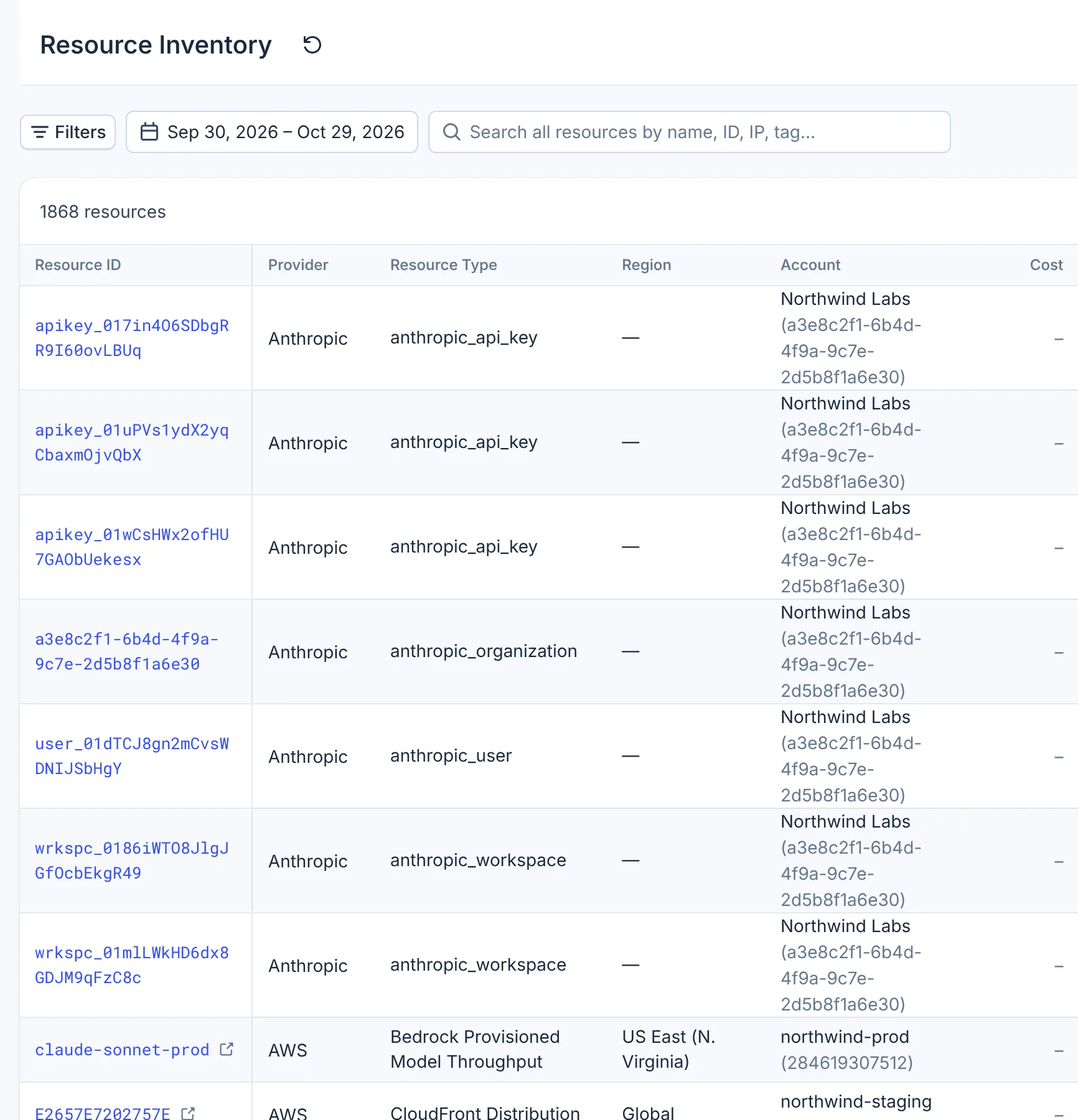
- Filters
- Period
- Search
- Resource ID
What you can do
- Find a resource by its ID, name, IP address or a tag value, across every connected cloud.
- List resources by provider, resource type, region, account and state.
- See a resource's configuration and tags, and its earlier configurations for Google Cloud and Microsoft Azure.
- See what a resource cost each day.
- Open the resource in the AWS, Google Cloud or Azure console.
Why it matters
A resource ID in an alert, a bill or a ticket rarely says what the resource is or who owns it. In Resource Inventory you search for it once, across every cloud.
Say an unknown address, 10.20.4.17,
shows up in a security alert. Search for it and you get one EC2 instance, api-prod-2, in the
northwind-prod account, tagged team: platform. Its Costs tab shows what it cost each day.
How it works
CloudYali reads your resources with the read-only access you gave it when you connected each provider.
| Provider | What CloudYali collects | When |
|---|---|---|
| AWS | 135 resource types, in every region | First scan when you connect the account, then on a schedule |
| Google Cloud | 108 cost-relevant asset types, from Cloud Asset Inventory | Once a day |
| Azure | Every resource type Azure Resource Graph returns | Once a day |
| Databricks | Workspaces, clusters, SQL warehouses, jobs, job tasks, pipelines, serving endpoints and MLflow experiments | Once a day |
| Anthropic | The organization, workspaces, API keys, users and workspace members | Once a day, with the billing sync |
Google Cloud, Azure and Databricks resources appear after the next daily sync, up to a day after you connect.
When a scan no longer finds a resource, CloudYali marks it Deleted, dated when the scan noticed. Deleted resources stay in the list, so you can still look them up.
First Scan Time is when the resource was created, where the cloud reports that. Otherwise it is when CloudYali first found the resource. The details panel shows the same time as Created at.
Read the list
The page opens on the last 30 days, with active and deleted resources.
- Filters, Period and the search box are above the table. Search and filters explains each one.
- The count above the table is the number of resources that match, not the rows on this page.
- Rows come in a fixed order: provider, then resource type, then ID. Column headings do not sort.
- Rows per page offers 10, 25, 50 or 100. The default is 100.
- The Cost column shows "–" on every row. Each resource's cost is on its Costs tab.
- State is Active or Deleted.
- The refresh button next to the title loads the list again.
Open a resource
-
Select the resource ID. Selecting elsewhere in the row does nothing.
-
The details panel opens on Configuration. At the top are the resource's provider, type and state, then Account, Region and Created at.
-
Select Tags to see the resource's tags as keys and values, or Costs to see its daily cost.
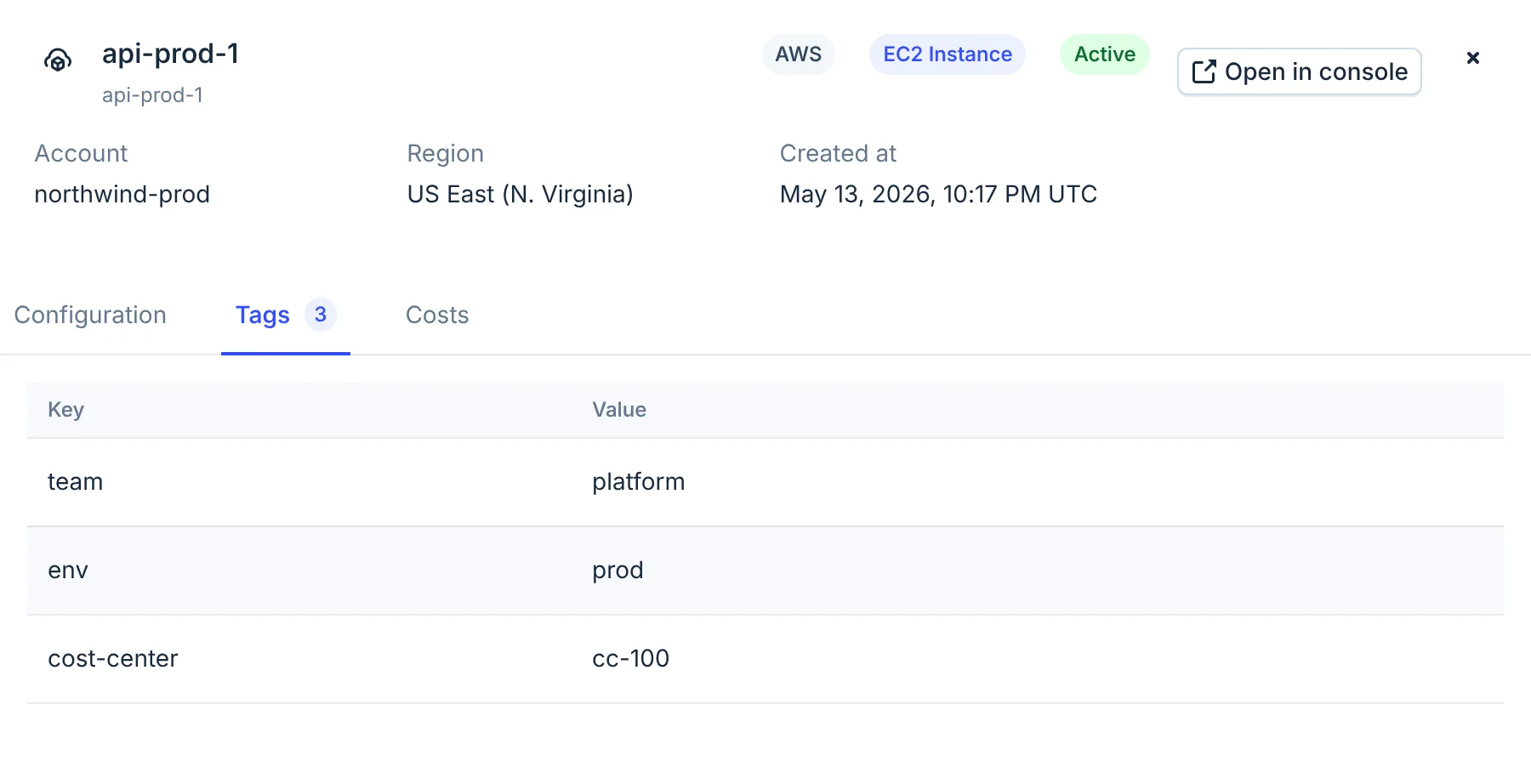
- Open in console
- Tags
-
To go to the resource in its cloud, select Open in console in the panel, or the arrow icon next to the ID in the list. These links exist for AWS, Google Cloud and Azure resources.
AWS console links carry the region but not the account. Sign in to the right AWS account first. Some links open the service's list page rather than the resource itself.
Change history covers the Configuration tab and Resource cost covers the Costs tab.
Supported providers
| Provider | Supported | Notes |
|---|---|---|
| AWS | Yes | 135 resource types; current configuration only |
| Microsoft Azure | Yes | Every type Azure Resource Graph returns; changes kept 90 days |
| Google Cloud | Yes | 108 cost-relevant asset types; configuration snapshots |
| Anthropic | Yes | Organization, workspaces, API keys and members; no cost per resource |
| OpenAI | No | |
| Cursor | No | |
| Databricks | Yes | Clusters, warehouses, jobs, pipelines and more; current configuration only |
| Fastly | No |
Limits
- Nothing is kept when you leave. Filters, search, the period and the open panel reset when you reload or leave the page, and there is no link to a filtered view. Note your filters to set them up again.
- No sorting or export. Rows always come in provider, type and ID order, and the list cannot be downloaded. Narrow it with search or filters.
- No cost in the list. The Cost column is always "–". Open a resource and select Costs.
- Fastly is not collected. Fastly services do not appear. Fastly costs are in Cost Explorer.
- AWS keeps only the current configuration. Earlier AWS configurations are not recorded. See Change history.
- Disconnected AWS accounts drop out. When you disconnect an AWS account, its resources leave the list. Resources of a disconnected Google Cloud or Azure account stay.
- The Dashboard counts differently. The Dashboard's Total Resources counts active resources. This page starts with active and deleted resources from the last 30 days. Filter on State is Active for the Dashboard's number.
- Cost Explorer's link opens the full list. Open in Resource Inventory in Cost Explorer opens this page without a search. Search for the resource name yourself.
FAQ
Why is a new resource not in the list yet?
Google Cloud, Azure, Databricks and Anthropic resources arrive with the next daily sync, and AWS resources with the next scan. Check again the next day.
Why does the same resource ID appear on several rows?
Global resources, such as some AWS ones, are reported once for each region. AWS can also list a deleted copy of a resource next to the active one.
Can CloudYali change or delete my resources?
No. CloudYali reads resources with read-only access. Open in console takes you to the cloud provider to make changes.
How long are deleted resources kept?
They stay in the list, marked Deleted, with the time a scan noticed they were gone. Choose an earlier Period to see resources deleted before the last 30 days.
Why do Anthropic and Databricks resources have no region?
Neither provider reports a region for these resources, so the Region column shows a dash.