Connect Cursor
Your Cursor team's seats, on-demand usage and spend appear in CloudYali after you connect a team Admin API key. CloudYali syncs every 6 hours and reads usage down to each request. Setup takes about 5 minutes.
Before you start
- In CloudYali, you need the admin role: only admins can connect, replace the key of, or remove a Cursor team.
- In Cursor, you need to be a team admin, and the team's plan must include the Admin API.
- A personal or user API key does not work.
What CloudYali can read
| Data | Why CloudYali needs it |
|---|---|
| Team members and billing groups | Seats and who uses them |
| Daily usage per member | Usage trends and seat use |
| Usage events, per request | Spend down to each request |
| Current billing-cycle spend | Month-to-date spend |
Create the key
- Sign in at cursor.com/dashboard as a team admin.
- Open API Keys and select the Team tab.
- Select New API Key, name it, and set the scope to
admin:*. - Copy the key. It starts with
crsr_, and Cursor shows it only once.
Connect Cursor
- In CloudYali, open Integrations and select Connect on the Cursor card (Add account if Cursor is already connected).
- Enter an Account name. It labels the connection on the Connected tab.
- Paste the Admin API key.
- Select Connect.
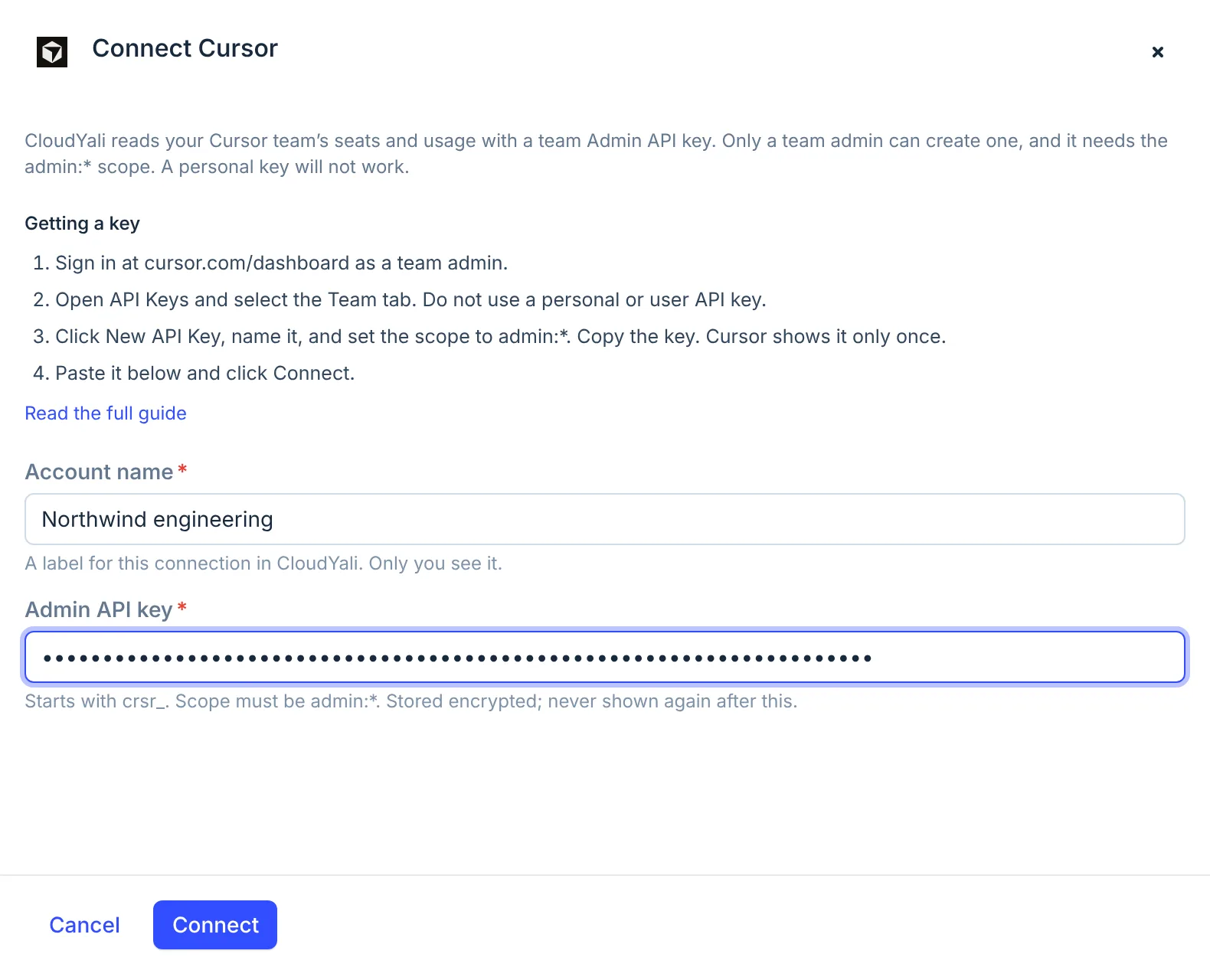
CloudYali checks the key with Cursor before it stores it. The key is stored encrypted and is not shown again.
Check that it worked
The console shows Connected, and the team appears on the Connected tab of Integrations. The first sync runs within 6 hours and reads 30 days of usage events and 180 days of daily usage. After that, CloudYali syncs every 6 hours.
Replace a key or disconnect
Cursor is the one provider whose key you can replace in the console. Replace the key when it expires or is rotated: the team's history is kept, and a team that stopped syncing is turned back on.
- Open Integrations, then the Connected tab.
- In the Cursor row, select Replace key.
- Paste the new key and select Save.
To disconnect, select Remove on the row.
Removing a Cursor team deletes its cost history in CloudYali. To fix an expired key, use Replace key instead.
Troubleshooting
| Symptom | Cause | Fix |
|---|---|---|
| Only admins can manage Cursor integrations. | Your CloudYali role is not admin | Ask a CloudYali admin to connect the team |
| A Cursor team Admin API key starts with crsr_ … | Part of the key is missing | Copy the whole key; older keys that start with key_ also work |
| Cursor rejected this API key | A personal key was pasted, or the key was revoked | Create a key on the Team tab |
| … the Admin API is not available on this team's plan | The team's Cursor plan has no Admin API | Change the Cursor plan |
| This API key is already connected as "…" | The key is already in use | Find the team on the Connected tab |
| The team stopped syncing | Five syncs in a row failed, usually because the key was revoked | Select Replace key with a new key |