Standard tags and mismatched keys
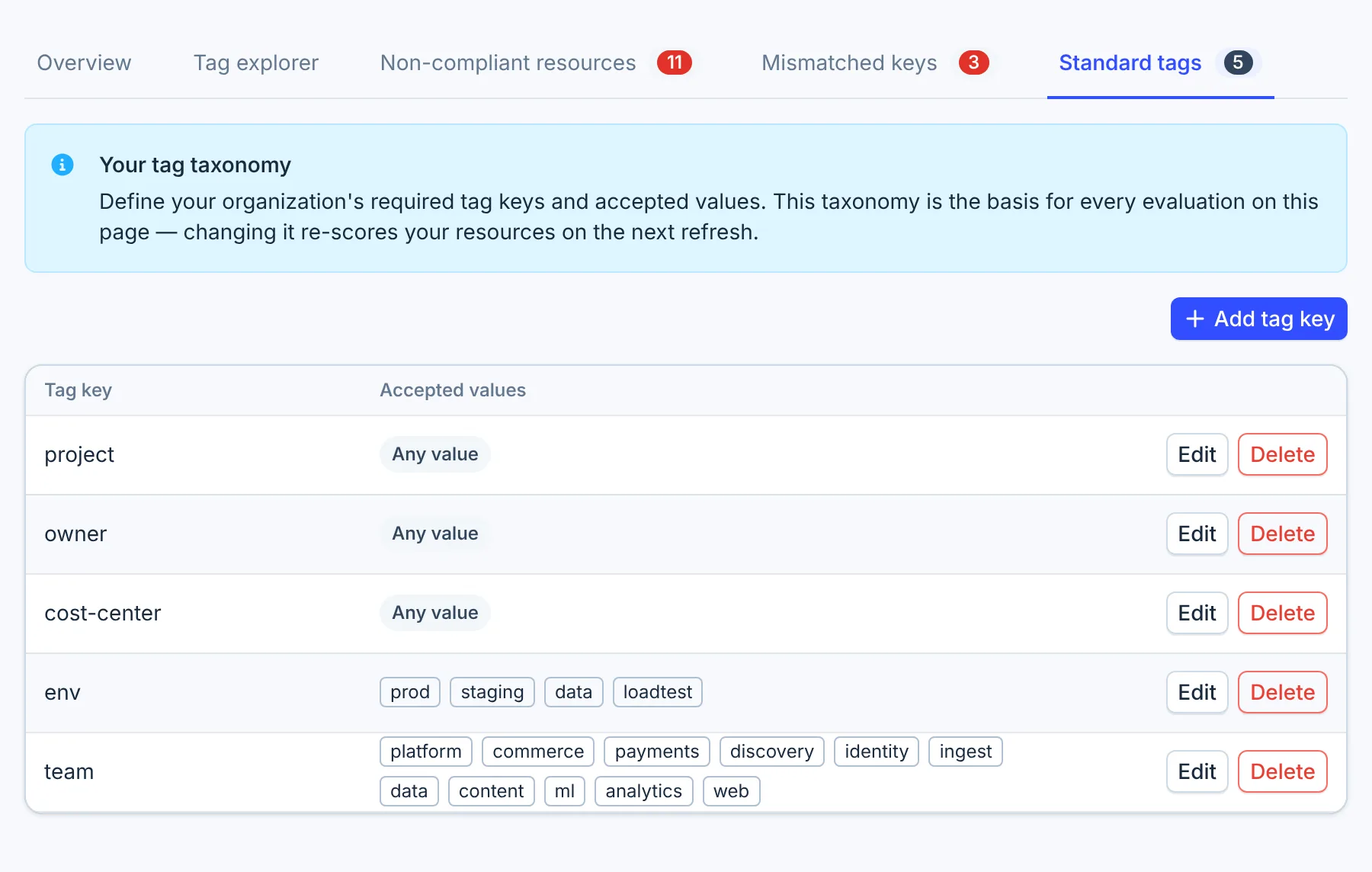
Your standard tags are the tag keys your organization agrees to use, such as team and env.
Tag Governance compares every tag key in your billing data with them and lists the keys that nearly
match one without matching it, such as Team or cost_center. Open Cost Allocation → Tag
Governance, then Standard tags, Mismatched keys or Non-compliant resources.
- View resources
Define your standard tags
-
Select Standard tags, then Add tag key.
-
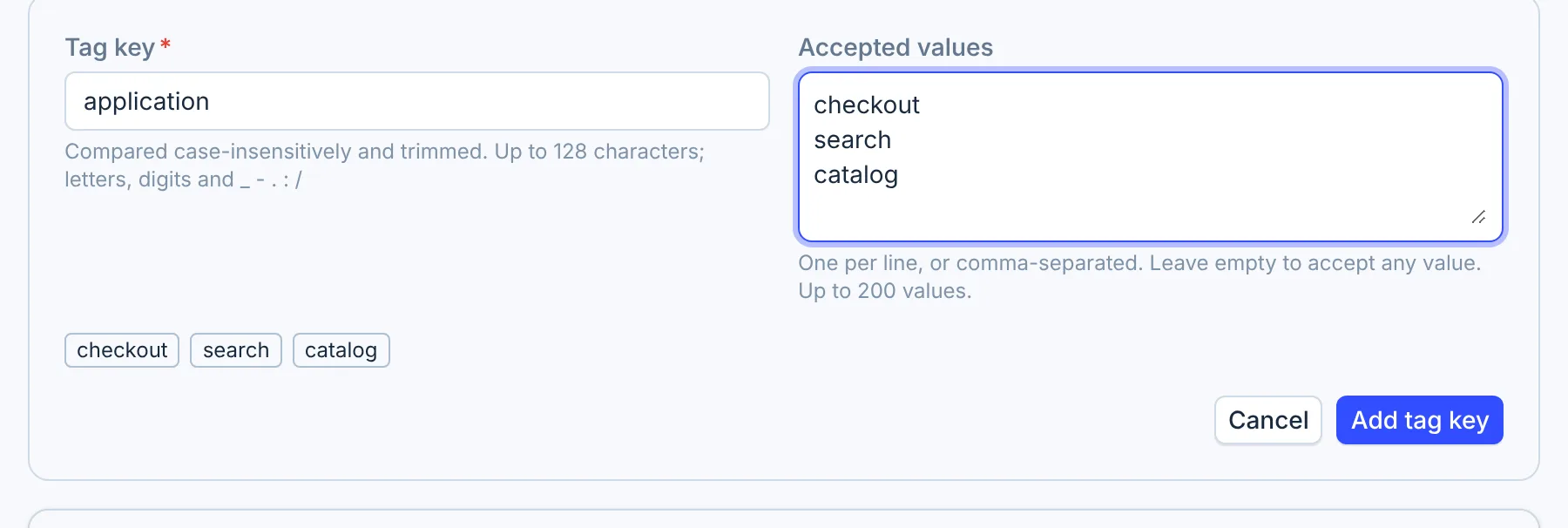
Enter the Tag key exactly as resources should carry it, such as
team. -
Under Accepted values, enter one value per line or separate them with commas. Leave it empty to accept any value.
-
Select Add tag key.
- Add tag key
Rules the form applies:
| Field | Rule |
|---|---|
| Tag key | Up to 128 characters: letters, digits and _ - . : /. No spaces. Must differ from your other standard keys, ignoring capital letters |
| Accepted values | Up to 200 values, each up to 128 characters. A value cannot contain a comma. Prod and prod count as one value |
To change a key or its values, select Edit, then Save changes. To remove a key, select Delete and confirm. Deleting is permanent and leaves no record; resources keep their tags.
Anyone in your organization who can sign in to CloudYali can add, edit and delete standard tags.
How a mismatched key is found
For each tag key in your billing data, CloudYali counts the letters it would need to change, add or remove to turn it into each standard key. When those edits are at most 40% of the longer key's length, and the two keys are not identical, the key is a mismatch. Capital letters count as different letters.
| Key in billing | Standard key | Mismatch? |
|---|---|---|
Team | team | Yes |
Env | env | Yes |
cost_center | cost-center | Yes |
Cost Center | CostCenter | Yes |
env | Environment | No: too many letters differ |
ENV | env | No: every letter differs in case |
ProjectId | Project | Yes, although it may be a different tag |
app | api | Yes, although they are different tags |
The check compares keys only. It does not report a missing key, an untagged resource or a value
outside your accepted values, which are shown but never checked. It also misses abbreviations such as
env for Environment, and keys written in capitals.
Keys AWS adds itself, starting aws:, are never checked. If two of your standard keys resemble each
other, such as Project and ProjectId, each is reported as a mismatch of the other.
Review mismatched keys
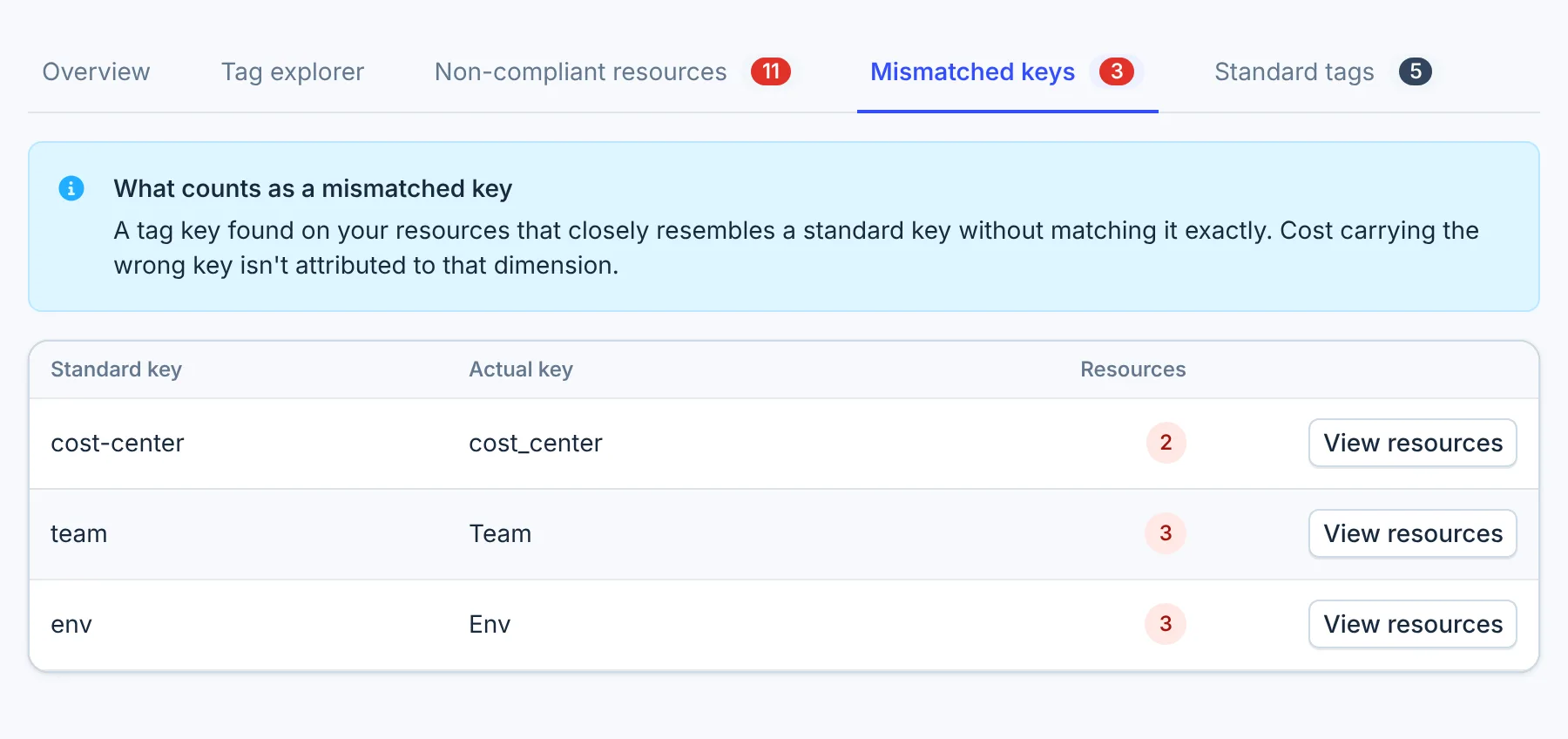
Mismatched keys lists each near-miss key next to the standard key it resembles, most similar first.
- Resources counts the account, region and service combinations whose billing carries the key, not individual resources.
- View resources opens Non-compliant resources, narrowed to that key.
Fix non-compliant resources
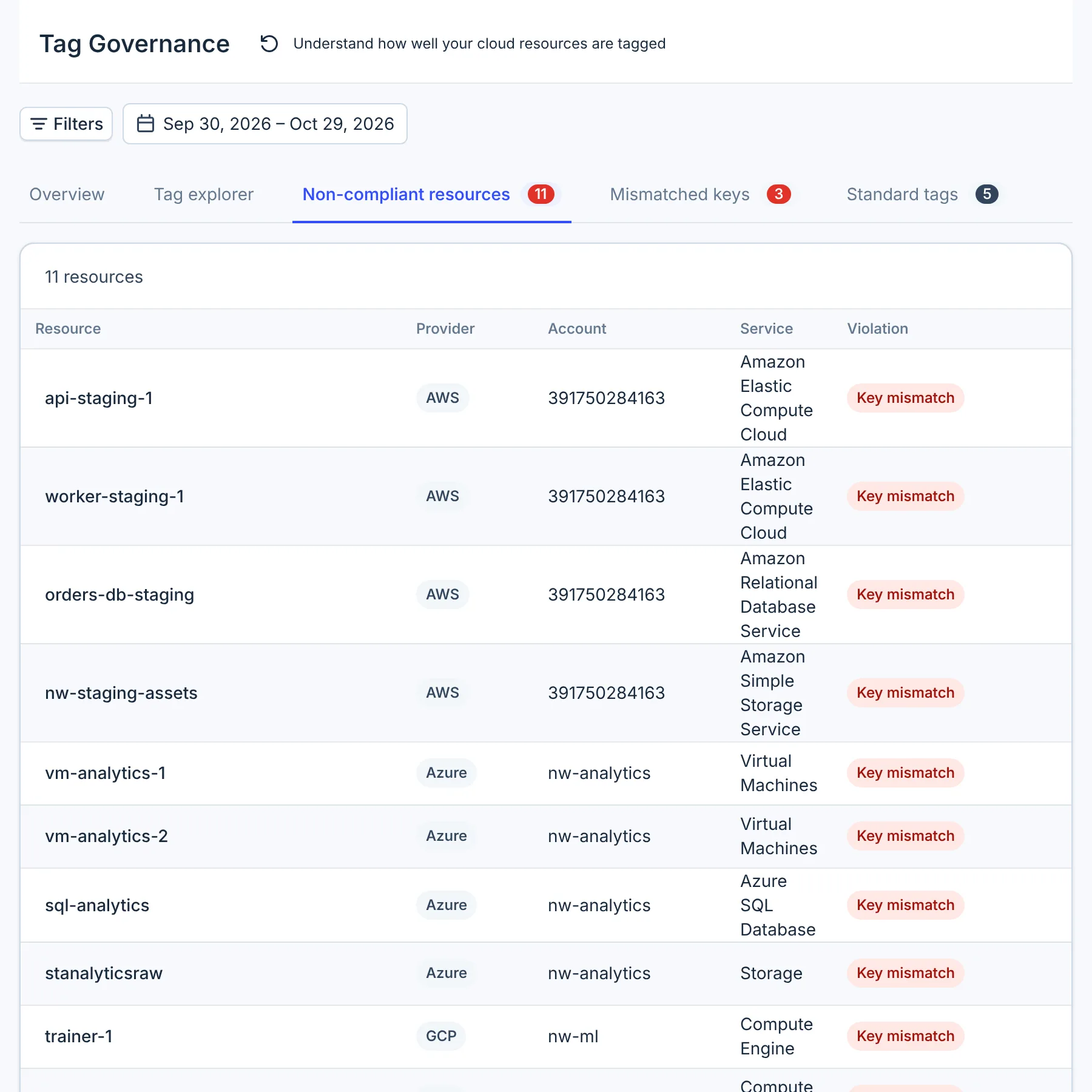
Non-compliant resources lists each billed resource that carries a mismatched key, with its provider, account and service. A resource with two mismatched keys appears twice.
- Resource
-
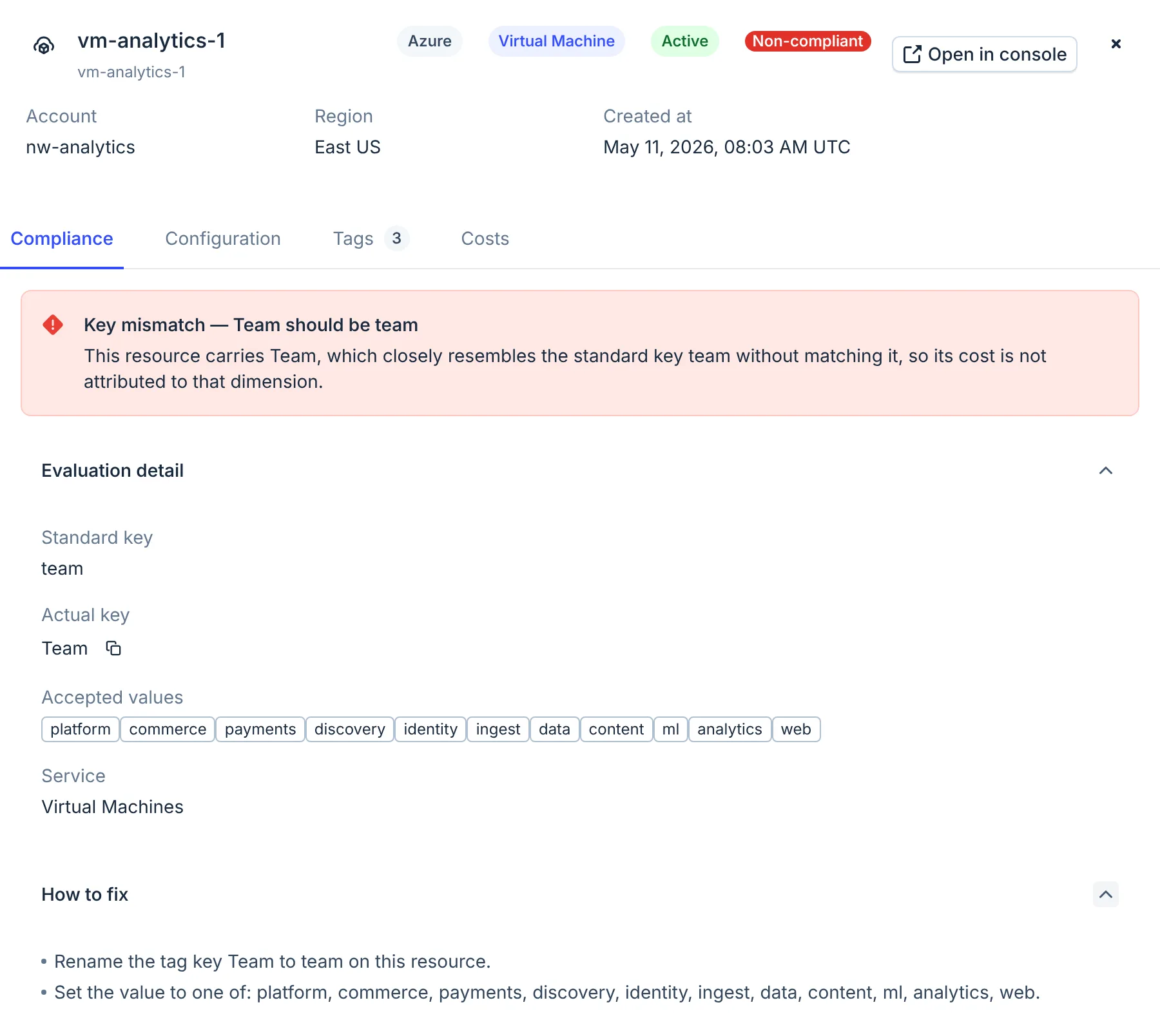
Select a resource. Its panel opens on Compliance, which names the key it carries and the standard key it should use.
-
Under How to fix, read the rename to make.
-
Rename the tag key on the resource in your cloud provider's console or your infrastructure code. CloudYali cannot change tags.
-
After the provider's next billing data carries the new key, usually a day later, select the refresh button next to the page title.
The list shows at most 100 rows, in no set order. When it is full, it says Showing the first 100 resources; narrow the period or filters to see the rest.
After you change your standard tags, the other tabs keep their earlier results until you select the refresh button, change the period or filters, or reload the page.
Limits
- Keys only. Accepted values, missing keys and untagged resources are not checked.
- Billing keys only. A key that is on your resources but not in billing data is never checked. See Tags in billing data.
- Near misses only. Abbreviations and all-capital keys are not caught, and short or similar keys can be flagged wrongly.
- 100 rows. Non-compliant resources shows at most 100 rows, in no set order, with no search, sorting or export.
- Resources is not a resource count. On Mismatched keys, it counts account, region and service combinations.
- No renaming from CloudYali. Rename keys at the provider. To stop a key being reported without renaming it, add it as a standard key.
- Spaces and some characters are not allowed in standard keys. A key such as
Cost Centercannot be defined, although providers allow it. - Changes are not recorded. CloudYali keeps no history of who added, changed or deleted a standard tag.
FAQ
Why is env not reported as a mismatch of Environment?
The check compares letters, and env shares too few of them with Environment. It catches spelling and case variants, not abbreviations.
Are accepted values checked?
No. They are listed on the Standard tags tab and in each resource's Compliance tab, but no value is checked against them.
Why are Mismatched keys and Non-compliant resources empty?
Either no billing key nearly matches a standard key, you have no standard tags yet, or the provider writes no tags to billing. See Tags in billing data.
Who can change the standard tags?
Anyone who can sign in to your organization's CloudYali.