Connect an AWS Organization
The cost of every account in your AWS Organization appears in CloudYali after you connect the management (payer) account, because its Cost & Usage Report covers the whole organization. A StackSet then deploys the CloudYali role to each member account, which adds its resources and per-account cost. Setup takes two stages and about five minutes.
Before you start
- Sign in to the management (payer) account, with permission to create IAM roles and policies, an S3 bucket, a Cost & Usage Report and a StackSet.
- Turn on trusted access for CloudFormation StackSets in AWS Organizations. CloudYali cannot check this, and the second command fails without it. See AWS's prerequisites for StackSets.
- Have the AWS CLI signed in to the management account. The member-account stage has no console option.
- Have two IDs ready: the root organization ID, which starts with
r-, and the 12-digit management (payer) account ID.
What CloudYali can read
The same role is deployed to the management account and to every member account. It reads billing, resource configuration, recommendations and CloudTrail events, and is read-only; AWS permissions lists every action.
Stage 1: connect the payer account
- In CloudYali, open Integrations and select Connect on the AWS card (Add account if AWS is already connected).
- Under Do you use AWS Organizations?, keep Yes — connect my organization selected.
- Enter the Root organization ID, the Management (payer) account ID and an Organization name of at least 3 characters, then select Continue.
- Select Open in AWS Console, signed in to the management account. CloudYali also emails the link to your CloudYali account email.
- In AWS CloudFormation, review the stack without changing the external ID, acknowledge that it might create IAM resources with custom names, and select Create stack.
- Back in CloudYali, select I've created the stack.
Cost for the whole organization starts with this stage.
Stage 2: deploy the role to member accounts
The console now shows three AWS CLI commands, built for your organization. Run them from one shell, signed in to the management account, without switching roles part-way.
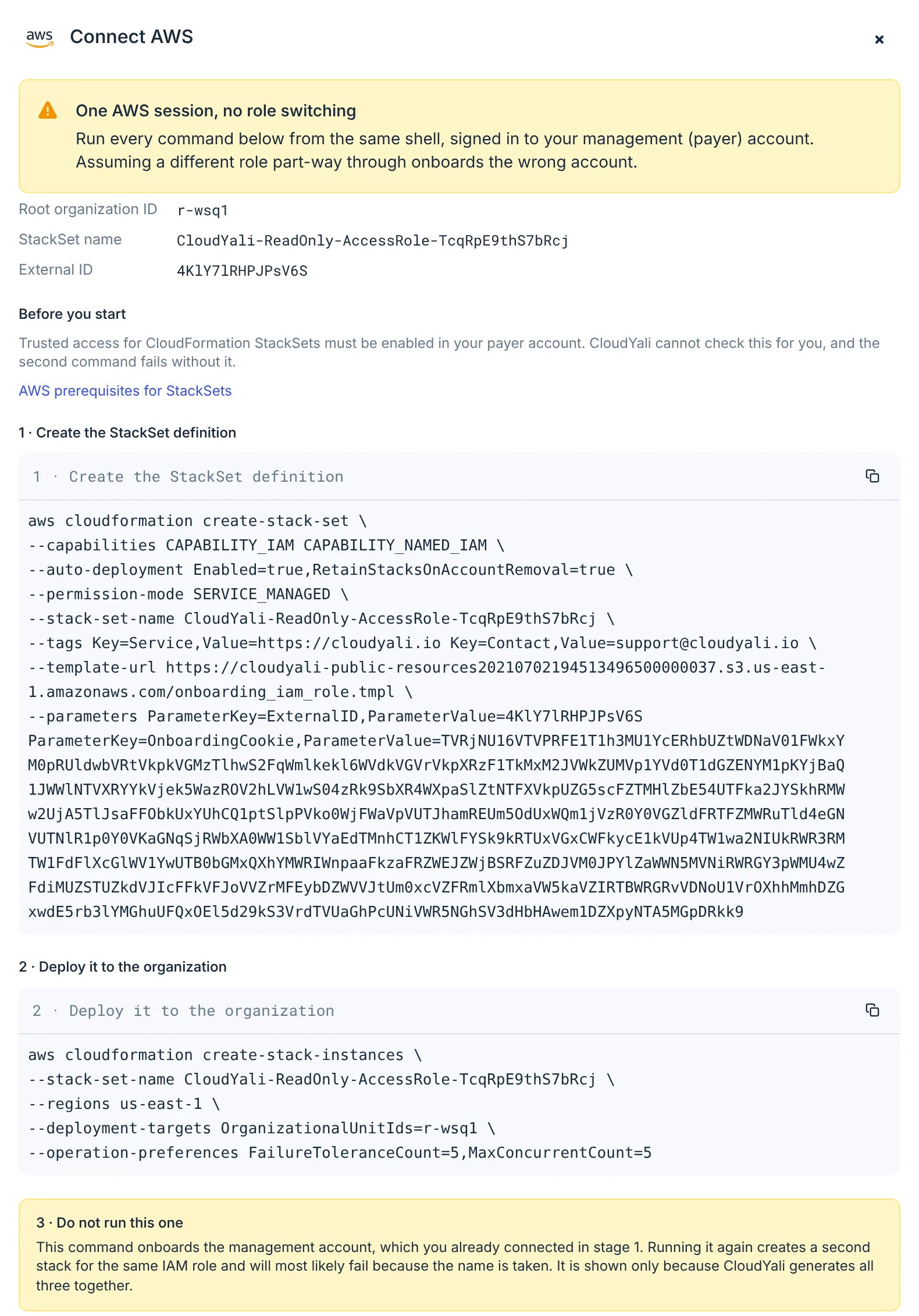
- Copy and run 1 · Create the StackSet definition. It creates a StackSet named
CloudYali-ReadOnly-AccessRole-<id>that deploys automatically to accounts that join later. - Copy and run 2 · Deploy it to the organization. It deploys the stack to every account under the
root, in
us-east-1. - Do not run the third command, Command 3 — skip this one. It would connect the management account again.
- Select I've created the stack.
The commands contain a signed token, so treat them as sensitive. They stay in your shell history, and CloudYali cannot generate new ones for the same connection.
Check that it worked
The console confirms the management account, usually within two minutes, and shows Connected. It cannot confirm member accounts: their stacks report to AWS, not to CloudYali. Each member account appears in Resource Inventory after its first scan, and you can follow the deployment in CloudFormation → StackSets in the management account.
Member accounts are listed on the Connected tab under the organization name until CloudYali reads each account's own name from AWS Organizations.
Replace a key or disconnect
There is no key to replace. To disconnect, remove each account on the Connected tab, then delete the StackSet's stack instances, the StackSet, and the payer account's stack. See Remove an account.
Troubleshooting
| Symptom | Cause | Fix |
|---|---|---|
| Continue stays greyed out | The root ID does not match r- followed by 4 to 32 lowercase letters or digits, the payer ID is not 12 digits, or the name is shorter than 3 characters | Correct the field the console marks |
| Command 2 fails | Trusted access for CloudFormation StackSets is off | Turn it on in AWS Organizations, then run command 2 again |
| Command 1 or 2 fails with an access error | The shell is signed in to a member account, or switched roles | Sign in to the management account and run the commands again |
| CloudYali could not assume the role | The payer stack's external ID or trust policy was changed | Delete the payer stack, then start a new connection |
| A member account is missing from Resource Inventory | Its stack instance failed, or it sits outside the root | Check the StackSet's Stack instances tab for the account's status |