Connect Google Cloud
Google Cloud costs, resources and recommendations appear in CloudYali after you give it a service account key that can read your BigQuery billing export and your Cloud Asset inventory. You create the service account in your project; CloudYali does not provide one. Setup takes about 20 minutes, most of it in Google Cloud.
Before you start
Set these up in Google Cloud first. Billing export and service account walks through each one.
- A project that holds the billing export. Its project ID is what you enter in CloudYali, and the billing dataset must be in that project.
- The Cloud Billing export to BigQuery, with its table path as
dataset.table, for examplebilling_data.gcp_billing_export_resource_v1_01F285_3FC4BD_C34B8C. - A service account with the roles on Google Cloud permissions, and its JSON key downloaded.
- The BigQuery API and the Cloud Asset API turned on in that project.
What CloudYali can read
| Data | Role | Why CloudYali needs it |
|---|---|---|
| The billing export table | BigQuery Data Viewer on the dataset, BigQuery Job User on the project | Cost by service, project and SKU |
| Resources | Cloud Asset Viewer, on the organization or on the project | Resource Inventory |
| The organization's projects | Browser on the organization | Finding every project when you connect the whole organization |
| Google Cloud recommendations | BigQuery Data Viewer on the same dataset | Cost Savings; see Recommendations |
Connect Google Cloud
- In CloudYali, open Integrations and select Connect on the GCP card (Add account if Google Cloud is already connected).
- Enter the Project ID that holds the billing export, not its display name.
- Optionally, enter a Display name. CloudYali uses the project ID if you leave it empty.
- Enter the Billing export table as
dataset.table. - Under How much should CloudYali see?, choose:
- The whole organization for resources in every project. The service account needs Cloud Asset Viewer and Browser on the organization.
- This project only for resources in this project. Cost still covers everything in the billing export.
- Under Service account key, select Choose file and pick the JSON key.
- Select Connect.
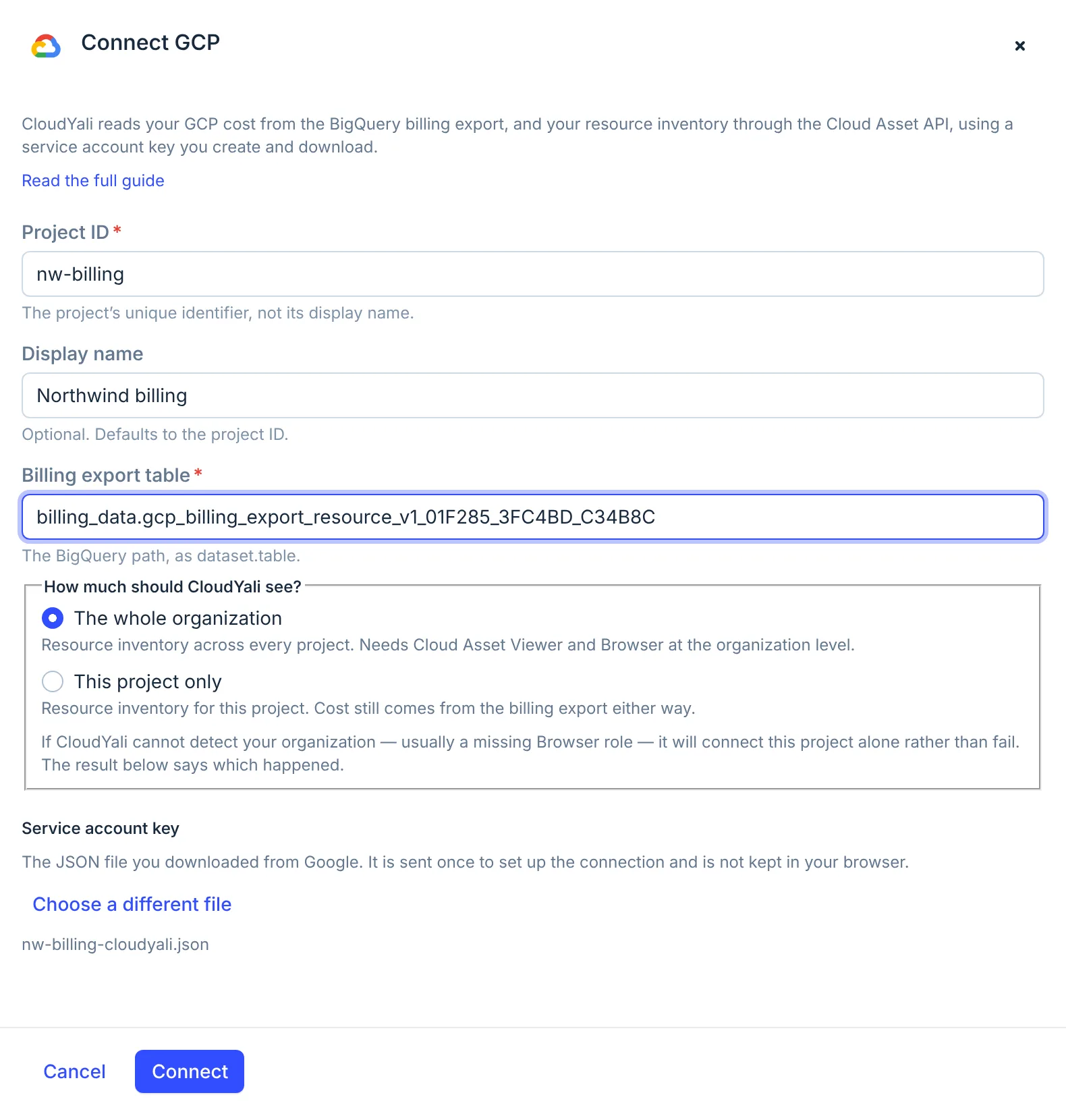
CloudYali checks the billing table and the Cloud Asset access before it saves anything. If a check fails, the console shows Google's reason; see Troubleshooting.
Check that it worked
The console shows Connected, with the project and, for the whole organization, the organization and the number of projects CloudYali found. If CloudYali could not find the organization, it shows Connected — but for this project only and connects the project alone; cost is not affected.
The project appears on the Connected tab of Integrations. Data arrives with the daily syncs:
- Cost: the first sync reads two to three months, from the 1st of the month about 60 days back, then the last 15 days again each day.
- Resources: once a day, from the first inventory sync.
- Recommendations: once a day, after cost.
Replace a key or disconnect
To replace the key, connect the same project again with the new key: CloudYali checks it and replaces the stored one. Then delete the old key in Google Cloud.
To disconnect, open the Connected tab and select Remove on the project's row. CloudYali stops syncing and keeps the cost history it has. It also keeps the stored key, so delete the key in IAM & Admin → Service accounts to revoke access.
Troubleshooting
| Symptom | Cause | Fix |
|---|---|---|
| That is a console URL | You pasted a link | Enter only dataset.table |
| … does not appear to be a GCP billing export table | The table name does not start with gcp_billing_export_resource_v1_ or gcp_billing_export_v1_ | Copy the table name from the billing dataset in BigQuery |
| Dataset … not found in project … | The dataset is in a different project from the project ID you entered | Enter the project that holds the dataset |
| BigQuery API is not enabled | The API is off in the project | Turn on the BigQuery API, then connect again |
| … does not have permission to access dataset … | The service account lacks BigQuery Data Viewer | Grant it on the dataset or the project |
| Cloud Asset API is not enabled | The API is off in the project | Turn on the Cloud Asset API |
| … does not have Cloud Asset Viewer role at organization level | The role is missing on the organization | Grant roles/cloudasset.viewer on the organization, or choose This project only |
| Connected — but for this project only | The service account lacks Browser on the organization | Grant Browser and Cloud Asset Viewer on the organization, then connect again |
| That JSON is not a service account key | The file is not a service account key | Download a JSON key for the service account |
| No cost after a day | The service account lacks BigQuery Job User on the project; CloudYali does not check it at connect | Grant BigQuery Job User on the project |
| Service account key creation is disabled in Google Cloud | The organization policy iam.disableServiceAccountKeyCreation is on | Ask your organization admin for an exception on this project |