Manage budgets
Every budget has its own page with its spend, the resources behind it, the alerts it has sent and the changes made to it. Open Financial Planning → Budgets and select a budget's name. This page covers reading that page and editing a budget. To set one up, see Budgets.
Read a budget
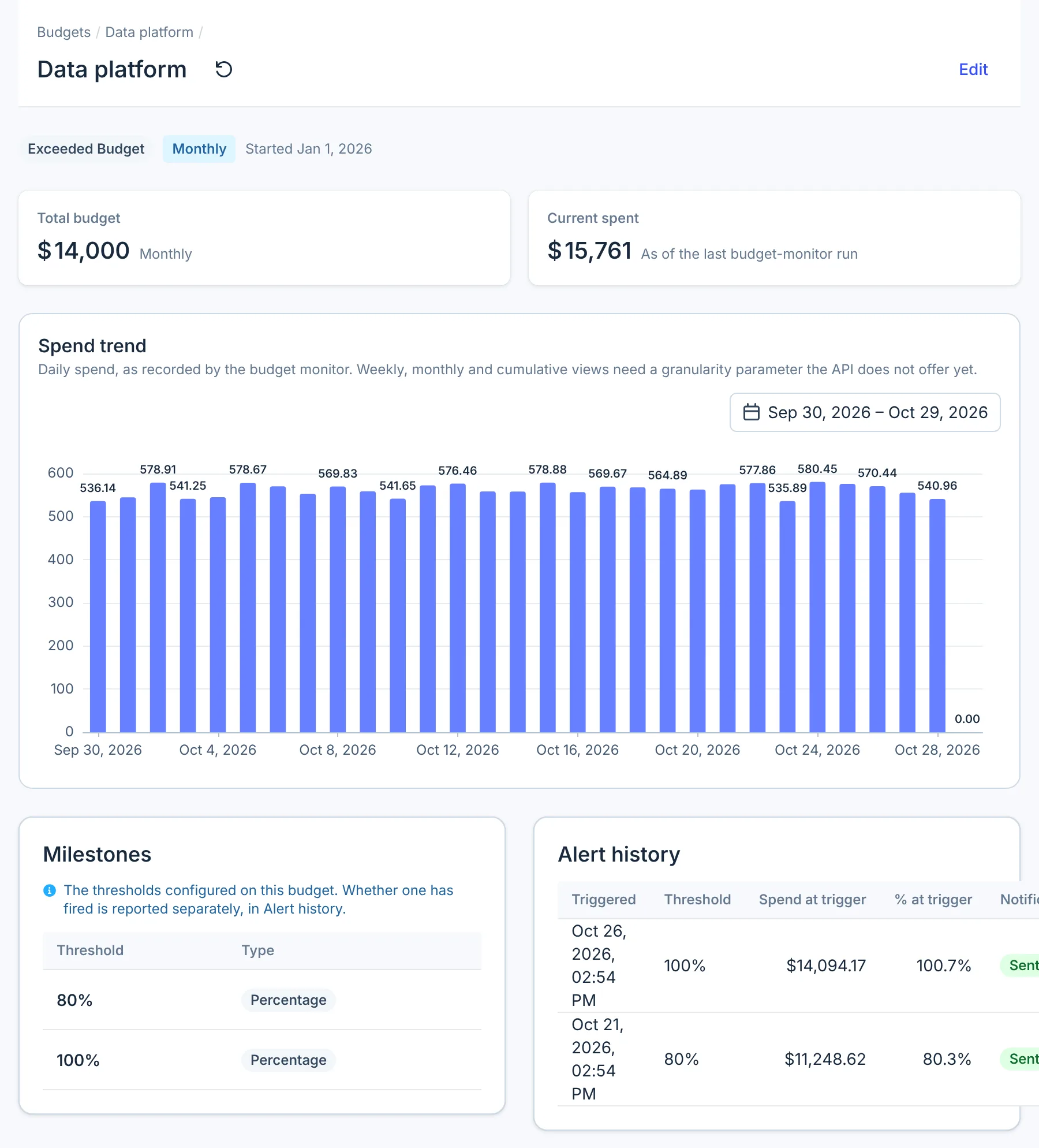
The budget page shows, from top to bottom:
| Section | What it shows |
|---|---|
| Total budget and Current spent | The limit and the spend so far this period, as of the last daily check |
| Spend trend | Daily spend as bars, for the date range you pick, up to the last 90 days. Last 30 days by default |
| Milestones | The milestones set on the budget, as a percentage or an amount |
| Alert history | Each milestone reached in the date range: when, the threshold, spend at the time, the share of the budget, and whether the email was Sent |
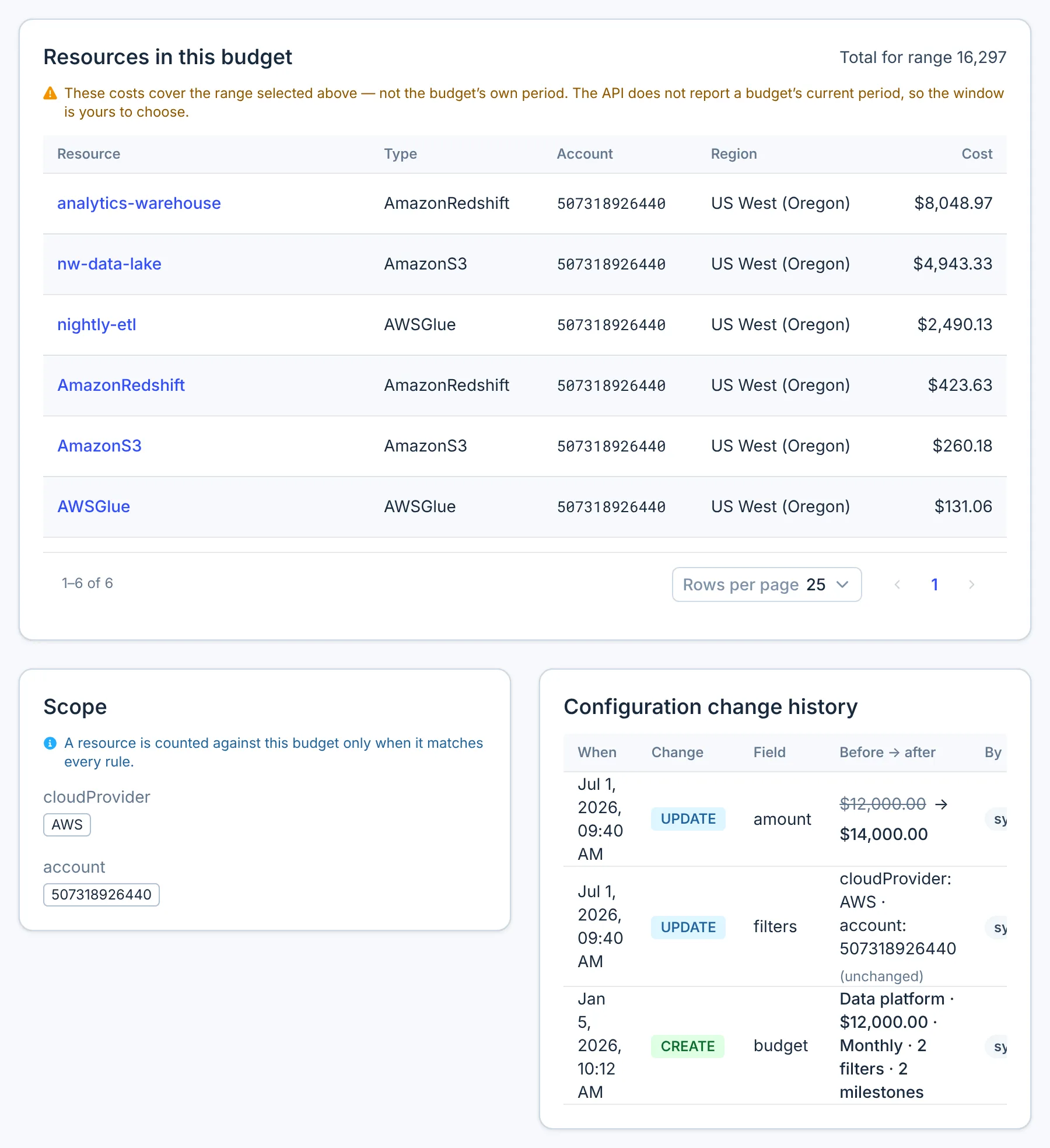
| Resources in this budget | The resources whose cost counts towards the budget, with their cost for the date range. Select one to open it in Resource Inventory |
| Scope | The budget's rules |
| Configuration change history | Each change to the name, amount, period or scope, with the value before and after |
Resources in this budget and Alert history use the date range above them, not the budget's period. Databricks budgets show no resources.
Edit a budget
- Open the budget and select Edit.
- Change the scope, name, amount, period or milestones. Every field can be changed, including the provider.
- Select Save budget.
CloudYali works out the budget's spend again as soon as you save. Until it finishes, the list shows no status and $0.00 spent.
Saving also resets the milestones. A milestone already reached this period sends its email again on the next check, so expect a repeat alert after an edit.
Configuration change history records changes to the name, amount, period and scope. It does not record changes to milestones or Starts on, and shows every change as made by "system".
Pause or delete a budget
The console has no pause and no delete yet. To stop a budget's emails, edit its milestones to dollar amounts above what you expect to spend. To remove a budget, email support@cloudyali.io. Removing a budget also removes its alert history and change history, and cannot be undone.
Limits
- Two people editing the same budget at once overwrite each other: the last save wins.
- An alert that fired today can be missing from Alert history until tomorrow, because the default range ends at the start of today.
- If an alert email fails, the alert shows Not sent and is not retried until the next period.
- Any user in your organization can create and edit budgets, whatever their role.