Azure Cost Management exports
CloudYali reads Microsoft Azure cost from a Cost Management export that writes a CSV file to Blob Storage every day. You create the export; CloudYali only reads it. This page sets it up in about 10 minutes, before you connect Azure.
Before you start
- You need permission to create a storage account and to create exports in Cost Management for the subscription or billing account.
- Microsoft Customer Agreement: in Cost Management + Billing → Billing account properties, Azure charges must be set to Yes.
- Enterprise Agreement: your Enterprise Admin must turn on Account Owner (AO) view charges.
1. Create a storage account and container
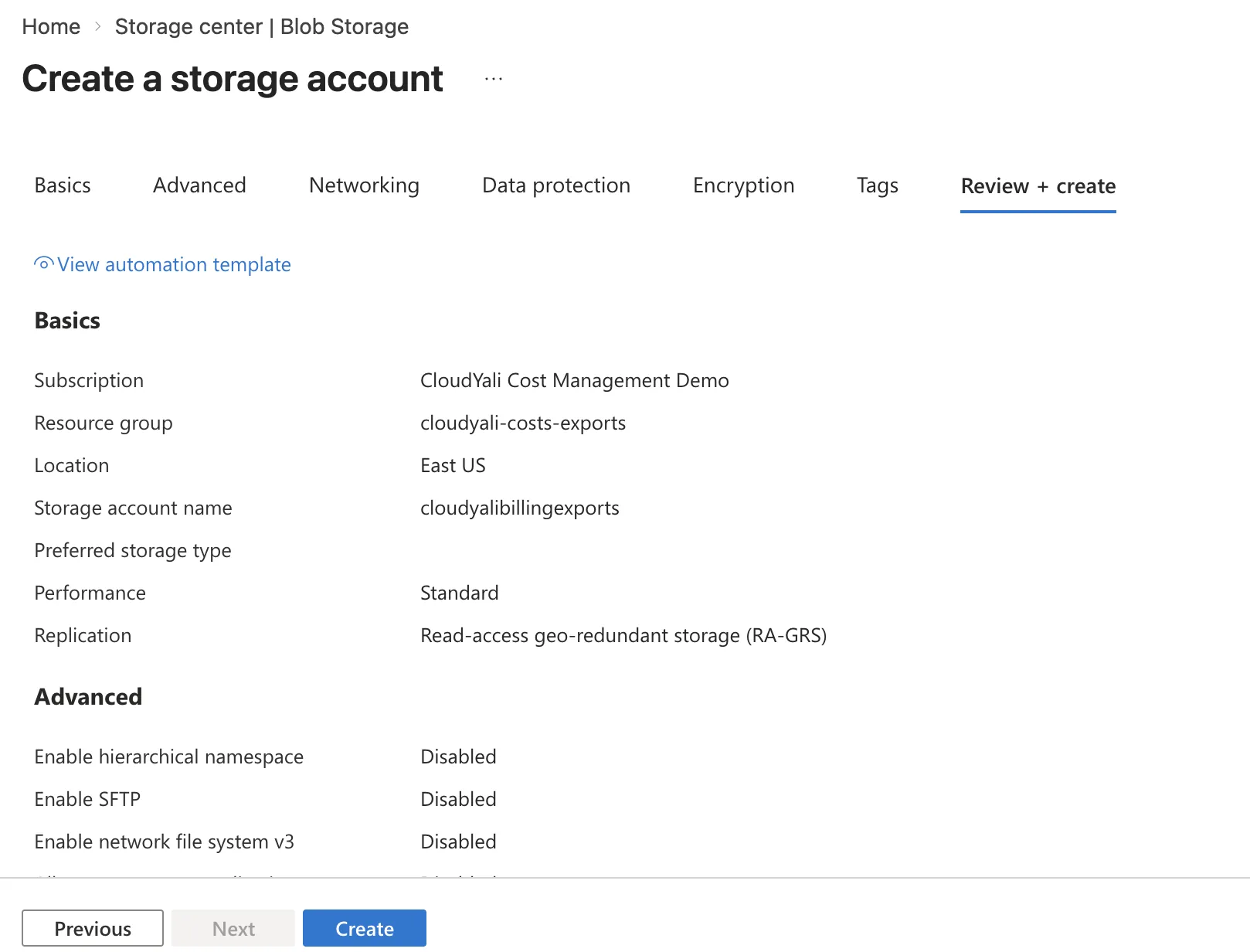
- In the Azure portal, open Storage accounts and select Create.
- Choose a resource group and a name of 3 to 24 lowercase letters and numbers, such as
nwcostexports. Standard performance and locally-redundant storage are enough. - Select Review + create, then Create.
- In the new storage account, open Containers and select + Container.
- Name it, for example
exports, keep access Private, and select Create.
2. Create the export
- Open Cost Management + Billing, choose the subscription (or the billing account for Microsoft Customer Agreement and Enterprise Agreement), and open Exports.
- Select + Create. To export cost details, choose the template for cost and usage, or All data to export actual, amortized and FOCUS datasets at once.
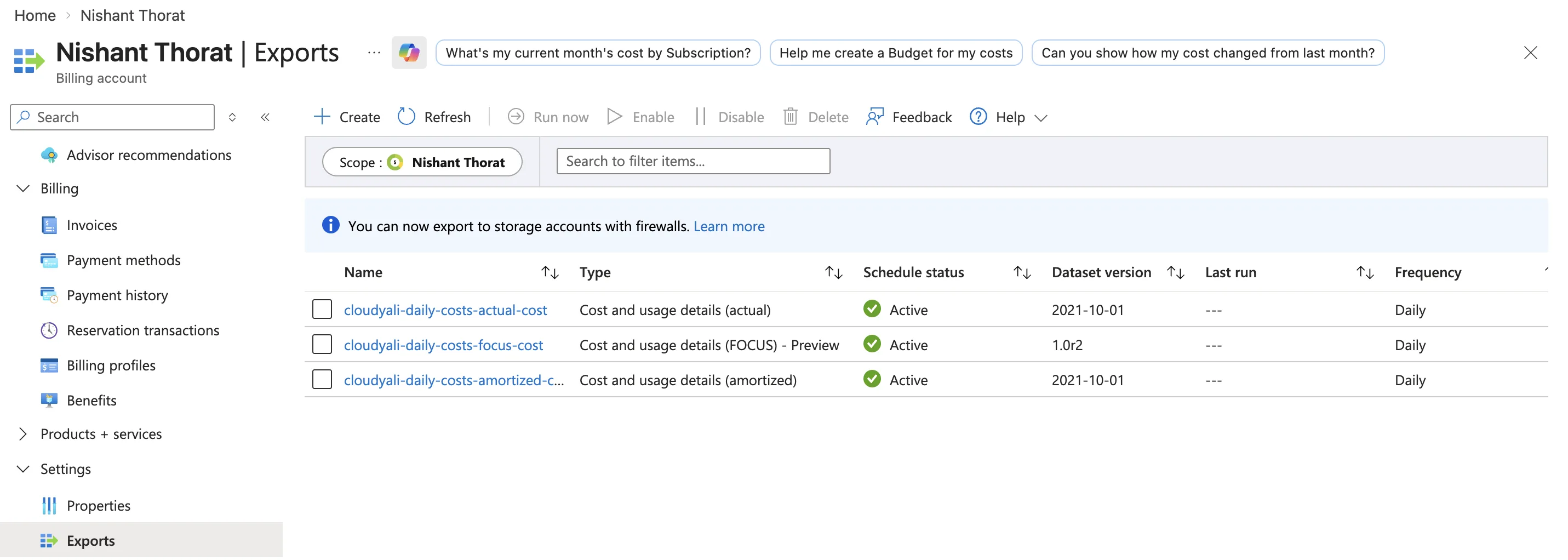
- Set a name prefix or export name. CloudYali reads one export: the actual cost one.
- Choose Daily month-to-date exports.
- Under the storage destination, choose the storage account and container from step 1, any directory, CSV format and, optionally, Gzip compression.
- Select Create.
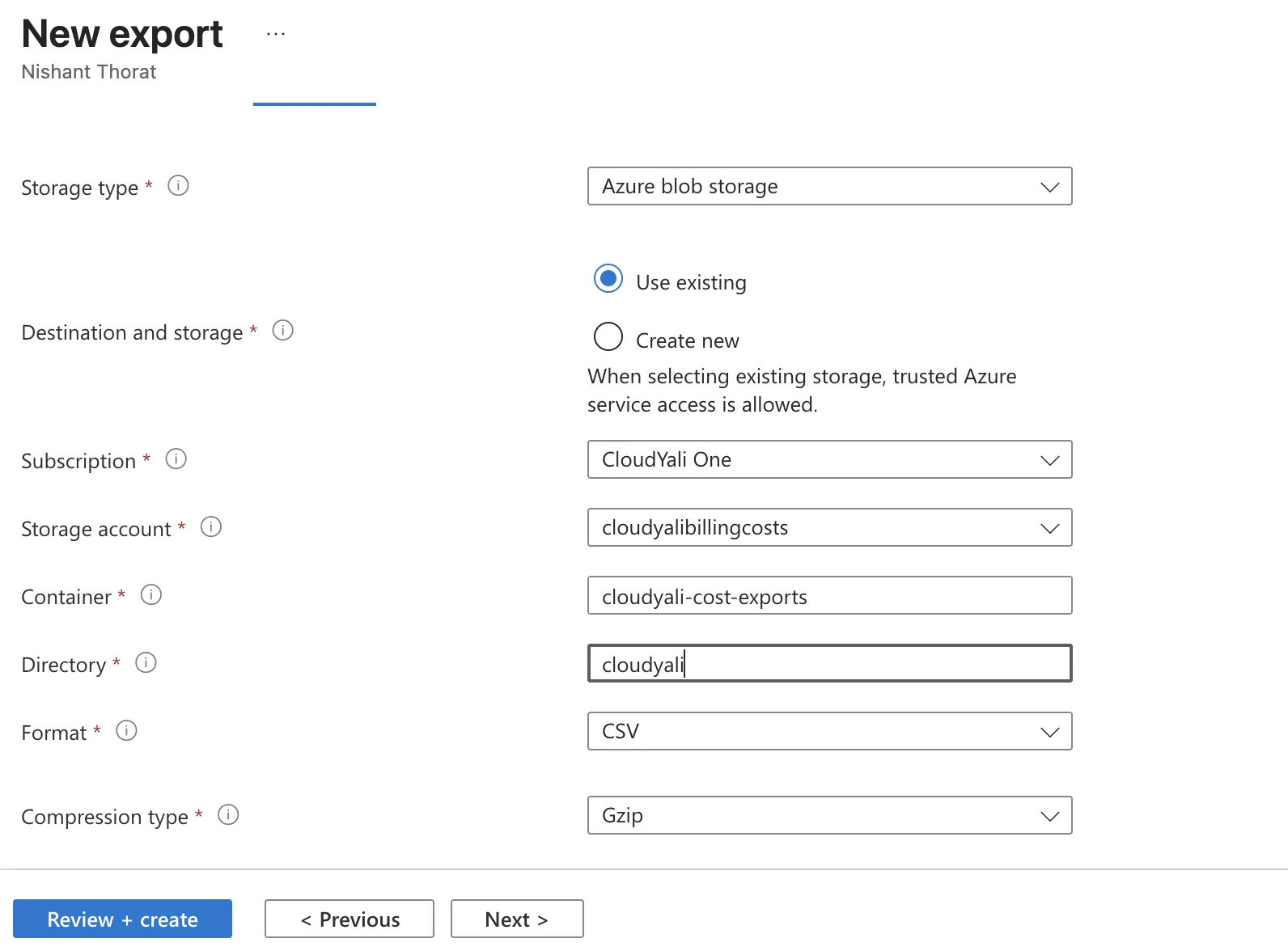
To get a first file today instead of tomorrow, open the export and select Run now.
Note three values for CloudYali: the storage account, the container and the export name, exactly as Exports lists it.
3. Give the service principal access
Assign the service principal Storage Blob Data Reader on the storage account. See Service principal.
Actual or amortized cost
| Export | What it shows | What CloudYali can do with it |
|---|---|---|
| Actual cost | Costs as billed; reservation usage shows as $0 | Cost Explorer, anomalies, budgets, and Commitments coverage |
| Amortized cost | Reservation and savings plan purchases spread over the usage they cover, plus unused hours | Commitments utilization, unused commitment, savings and effective savings rate |
Connect the actual-cost export. Each Azure connection reads one export, and the console does not ask for its type. If you want Commitments to show Azure utilization and savings, contact support@cloudyali.io about reading your amortized export.
Check that it worked
After the export runs, its folder in the container holds a CSV file. CloudYali reads the files with its next daily sync; the first sync reads up to 6 months of files already in the container.
Troubleshooting
| Symptom | Cause | Fix |
|---|---|---|
| Exports does not offer the billing account | Your agreement setting is off | Turn on Azure charges (MCA) or AO view charges (EA) |
| The container stays empty | The export has not run yet | Select Run now, or wait for the next daily run |
| No cost in CloudYali after a day | The export name in CloudYali differs from the one in Exports | Contact support@cloudyali.io to correct the export name |