Search and filters
Resource Inventory has three ways to narrow the list, above the table in Cost Management → Resource Inventory: the search box, Filters, and the Period. Search finds a resource by any text it holds. Filters narrow the list by provider, resource type, region, account and state. The period sets which dates count.
Search
Type at least three characters in the search box. The list updates when you stop typing.
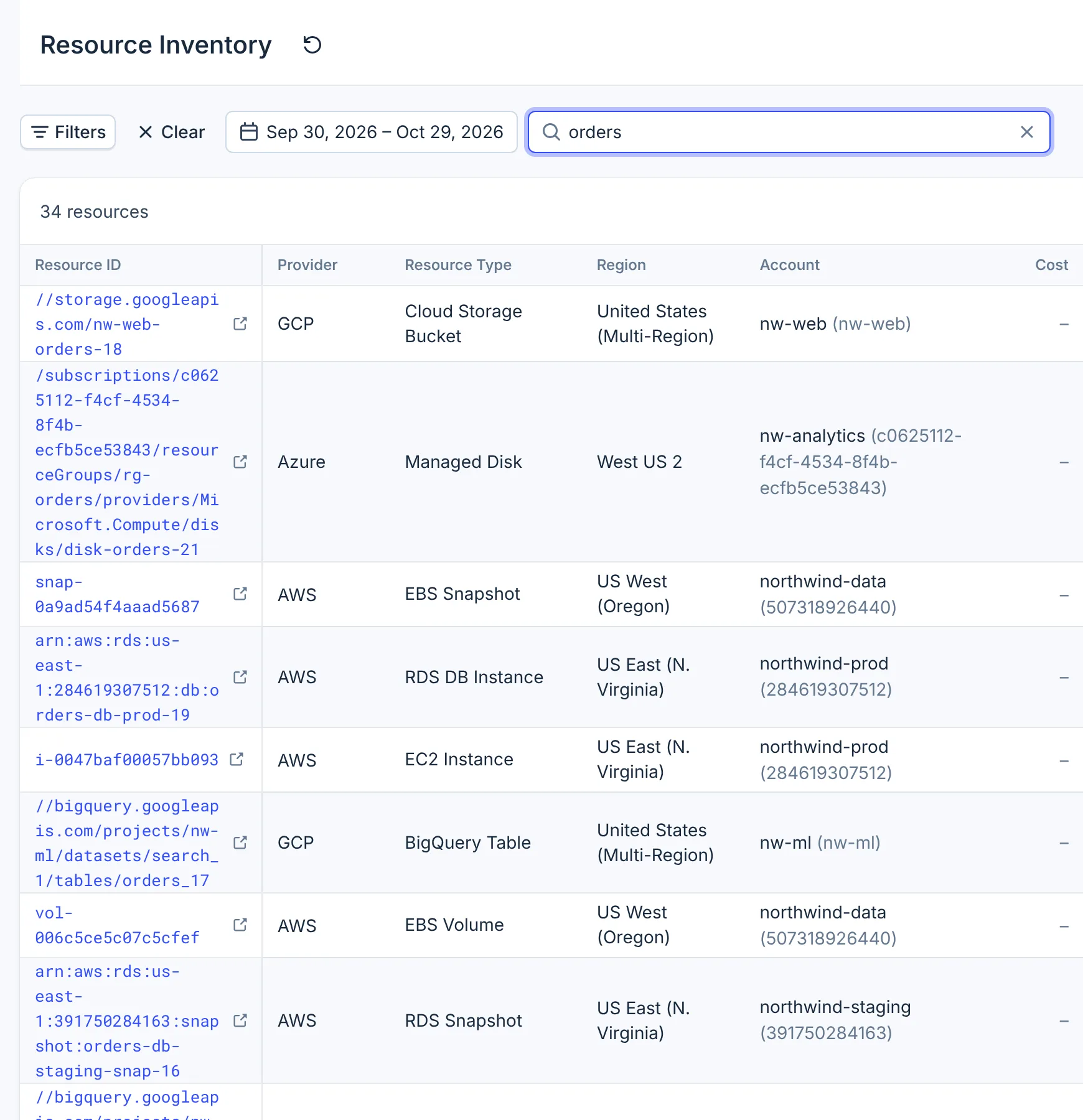
- Search
Search looks for the text you type, as one piece, anywhere in:
- the resource ID and resource name;
- the account ID and the region code;
- any value in the resource's configuration, such as an IP address, an instance type or an ARN;
- any tag value.
Search does not match tag keys, resource type names or account names. Capital letters do not matter.
orders-db finds orders-db-prod; aws prod finds only resources that contain that exact text,
space included. One or two characters are ignored, with no message.
Results come most recently changed first, not by how well they match.
While the search box holds three or more characters, provider, resource type, region, account and state filters are not applied, though Filters still shows how many you set. Only the period applies. Read the Provider and State columns of the results, or clear the search to use your filters.
Search covers resources created, changed or deleted in the last six months. An older resource that has not changed since is still in the list, but search does not find it. Use filters to reach it.
Filters
Filters come in groups. Each group is for one cloud provider.
-
Select Filters, then Add filter group.
-
Choose the provider under Cloud provider.
-
Select Add rule and choose a field: Resource type, Region, Account or State. Each field can be used once in a group.
-
Choose the values. is any of keeps resources with any of the values; is none of removes them. State is Active or Deleted.
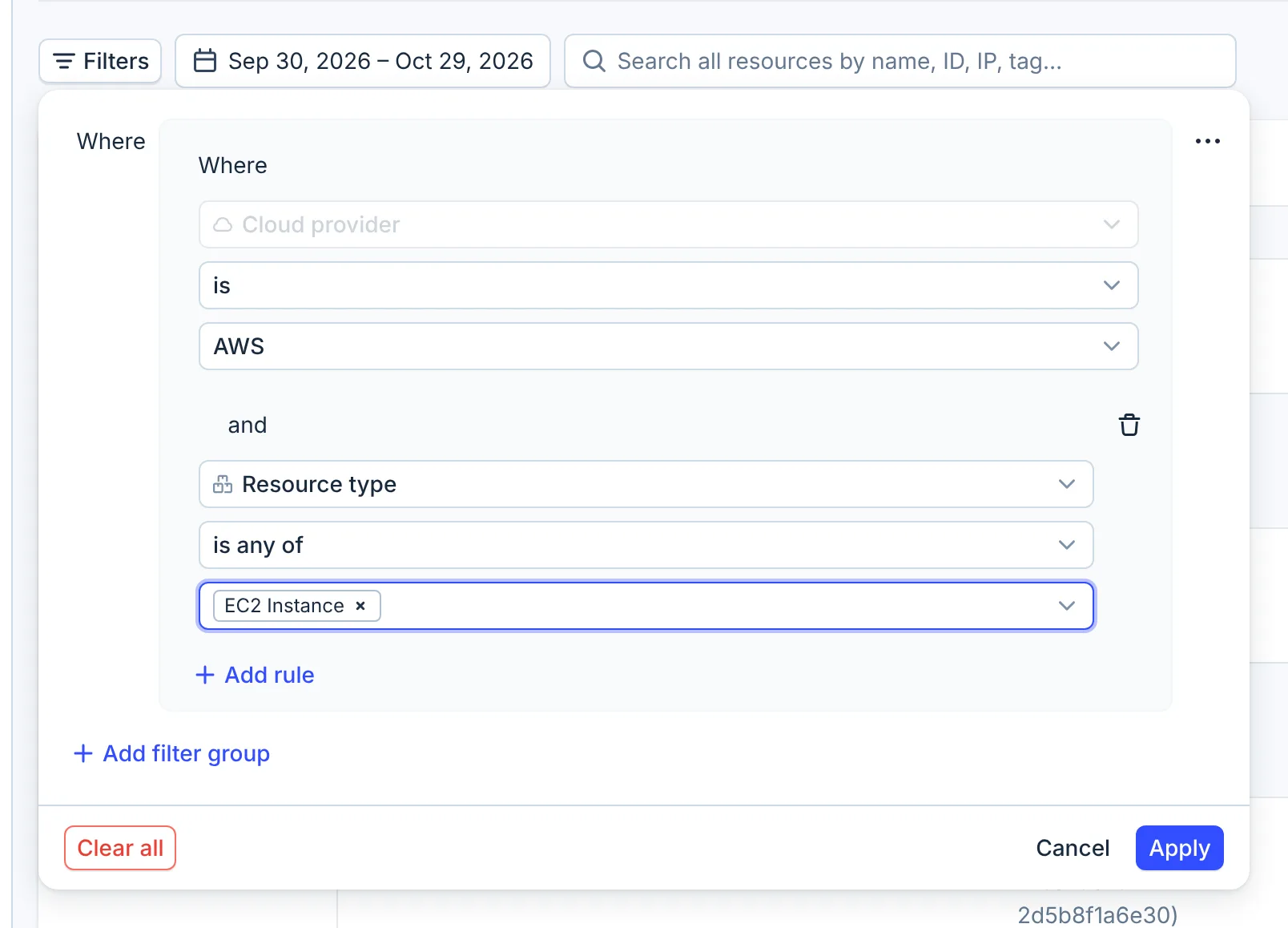
- Add filter group
- Cloud provider
- Add rule
-
To filter another provider too, select Add filter group again.
-
Select Apply.
How the rules combine:
- Inside a group, every rule must match. Pick several values in one rule to allow any of them.
- Between groups, a resource needs to match one group. "AWS in us-east-1" and "Microsoft Azure, deleted" together list both sets.
- is none of keeps resources that have no value for that field. A region rule does not remove Anthropic or Databricks resources, which have no region.
The panel lets you switch the word between two rules of a group to "or". It has no effect: the rules still combine with "and".
Cancel, Escape or a click outside the panel discards your changes. Clear all empties the panel, and you still select Apply. The Clear button on the page resets filters, search and the period together.
The value lists show what exists in your data:
- They do not follow the period, so a value can return no resources for the dates you chose.
- An account that is connected but has no resources yet shows "— no resources yet".
- A list with more than 1,000 values shows the first 1,000, and its field reads "(partial list)".
Period
The period sets which resources count: a resource is listed if it existed at any time between the two dates. It was created before the end, and it was not deleted before the start.
- The page opens on the last 30 days. Clear brings that back; the period cannot be removed.
- Pick a preset, such as Last 90 days or Last quarter, or set Starts and Ends.
- Dates are whole days in UTC.
- To find resources deleted long ago, choose a period that starts before they were deleted.
The period also sets the dates of each resource's Costs tab.
How search, filters and the period combine
| Search box empty, or one or two characters | Three or more characters in the search box | |
|---|---|---|
| Filters | Applied | Ignored |
| Period | Applied | Applied |
| State | Active and deleted, unless a group sets State | Active and deleted |
| Order | Provider, then type, then ID | Most recently changed first |
Limits
- Search drops filters. With three or more characters in the search box, only the period applies. Clear the search to filter.
- "Or" inside a group is ignored. Rules in a group always combine with "and". Put the values in one rule with is any of instead.
- No tag filter. Filters cannot select by tag. Search for the tag's value instead; search does not match tag keys.
- Search covers six months. Resources not created, changed or deleted in the last six months are not found by search. Use filters.
- Search can lag behind the list. A new resource, or a change to its tags or configuration, can take several days to reach search. Filters always read the current list.
- One provider per group. A rule cannot span providers; add a group for each provider.
- Settings are not kept. Leaving or reloading the page resets search, filters and the period.
FAQ
Can I find a resource by its IP address?
Yes, if the address is in the resource's configuration, as it is for an EC2 instance's private IP. Type the full address in the search box.
Why does search not find a resource that is in the list?
Search covers resources created, changed or deleted in the last six months, and it can lag behind the list by several days. Find the resource with filters instead.
Why did my filters stop working when I searched?
Search does not apply filters, only the period. Clear the search box and your filters apply again.
How do I see only deleted resources?
Add a filter group for the provider, add a State rule and choose Deleted. Choose a period that covers when they were deleted.
Can I filter by tag?
Not with filters. Search for the tag value, such as prod, or use Tag Governance for tag coverage.