AI assistant security
The CloudYali MCP server gives an AI assistant read-only access to CloudYali, as the user who approved the connection, for up to 45 minutes at a time. This page covers how that is enforced, what the assistant sees and what CloudYali stores.
Summary
| Control | How it works |
|---|---|
| Access | Read-only. The server offers only tools that read; none can change data |
| Identity | The CloudYali user who approved the connection |
| Permissions | That user's own, the same as in the console. No shared or elevated credentials |
| Sign-in | Through the CloudYali console, with multi-factor authentication if the user has it |
| Approval | Each connection needs an explicit approval on the CloudYali approval screen |
| Connection length | Up to 45 minutes from approval. The assistant can renew its access within that time, not past it |
| Staff impersonation | A CloudYali staff member using your account cannot approve a connection |
| Request limit | About one request a second per organization (60 a minute, bursts of up to 10, at most 4 at a time), shared by all its connections |
| Install | None. CloudYali installs nothing. Desktop and command-line assistants keep their CloudYali sign-in on your computer until it expires |
Read-only access
The server exposes 31 tools, and each one reads. It can send only reads to CloudYali's API, and only to
api.cloudyali.io. Through an assistant, you cannot:
- create, edit or delete budgets;
- change a savings opportunity's status;
- acknowledge or ignore anomalies, or change alert settings;
- edit tags;
- change account, user or organization settings;
- call AWS, Microsoft Azure or Google Cloud.
Do these in the console at console.cloudyali.io.
Permissions
Every request runs as the user who approved the connection. The assistant reads only the accounts and data that user can read in the console.
When you remove a user from your organization, CloudYali deletes their sign-in and refuses requests from their connections. Their assistant may still list CloudYali as connected until its 45 minutes are up.
Sign-in and approval
- The assistant sends you to CloudYali's sign-in page.
- You sign in to the console, if you are not signed in already.
- The console fetches the connection request from the CloudYali MCP server and shows the approval screen.
- You select Agree & Allow Access or Cancel.
- If you approve, the console renews your session and sends one fresh access token to the MCP server. Your browser returns to the assistant.
- If you cancel, no access is granted.
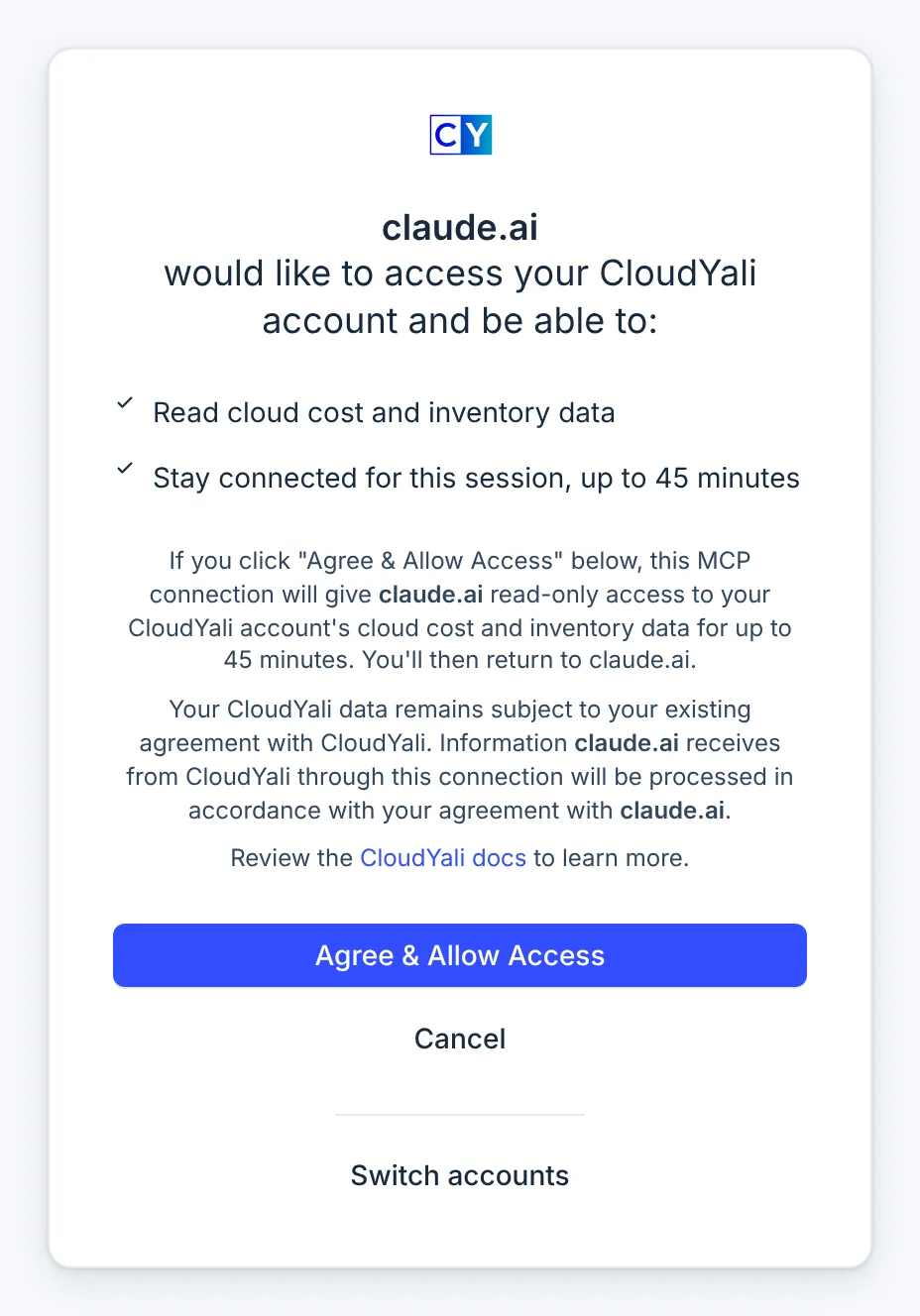
The approval screen
| Element | What it tells you |
|---|---|
| Client name | Which assistant is asking: its website, such as claude.ai, or Registered client and an ID for one that registered itself. The MCP server supplies the name, not the page address, so a crafted link cannot show a false name |
| Permissions | Read cloud cost and inventory data, and, if the assistant asks to stay connected, Stay connected for this session, up to 45 minutes |
| Return address | Where the browser goes after approval |
| Local address warning | Shown when the return address is on your own computer, such as 127.0.0.1. Such an address does not prove which program asked |
| Signed-in user | Whose permissions the connection gets. Switch accounts signs you out so you can approve as someone else |
| Data notice | Data the assistant receives is handled under your agreement with that assistant's vendor |
Approve only a connection you started from your assistant, and check the return address. A link someone else sends you can ask you to connect their assistant.
A request lasts 10 minutes from when the assistant opened the page, and can be used once. After that, the console shows "This request has expired. Start again from your MCP client." If the approval screen was already open, you see "This sign-in can't be completed here. Start again from your MCP client." instead.
Connection length
The console's access token lasts 45 minutes from approval. The MCP server gives the assistant its own token, valid for up to 30 minutes. The assistant can renew it, but not in the last 5 minutes and never past those 45 minutes.
This holds whether or not the approval screen listed Stay connected for this session. After that, the assistant asks the user to sign in again (some assistants show "Sign-in expired. Reconnect to CloudYali.") and the user approves a new connection.
To stop access sooner, remove the CloudYali connector from the assistant. An approved connection can keep working until its 45 minutes are up.
How the token travels
- The console sends the access token to the MCP server in the body of an HTTPS form, never in a URL.
- The MCP server's address is fixed when the console is built; nothing in a link or request can change it.
- The MCP server accepts the token only from the CloudYali console, only for the request you approved, and only once.
What the assistant sees
| Step | What happens |
|---|---|
| MCP server → CloudYali API | HTTPS requests with the user's access token, to the same API the console uses |
| MCP server → assistant | Filtered results. Tenant and customer IDs, internal record IDs, email and user fields, tokens and raw provider data are removed. Your own data, such as tag values and resource names, is passed as is |
Text in your data, such as resource names, tag values and opportunity descriptions, reaches the assistant unchanged. The assistant can combine it with its other tools, which CloudYali does not control.
Data the assistant receives is handled under that vendor's terms, for example OpenAI for ChatGPT or Anthropic for Claude. Check the vendor's retention and training terms for your plan before you connect. Your CloudYali data stays under your agreement with CloudYali.
What CloudYali stores
- Connection records. The approved connection, with the user's access token encrypted, until the token expires. A cleanup job also runs every 15 minutes.
- Assistant registrations. An assistant's name and return addresses, for 90 days.
- A pending request. The approval screen's details, for up to 10 minutes.
- Not stored. The answers the assistant gets.
- Logs. Events such as a refused sign-in, without tokens, email addresses or your data.
For compliance reviews
- Every connection is tied to one named user; no shared credentials exist.
- Every connection needs that user's explicit approval.
- Access ends 45 minutes after approval.
- No tool can change budgets, savings, anomalies, tags, settings or cloud resources.
Report a security issue
Email security@cloudyali.io. Do not report security issues publicly.