User Management
CloudYali provides robust user management capabilities, allowing you to control access and permissions for your team members.
User Management Overview
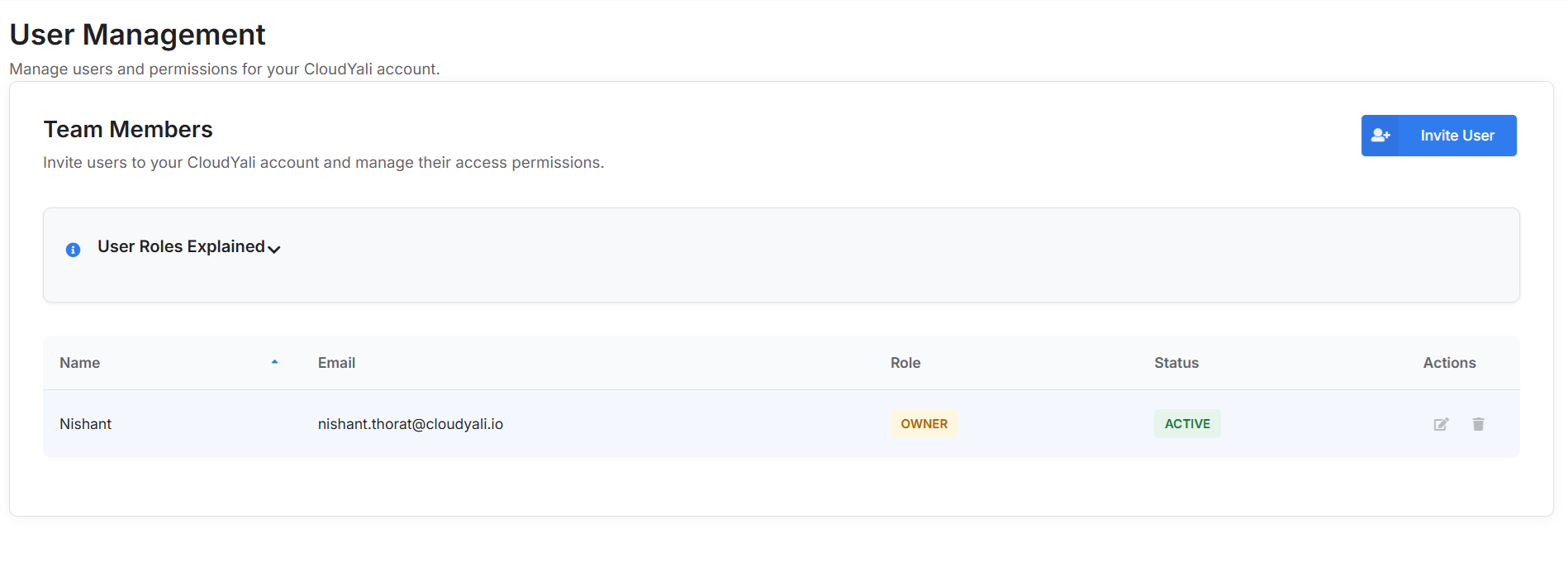 Figure: The User Management dashboard showing all team members, their roles, statuses, and available actions.
Team Members
Invite users to your CloudYali account and manage their access permissions from the User Management section of the platform.
User Roles Explained
Below is a table explaining the different user roles available in CloudYali:
| Role | Permissions | Notes |
|---|---|---|
| Owner | Full access to all features; manage billing, users, and integrations | Cannot be deleted from the account |
| Admin | Manage users (invite, edit, remove), configure integrations, view all data | Cannot delete the Owner |
| User | View data only; cannot manage users or integrations | Least privileges; ideal for team members who only need to access reports or dashboards |
Managing Users
Adding a User
To add a new team member:
- Click the Invite User button.
- Enter the user's email address.
- Choose a role for the user (Admin or User).
- Click Send Invitation.
What happens next:
- The invited user receives an email with a link to join your CloudYali account.
- Their status in the team list will show as Pending.
- Once they accept the invitation, their status changes to Active.
Note: Only Admins and Owners can invite new users.
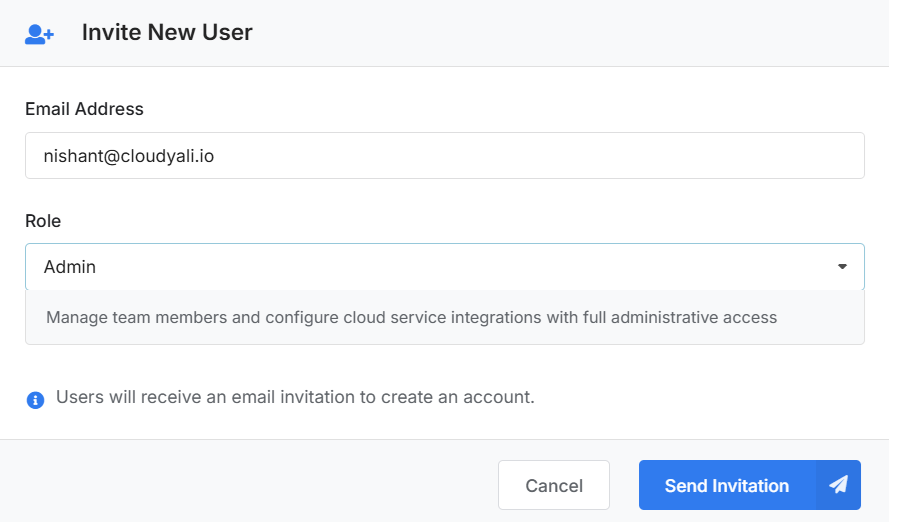 Figure: Dialog for inviting a new user to your CloudYali account.
Editing a User
To edit a user's details or role:
- Click the Edit icon next to the user's name in the team list.
- Update the user's role (Admin or User) as needed.
- Click Save to apply the changes.
What happens next:
- The changes take effect immediately.
- The user will be notified if their role has changed.
Note: Only Admins and Owners can edit users. The Owner's role cannot be changed.
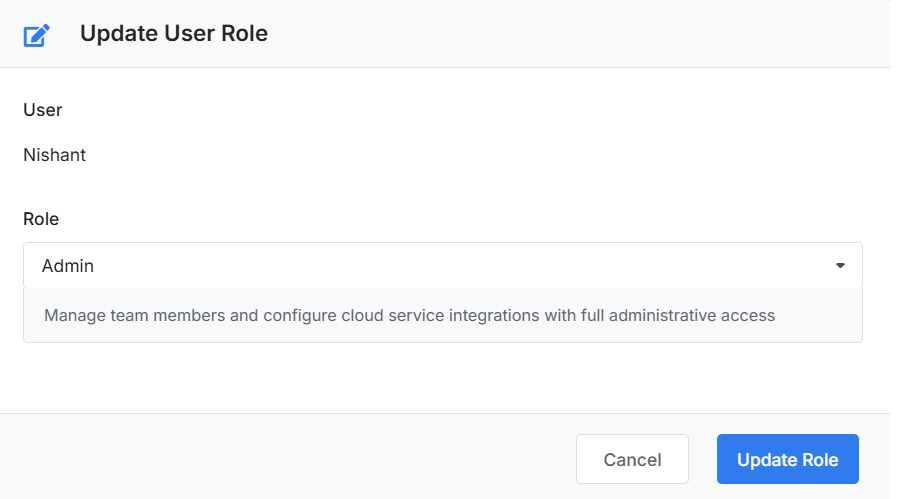 Figure: Dialog for editing an existing user's details or role.
Deleting a User
To delete a user from your CloudYali account:
- Click the Delete (trash) icon next to the user's name in the team list.
- Confirm the deletion when prompted.
What happens next:
- The user is immediately removed from your team list.
- The user loses access to your CloudYali account right away.
Note: Only Admins and Owners can delete users. The Owner cannot be deleted.
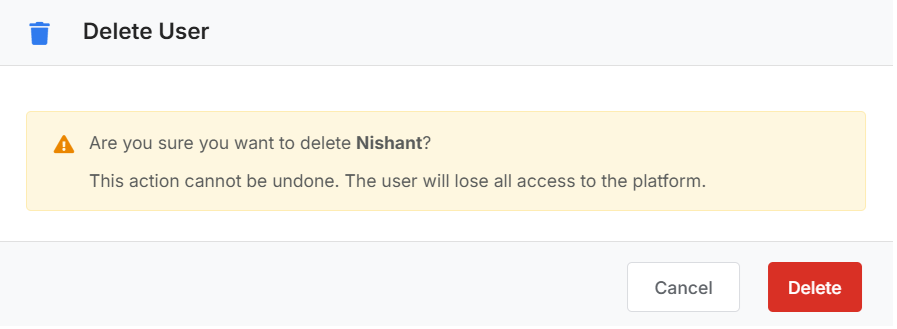 Figure: Confirmation dialog for deleting a user from your CloudYali account.
Notes
- Only the Owner has full privileges and cannot be deleted.
- Admins can invite, edit, or remove other users, except the Owner.
- Users can view data but cannot manage users or integrations.
For any questions or issues regarding user management, please contact support@cloudyali.io.
© 2026 CloudYali. All rights reserved.