Creating an Azure Service Principal
A Service Principal is an Azure app registration that allows CloudYali to securely access your cost data with read-only permissions. This guide provides step-by-step instructions for creating a Service Principal for your Azure account type.
Option A: Using Azure Portal (Recommended)
Step 1: Create App Registration
- Go to Azure Portal
- Navigate to Microsoft Entra ID → App registrations
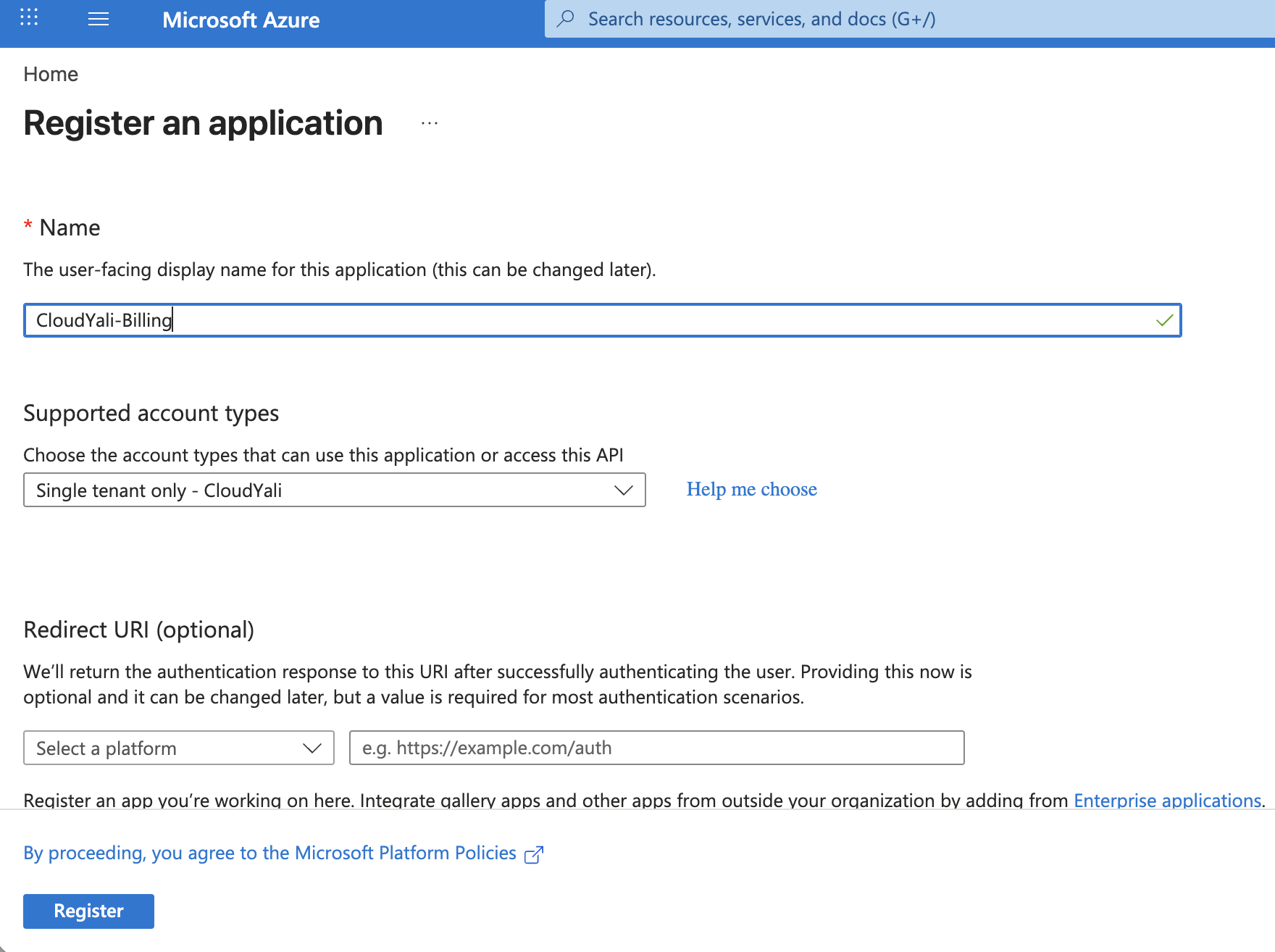
- Click + New registration
- Enter name:
CloudYali-Billing - Click Register
Step 2: Get Credentials
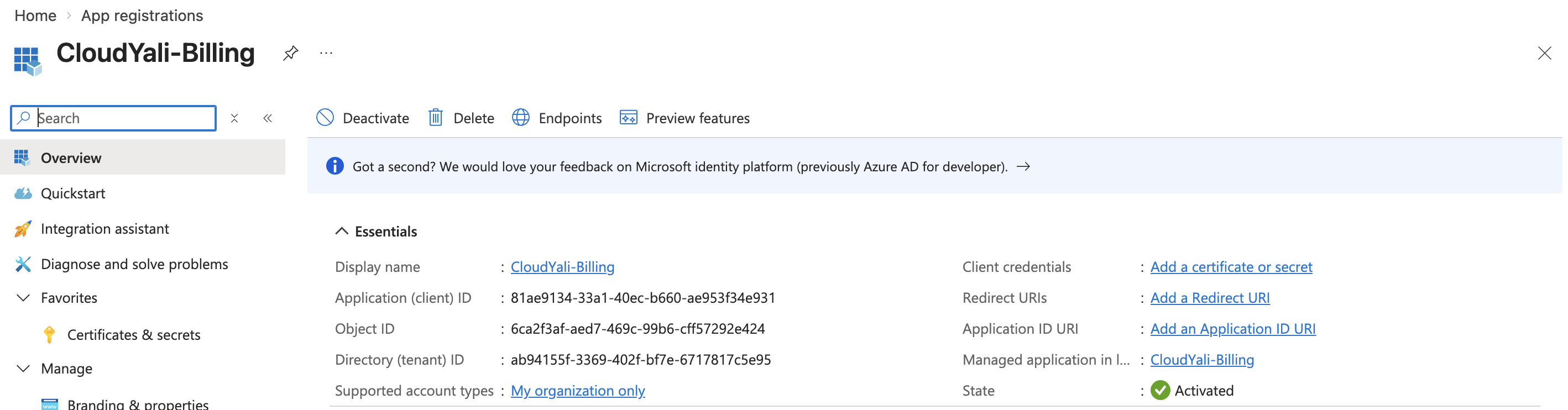
- Copy Application (client) ID from the Overview page
- Copy Directory (tenant) ID from the Overview page
- Go to Certificates & secrets → + New client secret
- Description:
CloudYali Integration - Expiration: 12 months / 24 months
- Click Add and copy the secret Value (shown once only!)
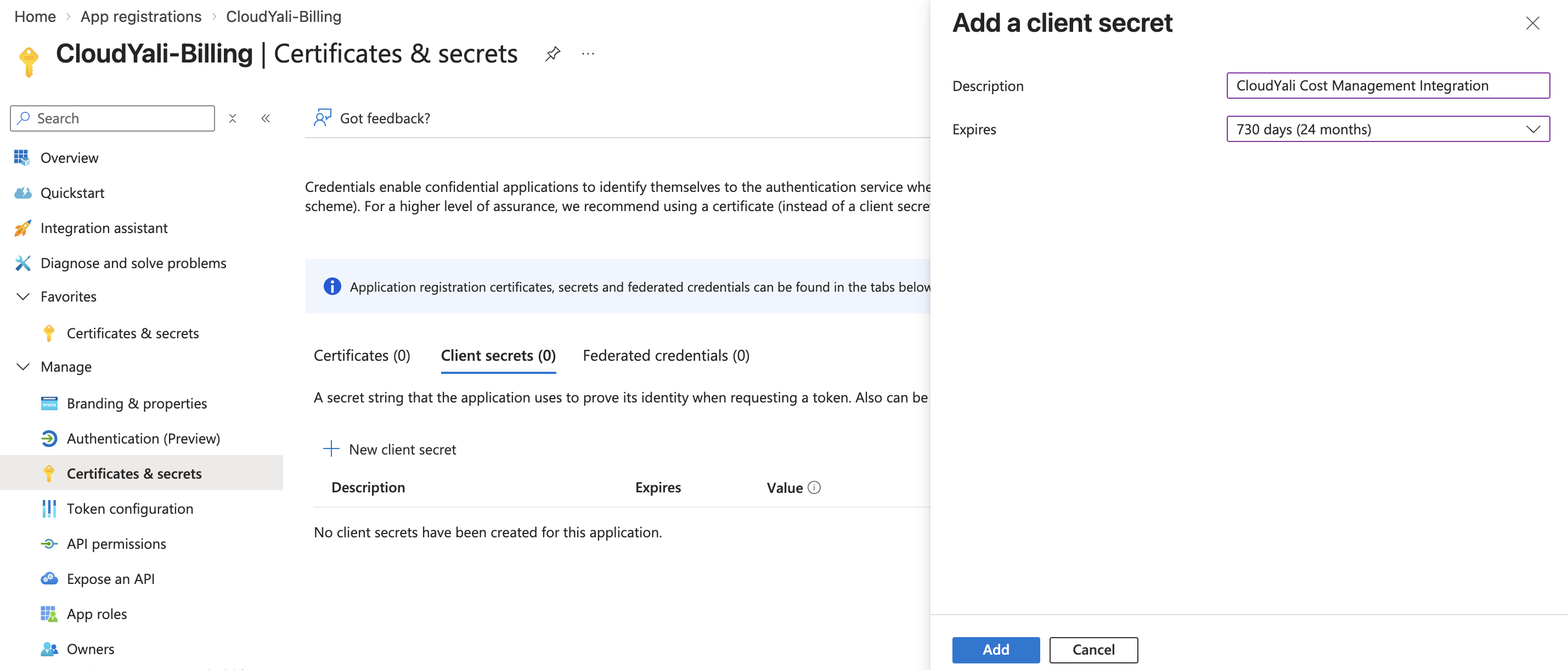
Copy the secret Value column, not the Secret ID. The Value is only shown once — if you navigate away without copying it, you'll need to create a new secret.
Step 3: Assign Permissions
Choose your account type below and follow the appropriate steps:
For PAYG Subscriptions:
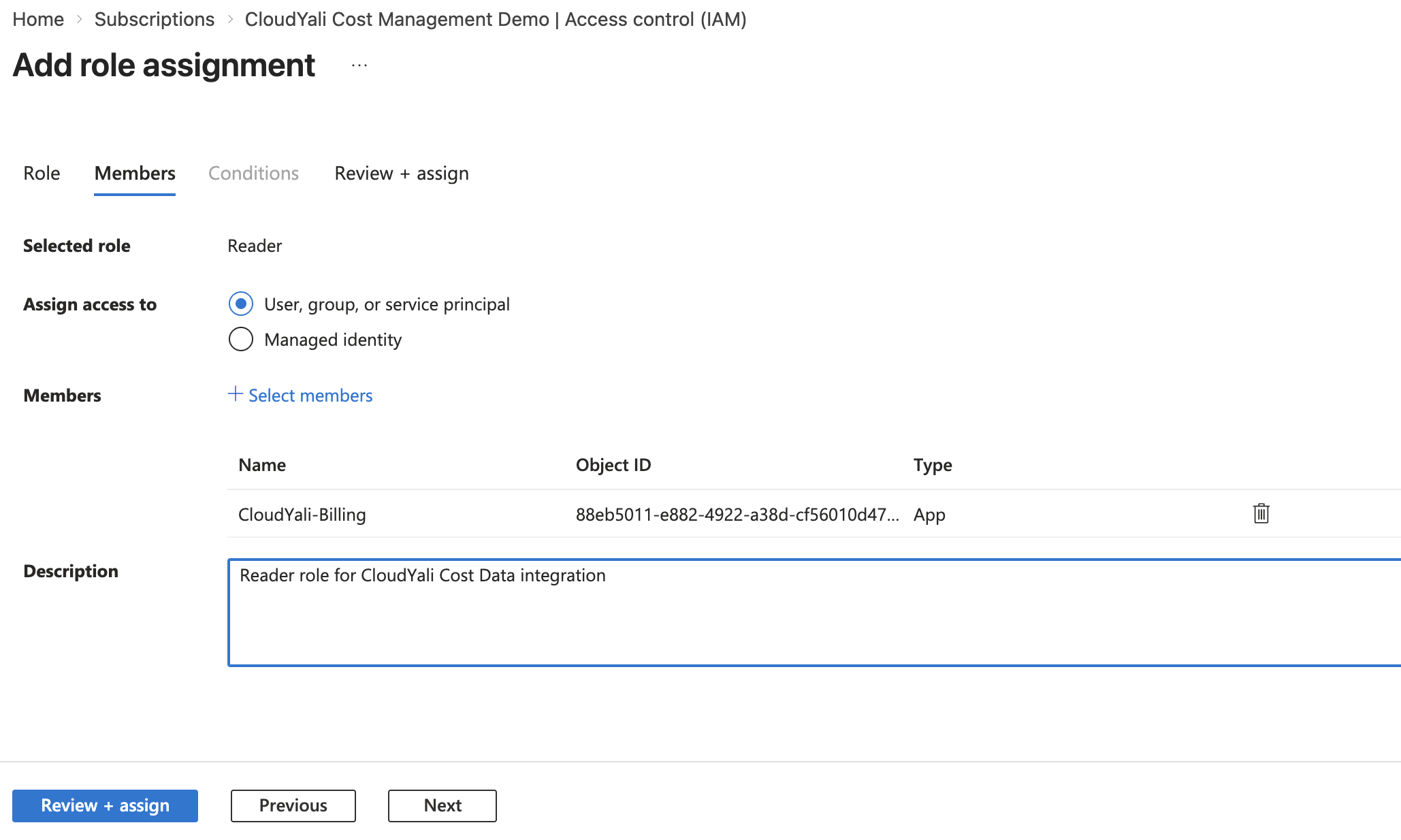
- Go to your Subscription → Access control (IAM)
- Click + Add → Add role assignment
- Select Reader role (search for "Reader")
- Assign to
CloudYali-Billing - Click Review + assign
Also assign Storage access:
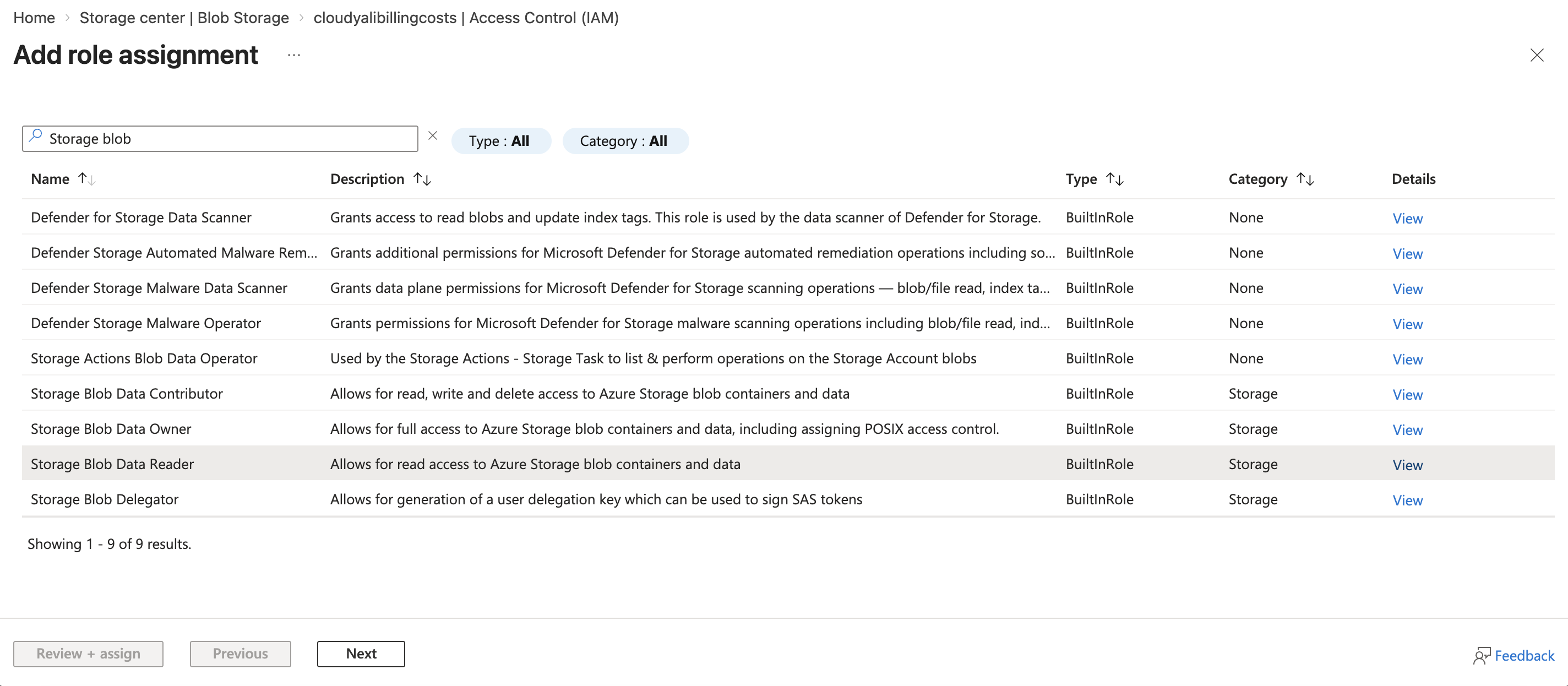
- Go to your Storage Account → Access control (IAM)
- Click + Add → Add role assignment
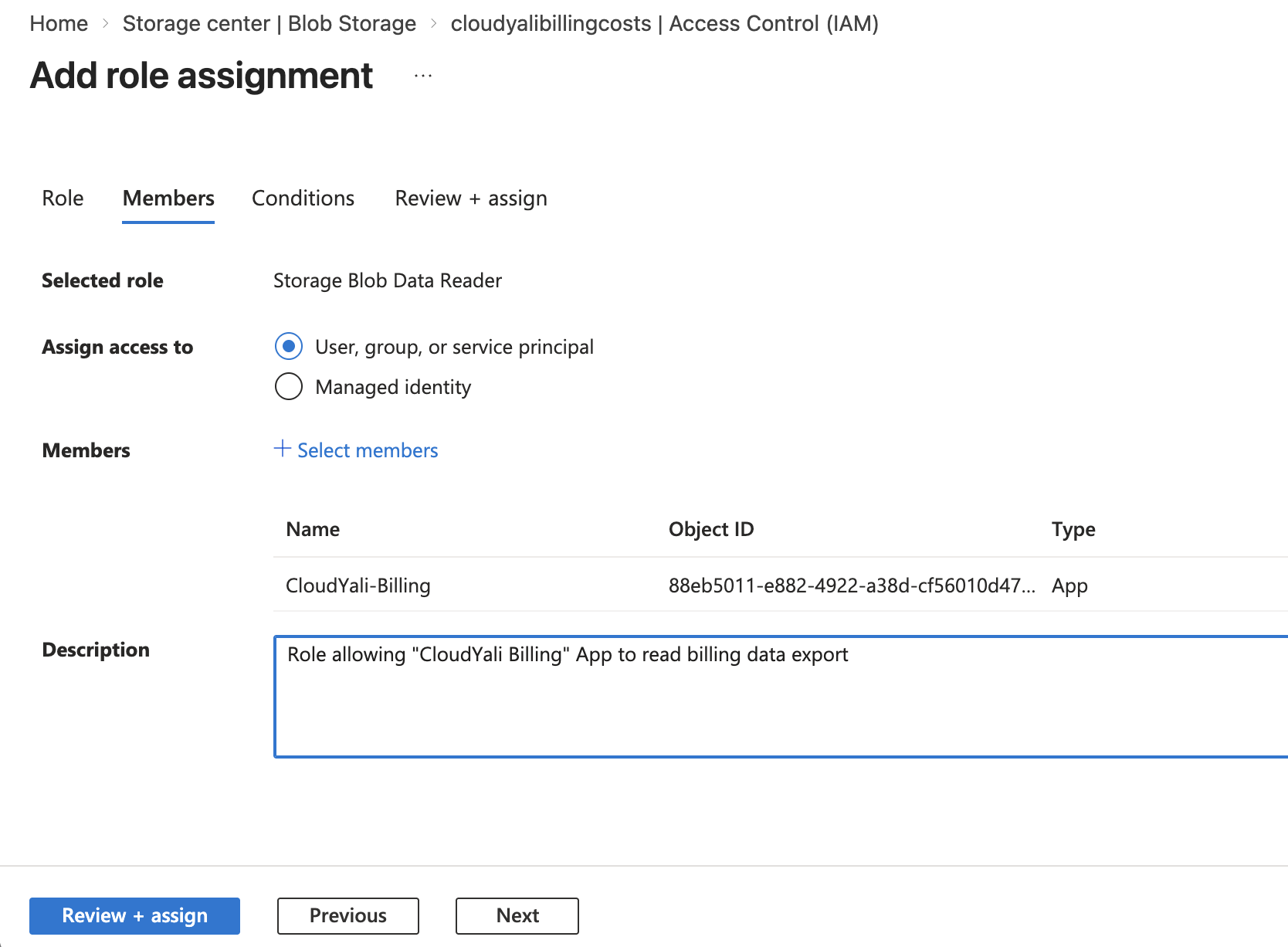
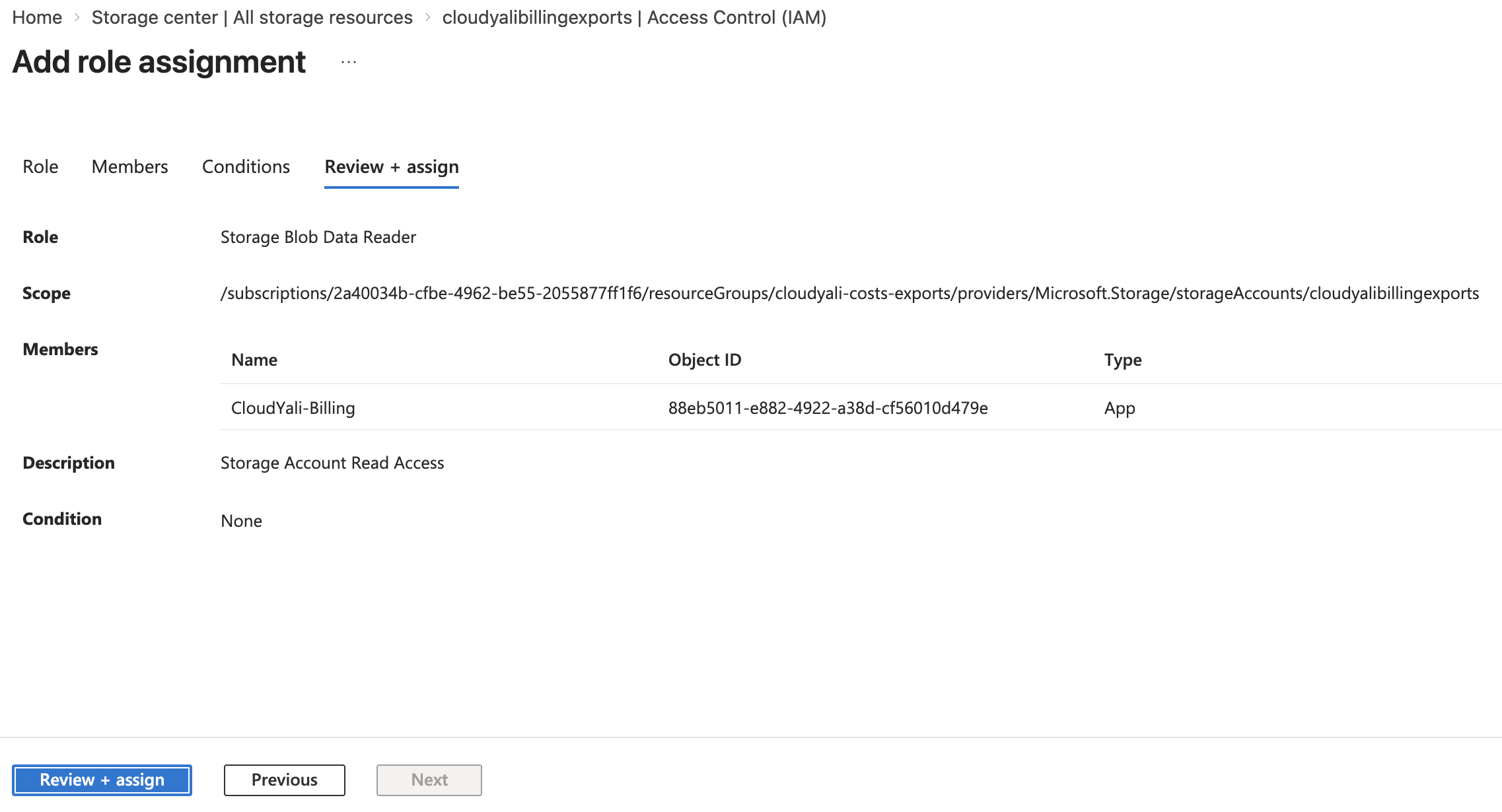
- Select Storage Blob Data Reader role
- Assign to
CloudYali-Billing - Click Review + assign
For MCA Billing Accounts:
⚠️ Prerequisite: Ensure "Azure charges" is set to "Yes"
- Go to Cost Management + Billing → Billing account properties
- Verify "Azure charges" is enabled
Assign Cost Management Role:
- Go to Cost Management + Billing → Billing account properties
- Go to Billing account → Access control (IAM)
- Click + Add → Add role assignment
- Select Billing Account Reader role
- Assign to
CloudYali-Billing - Click Review + assign
Assign Storage Role:
- Go to your Storage Account → Access control (IAM)
- Click + Add → Add role assignment
- Select Storage Blob Data Reader role
- Assign to
CloudYali-Billing - Click Review + assign
For EA Enrollments:
⚠️ Prerequisite: Enterprise Admin must enable "Account Owner (AO) view charges"
- Contact your Enterprise Admin to enable this at enrollment level
Assign Cost Management Role:
- Go to your Management Group or Enrollment → Access control (IAM)
- Click + Add → Add role assignment
- Select Reader role (or Enrollment Reader for enrollment scope)
- Assign to
CloudYali-Billing - Click Review + assign
Assign Storage Role:
- Go to your Storage Account → Access control (IAM)
- Click + Add → Add role assignment
- Select Storage Blob Data Reader role
- Assign to
CloudYali-Billing - Click Review + assign
Save Your Credentials
Save these credentials - you'll need them in CloudYali:
- ✅ Application (Client) ID
- ✅ Directory (Tenant) ID
- ✅ Client Secret
- ✅ Subscription ID (for PAYG/EA)
Option B: Using Azure CLI
For Pay-as-You-Go (PAYG):
# Login to Azure
az login

# Get your subscription ID
SUBSCRIPTION_ID=$(az account show --query id -o tsv)
echo "Subscription ID: $SUBSCRIPTION_ID"

# Create Service Principal with minimal Cost Management permissions
az ad sp create-for-rbac \
  --name "CloudYali-Billing" \
  --role "Reader" \
  --scopes /subscriptions/$SUBSCRIPTION_ID

# Save the output:
# {
#   "appId": "xxxxxxxx-xxxx-xxxx-xxxx-xxxxxxxxxxxx",      ← Client ID
#   "password": "zzzz...",                                 ← Client Secret
#   "tenant": "yyyyyyyy-yyyy-yyyy-yyyy-yyyyyyyyyyyy"      ← Tenant ID
# }
Also assign Storage access:
STORAGE_ACCOUNT_NAME="your-storage-account-name"
RESOURCE_GROUP="your-resource-group"

az role assignment create \
  --assignee "CloudYali-Billing" \
  --role "Storage Blob Data Reader" \
  --scope "/subscriptions/$SUBSCRIPTION_ID/resourceGroups/$RESOURCE_GROUP/providers/Microsoft.Storage/storageAccounts/$STORAGE_ACCOUNT_NAME"
For Microsoft Customer Agreement (MCA):
⚠️ Prerequisites:
- Your billing account must have "Azure charges" setting enabled
- Go to Azure Portal → Cost Management + Billing → Billing account properties
- Verify "Azure charges" is set to "Yes"
az login

# Fetch your billing account
BILLING_ACCOUNT=$(az billing account list --query "[0].name" -o tsv)
if [ -z "$BILLING_ACCOUNT" ]; then
  echo "Error: No billing accounts found."
  exit 1
fi

# Create Service Principal with minimal Billing Account permissions
az ad sp create-for-rbac \
  --name "CloudYali-Billing" \
  --role "Billing Account Reader" \
  --scopes /providers/Microsoft.Billing/billingAccounts/$BILLING_ACCOUNT

# Also assign Storage access (replace with your details)
STORAGE_ACCOUNT_NAME="your-storage-account-name"
RESOURCE_GROUP="your-resource-group"

az role assignment create \
  --assignee "CloudYali-Billing" \
  --role "Storage Blob Data Reader" \
  --scope "/subscriptions/$SUBSCRIPTION_ID/resourceGroups/$RESOURCE_GROUP/providers/Microsoft.Storage/storageAccounts/$STORAGE_ACCOUNT_NAME"
For Enterprise Agreement (EA):
⚠️ Prerequisites:
- Your Enterprise Admin must enable "Account Owner (AO) view charges" at enrollment level
- Contact your Enterprise Admin to enable this setting if needed
az login

# Option 1: Management Group Scope (for multi-subscription EA - RECOMMENDED)
MANAGEMENT_GROUP_ID="your-mg-id"  # Replace with your Management Group ID

az ad sp create-for-rbac \
  --name "CloudYali-Billing" \
  --role "Reader" \
  --scopes /providers/Microsoft.Management/managementGroups/$MANAGEMENT_GROUP_ID

# Option 2: Enrollment Scope (for single enrollment)
# ENROLLMENT_ID=$(az billing account list --query "[0].name" -o tsv)
# az ad sp create-for-rbac \
#   --name "CloudYali-Billing" \
#   --role "Enrollment Reader" \
#   --scopes /providers/Microsoft.Billing/billingAccounts/$ENROLLMENT_ID

# Also assign Storage access
STORAGE_ACCOUNT_NAME="your-storage-account-name"
RESOURCE_GROUP="your-resource-group"
SUBSCRIPTION_ID=$(az account show --query id -o tsv)

az role assignment create \
  --assignee "CloudYali-Billing" \
  --role "Storage Blob Data Reader" \
  --scope "/subscriptions/$SUBSCRIPTION_ID/resourceGroups/$RESOURCE_GROUP/providers/Microsoft.Storage/storageAccounts/$STORAGE_ACCOUNT_NAME"
Important Notes
Role Propagation Delay
⏱️ After assigning roles, wait 5-10 minutes for Azure to propagate the permissions before testing the connection. This is normal Azure RBAC behavior.
Minimal Permissions Principle
CloudYali uses only the minimal required roles:
- PAYG: Reader (read-only access to resources, cost data, and Advisor recommendations)
- MCA: Billing Account Reader (billing data only) + Reader (resources and cost data)
- EA: Reader or Enrollment Reader (read-only access to resources and cost data)
- All: Storage Blob Data Reader (read-only access to exported files)
Security Best Practices
- ✅ Service Principal credentials are encrypted with AES-256
- ✅ Stored in AWS Secrets Manager (not in application database)
- ✅ Read-only permissions only (never WRITE access)
- ✅ Separate credentials for each customer/account
Troubleshooting
"Service Principal Creation Failed"
Solution:
- Ensure you have Owner or Contributor role on the subscription
- Verify Azure CLI is up to date:
az upgrade - Try creating the role in the Azure Portal instead
"Role Assignment Failed"
Solution:
- Verify the Service Principal exists:
az ad sp show --id {client-id} - Ensure you have permissions to assign roles
- Wait 5-10 minutes for role propagation
- Try assigning through Azure Portal if CLI fails
"Cannot Find Billing Account"
For MCA:
- Verify "Azure charges" is enabled in Cost Management + Billing
- Ensure you're looking at the correct billing account
- Contact your billing account owner if needed
For EA:
- Contact your Enterprise Admin to verify enrollment access
- Ensure "Account Owner view charges" is enabled
Next Steps
Once you've created the Service Principal and assigned roles:
- ✅ Have credentials saved (Client ID, Tenant ID, Client Secret, Subscription ID)
- ✅ Wait 5-10 minutes for role propagation
- ➡️ Continue to Configuring Cost Management Exports