Connecting Your Anthropic Account
This guide walks you through connecting your Anthropic account to CloudYali for cost tracking and optimization.
Prerequisites
Before you begin, ensure you have:
- An Anthropic Organization (individual accounts cannot generate Admin API keys)
- Organization Admin access to generate API keys in the Anthropic Console
- A CloudYali account with permissions to add cloud integrations
Admin API keys are only available to Anthropic Organizations. If you have an individual account, you'll need to set up an organization first.
To create or verify your organization:
- Go to console.anthropic.com
- Navigate to Settings → Organization
- Follow the prompts to set up your organization if not already configured
Step 1: Access Integrations in CloudYali
- Log in to your CloudYali account
- Navigate to Settings → Integrations
Step 2: Select Anthropic Integration
On the Integrations page, locate the Anthropic integration card and click + Connect Anthropic.
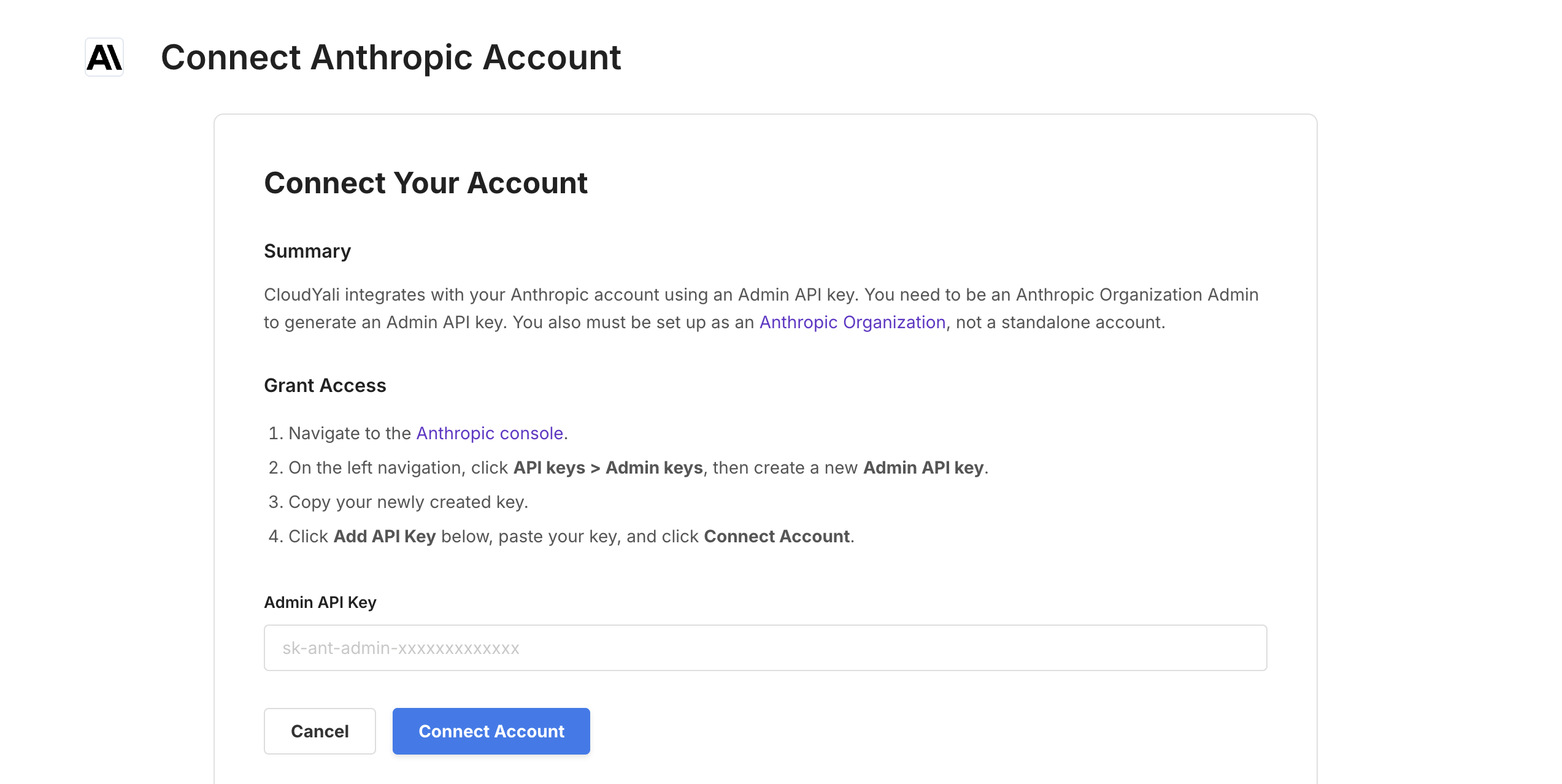
Step 3: Generate an Admin API Key in Anthropic Console
- Open a new browser tab and go to the Anthropic Console
- Log in with your Anthropic account credentials
- Navigate to Manage → API keys
- Select the Admin keys tab
- Click + Create Admin Key
- Enter a descriptive name (e.g., "CloudYali Integration")
- Click Add and copy the generated API key
- Copy and store this key immediately—you won't be able to view it again after leaving the page
- Admin API keys start with
sk-ant-admin - Admin API keys grant read-write access (Anthropic does not currently offer granular scoping), but CloudYali only performs read operations to access usage and cost data
Step 4: Enter API Key in CloudYali
- Return to CloudYali's Anthropic onboarding form
- Paste your Admin API key in the API Key field
- The key will be validated automatically
Step 5: Configure Organization Details
Enter your Anthropic organization information:
- Organization ID: Found in your Anthropic Console under Settings → Organization
- Organization Name: A friendly name for reference in CloudYali (e.g., "My Company - Production")
Step 6: Add Workspace (Optional)
If your organization uses multiple Anthropic workspaces, you can configure workspace-level tracking:
- Toggle Enable Workspace Tracking
- Enter the Workspace ID from your Anthropic Console
- Provide a Workspace Name for easy identification
You can add additional workspaces later from the account settings.
Step 7: Verify Connection
- Click Connect or Save to complete the setup
- CloudYali will verify your API key and establish the connection
- A success message confirms your account is connected
What Happens Next
After connecting your Anthropic account:
- Daily data syncs run automatically once per day
- Initial data typically appears within 24 hours of connecting
- Historical data from the last 15 days is imported during the first sync
- Cost reports become available in the Cost Analysis section
CloudYali syncs your Anthropic usage data once daily. Unlike real-time integrations, you should expect to see your cost data within 24 hours of connecting your account.
You can monitor sync status from the Integrations page.
Next Steps
Once your data is synced, explore these features:
- Cost Optimization — Learn how to analyze and optimize your Anthropic spending
- Budgets & Alerts — Set up spending thresholds and notifications
- Cost Reports — Create custom reports for your Anthropic usage
Troubleshooting
Invalid API Key Error
- Ensure you copied the complete API key without extra spaces
- Verify the key starts with
sk-ant-admin(Admin key format) - Check that the key hasn't been revoked in the Anthropic Console
- Confirm you're using an Admin key, not a regular API key
"Organization Required" Error
- Admin API keys require an Anthropic Organization
- Individual accounts cannot generate Admin keys
- Set up an organization in your Anthropic Console first
Connection Timeout
- Verify your network connection
- Try regenerating a new API key in Anthropic Console
- Contact support if the issue persists
Missing Cost Data
- Data syncs run once daily—allow up to 24 hours for initial data to appear
- Ensure your Anthropic account has recent API usage
- Check that the API key has the correct permissions
- Verify your organization has billing enabled
Managing Your Connection
After setup, you can:
- View sync status from the Integrations page
- Update API key if you need to rotate credentials
- Add workspaces for granular cost tracking
- Disconnect the integration if no longer needed
For additional help, please contact our support team at support@cloudyali.io.